Server HDD Failing? 😳 Clone Without Reinstall!
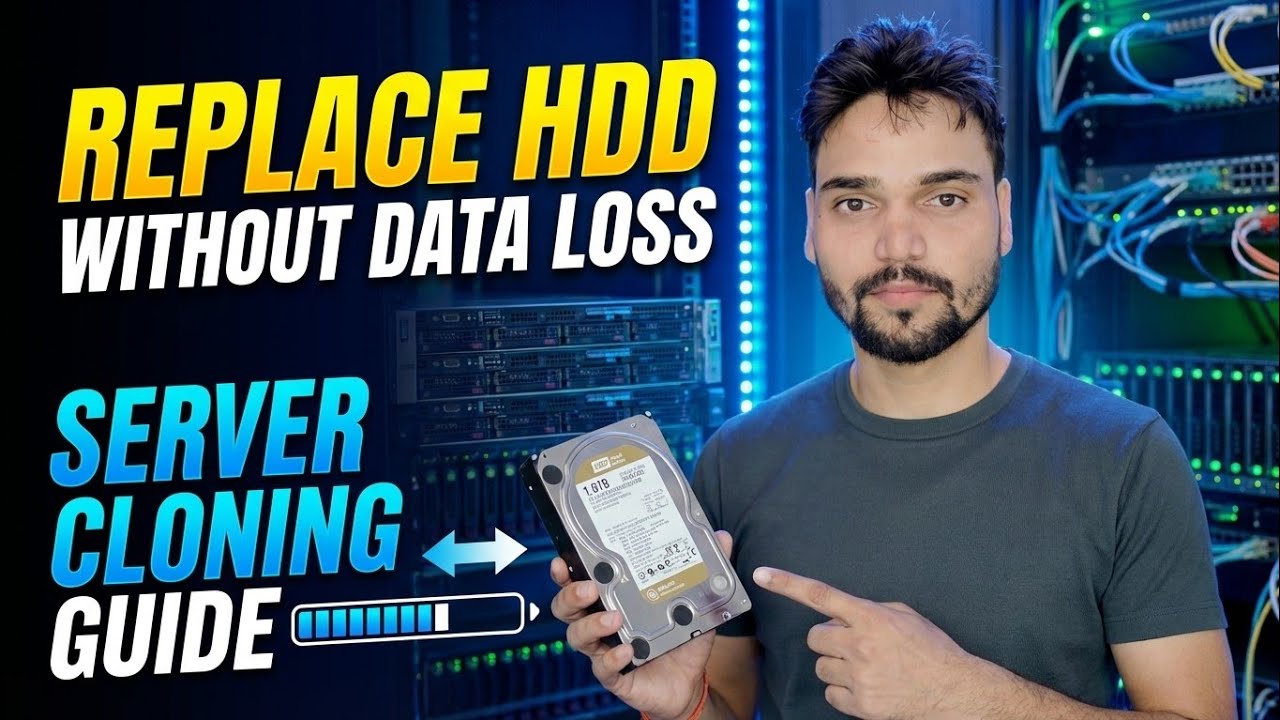
Your server hard drive is failing? Clone it to a new drive before it dies — no Windows reinstall, no lost settings. The complete rescue method: prove the failure, clone safely, test the new drive, retire the old one.
📑Chapters
- Why a clone beats a reinstall when a server drive starts failing
- Prove the drive is really dying — the SMART check
- Prepare the target drive and the bootable cloning USB
- Stop the server roles so the copy stays consistent
- Run the disk-to-disk clone in rescue order
- Boot the new drive — with the old drive disconnected
- Test shares, services and files before users return
- Retire the old drive the safe way
📋 Overview & Step-by-Step Guide
First Prove the Drive Is Really Dying
Do not clone on a guess. Two minutes of checking tells you whether the disk surface is failing or something cheaper is wrong. Open CrystalDiskInfo (or your RAID/HBA tool) and look at the raw values of 05 (Reallocated Sectors Count), C5 (Current Pending Sector Count) and C6 (Uncorrectable Sector Count). On a healthy drive all three are zero — any rising number means the surface is wearing out. Also check Event Viewer, System log, for disk errors (Event ID 7, 51 or 153) repeating over days.
Prepare the Target Drive and the Boot Media
Have everything ready before the server goes down. You need a healthy target drive — the same size as the source or larger (smaller is possible only when the used space fits with room to spare). You also need a bootable cloning USB: the rescue is run from bootable media, not from inside the Windows that lives on the dying drive. Free bootable cloners such as Clonezilla or Rescuezilla, and Windows tools of the Hasleo Backup Suite class, all do this job — the video demonstrates the full route on screen.
Finally, make a written note of the current setup — drive letters, share names, static IP, and which services must come back. Two minutes of notes save an hour of guessing later.
Stop the Server Roles Before You Clone
A clone copies whatever state the disk is in at that moment. If a database is mid-write while the copy runs, the copy holds a torn, half-written database. So before cloning: tell users the server is going down and close their sessions, then stop database services (SQL Server, MySQL, accounting software services) and any backup jobs.
The cleanest clone of all is an offline clone — server shut down, boot from the cloning USB, copy disk to disk. Nothing is writing, so the copy is perfectly consistent.
Run the Clone in Rescue Order
Boot from the cloning USB and start a disk-to-disk clone: source = the failing drive, target = the new drive. A sector-by-sector clone moves everything — the operating system, server roles, user accounts, shared folders, permissions and installed software — in one pass.
If the tool offers a rescue / ignore-errors mode, use it: it copies all the healthy areas first and only retries the damaged spots at the end, instead of grinding on the first bad sector for hours. Then let it run — on a failing drive the copy slows down hard around the damaged areas, and that is normal. Note the reported unreadable sectors; files in those areas were already damaged on the original too. Do not interrupt a clone halfway to "check something": a half copy is useless, while a completed copy with some bad sectors is a working server.
Boot the New Drive — Alone
When the clone finishes, shut down and disconnect the old drive completely before the first boot from the new one. Two drives with identical disk signatures and the same Windows installation must never boot together — Windows can shuffle drive letters, and on a domain controller two copies on one network is a genuine disaster.
Boot with only the new drive attached. The first boot may be slow; let it settle. Because a sector clone is an exact copy, the computer name, static IP, shared folders, permissions, users and installed software all come across unchanged — the only thing that changes is the physical drive underneath.
Test Everything Before Users Come Back
Before you hand the server back, check the essentials one by one: drive letters are correct, shared folders are visible on the network, the server services have started, and users can log in and open files. Open the files that sat in the damaged areas if you know which they were — a file that fails to open was already lost on the old drive, not broken by the clone.
Retire the Old Drive — But Not Today
Label the old drive with the date and the words DO NOT USE — failing, clone source, and keep it untouched for at least a week of normal running. It is your zero-cost rollback: if something subtle surfaces on the new drive, the old one still holds the last copy of everything. After the quiet week, wipe it or destroy it — a failing drive full of office data should never drift into a drawer unlabelled or into someone else's PC.
🏷️Topic Search Variables & Keywords
🎙️ Full Transcript — tap to expand
Step-by-Step Troubleshooting Guide & Solutions - REPLACE HDD WITHOUT DATA LOSS SERVER CLONING GUIDE. On-screen demonstration by Technical Anshu....
Your server hard drive is failing? Clone it to a new drive before it dies — no Windows reinstall, no lost settings. The complete rescue method: prove the failure, clone safely, test the new drive, retire the old one.
(transcript ends here on the source page)
❓ Frequently Asked Questions
Is this tutorial 100% free to follow?
Yes! All guides and methods demonstrated by Technical Anshu use free, legal, and educational resources.
Can beginners follow this guide?
Absolutely! Every step is demonstrated on-screen with detailed instructions so anyone can follow along easily.
Where can I ask questions if I get stuck?
Leave a comment directly on the YouTube video, and our community and Technical Anshu will help you out.
🚀 Watch the Full Tutorial on YouTube
🚀 Watch the full step-by-step video tutorial on YouTube: https://www.youtube.com/watch?v=zAdem_x2ZBc
Subscribe to Technical Anshu for IT support, Windows troubleshooting, and server management.
▶️ Watch Full Video