Ventoy Custom Wallpaper Setup 🔥 Add Your Branding
Give your Ventoy USB a custom wallpaper, menu theme and your own shop or channel branding — the complete setup with theme folders, theme.txt and ventoy.json explained step by step.
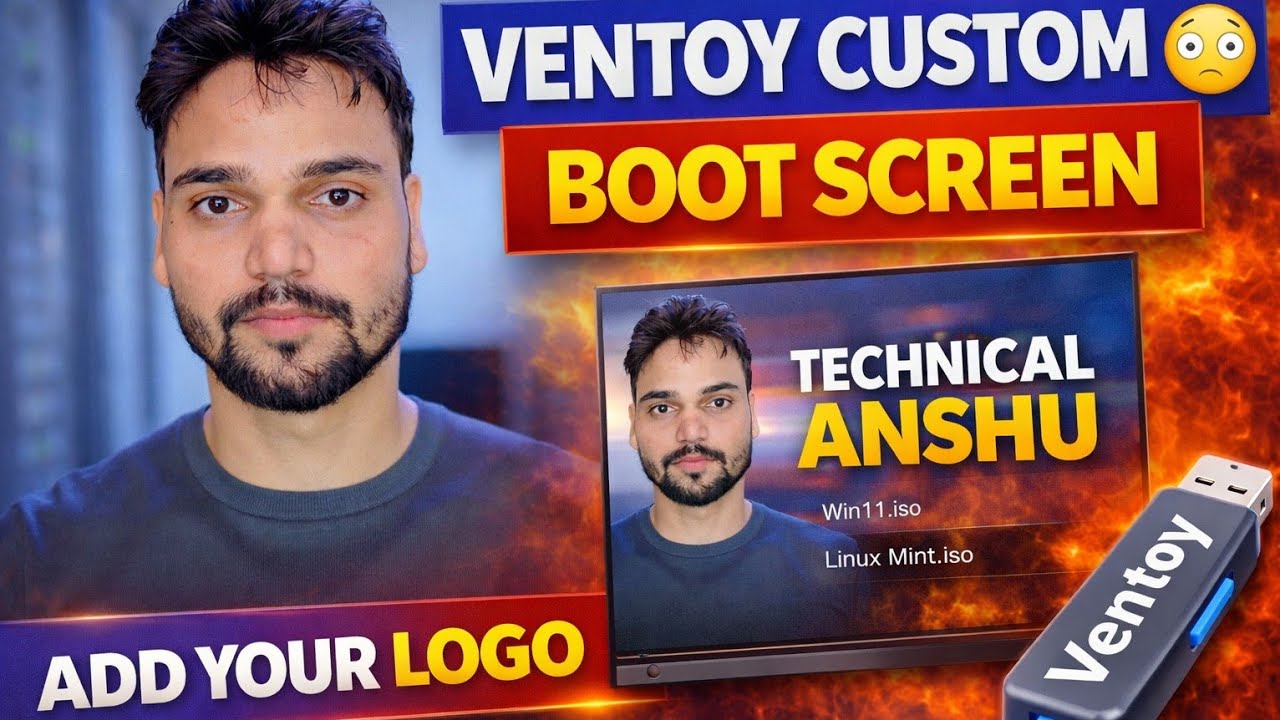
📑Chapters
- What this setup does — a custom wallpaper, menu theme and your own branding on the Ventoy boot screen
- Opening the Ventoy USB drive and the ventoy folder on it
- Adding the theme folder — theme.txt, the background image and fonts
- Replacing the background image with your own logo or branding
- Activating the theme in ventoy.json
- Booting from the USB to check the custom boot screen
📋 Overview & Step-by-Step Guide
Prepare Your Ventoy USB and Branding Image
Start with a USB drive that already has Ventoy installed and working — this tutorial only changes how the Ventoy boot menu looks, not how Ventoy itself is installed. Keep your branding image ready: your shop logo, channel logo or any wallpaper you want on the boot screen, saved as a PNG or JPG image. A 1920x1080 image works best, because that is the resolution most boot screens run at.
Open the Ventoy Drive and the ventoy Folder
Plug the Ventoy USB into your PC and open the main Ventoy partition in File Explorer — the large data partition where your ISO files are stored. Ventoy reads all of its extra configuration from a folder named ventoy in the root of this partition. If the folder is not there yet, create it with exactly this name, all in lowercase.
Copy the Theme Folder into ventoy/theme
Inside the ventoy folder, create a folder named theme. Now copy your complete theme folder into it, so the path looks like ventoy/theme/MyTheme/. A theme folder contains everything the boot menu needs: the theme.txt file, which is the GRUB2 theme file that describes the menu layout and points to the background image, along with the image itself, fonts and icons.
Replace the Background Image with Your Branding
Open the theme folder you just copied and find the background image that theme.txt uses — in most themes it is named background.png. Replace that file with your own branding image, keeping the same file name and the same format. Because the theme file keeps pointing to the same name, Ventoy now loads your logo or wallpaper as the boot screen background, with the theme's menu layout on top of it.
Activate the Theme in ventoy.json
Finally, tell Ventoy which theme to load. In the ventoy folder, create a file named ventoy.json (or open it if it already exists) in Notepad and add the theme section below. The file value is the full path of your theme.txt on the USB, and gfxmode is the resolution the boot menu should run at:
{
    "theme": {
        "file": "/ventoy/theme/MyTheme/theme.txt",
        "gfxmode": "1920x1080"
    }
}
💻 Key resolution steps from the video: theme.txt and ventoy.json — the theme file defines the look, and ventoy.json is what switches your theme on.
Boot from the USB and Check the Result
Safely eject the USB, plug it into the PC you want to boot, and select the USB from that PC's boot menu. The Ventoy menu now opens with your custom wallpaper and your own branding on the boot screen. If the default Ventoy theme still appears, eject the drive and re-check the two things that usually go wrong: the file path inside ventoy.json, and the background image's file name inside the theme folder.
🏷️Topic Search Variables & Keywords
🎙️ Full Transcript — tap to expand
Step-by-Step Troubleshooting Guide & Solutions - VENTOY CUSTOM BOOT SCREEN ADD YOUR LOGO. On-screen demonstration by Technical Anshu.
(transcript ends here on the source page — the source page carries only this short note instead of a full transcript. Follow the step-by-step guide above and watch the video for the complete walkthrough.)
❓ Frequently Asked Questions
Is this tutorial 100% free to follow?
Yes! All guides and methods demonstrated by Technical Anshu use free, legal, and educational resources.
Can beginners follow this guide?
Absolutely! Every step is demonstrated on-screen with detailed instructions so anyone can follow along easily.
Where can I ask questions if I get stuck?
Leave a comment directly on the YouTube video, and our community and Technical Anshu will help you out.
🚀 Watch the Full Tutorial on YouTube
🚀 Watch the full step-by-step video tutorial on YouTube: https://www.youtube.com/watch?v=3p-WghrkLVc
Subscribe to Technical Anshu for IT support, Windows troubleshooting, and server management.
▶️ Watch Full Video