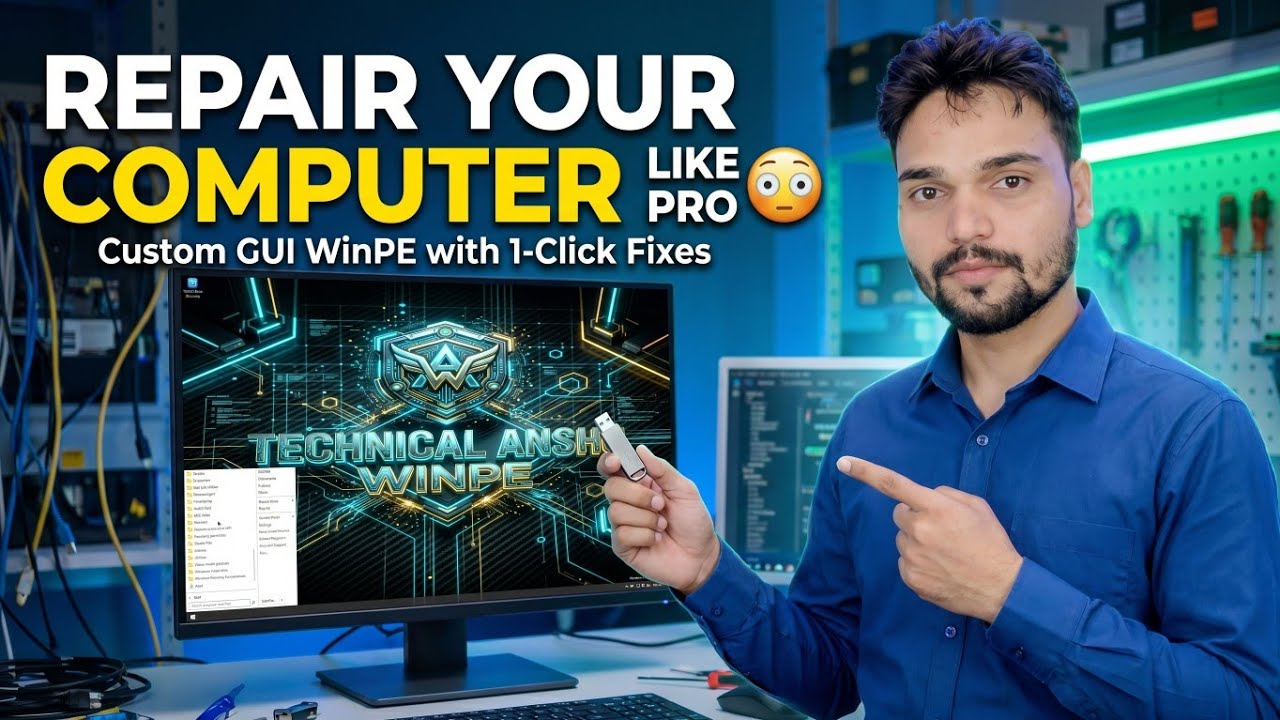
Repair Your Computer Like a Pro 😳 Custom GUI WinPE with 1-Click Fixes
When a PC will not start at all, you cannot repair it from inside Windows. This video boots the machine into a custom GUI WinPE — a friendly repair desk instead of a black command window — and runs a full professional repair session in order, with 1-click fixes.
📑Chapters
- Why a PC that will not start needs an offline repair environment
- Booting the problem PC into the custom GUI WinPE
- The GUI repair desk — a friendly desktop for the repair session
- Finding the Windows drive — checking the drive letters with dir
- Running chkdsk to check the Windows disk for errors
- Applying the 1-click fixes, then restarting into Windows to verify
📋 Overview & Step-by-Step Guide
Boot the PC into the Custom GUI WinPE
Start with the PC that will not boot into Windows. Restart it and open the one-time boot menu with the machine's boot key, then select the bootable USB that carries the custom WinPE. Instead of loading the broken Windows installation, the PC starts the small repair system from the USB — this is what lets you work on a machine whose own system will not start at all.
Land on the GUI Repair Desk
The custom WinPE opens as a friendly graphical desktop — a repair desk you can drive with the mouse, rather than a plain black command window. Everything for the session is launched from here, in the same order a professional repair runs: first identify the Windows drive, then check the disk, then apply the fixes.
Find the Windows Drive with dir
Inside WinPE, drive letters are assigned fresh, so the drive that is normally C: in Windows may appear under a different letter. Before running any repair, confirm which letter actually holds the Windows folder by checking the drives one by one from a command prompt:
dir C:\Windows
dir D:\Windows
The letter that lists the contents of the Windows folder — instead of a "File Not Found" error — is this machine's Windows drive for the rest of the session. Use that letter in the next step.
dir check takes ten seconds and settles it.Run chkdsk on the Windows Drive
With the Windows drive identified, run the disk check against it. chkdsk scans the disk's file system for errors — a very common reason a PC stops booting — and reports the health of the drive before the 1-click fixes are applied:
chkdskPoint the command at the Windows drive letter you confirmed in Step 3 and let the scan finish; the result tells you whether the disk itself is part of the problem.
Apply the 1-Click Fixes
Now use the repair desk's 1-click fixes for the problems the session has found. This is the point of the custom GUI build: repairs that normally mean typing long command sequences are run from the graphical desk with a single click each, in the order shown in the video, so the same professional routine can be repeated on any faulty PC.
Restart and Test Windows
Remove the USB, restart the PC and let it boot normally. A successful session ends with Windows starting from its own drive again. If it still does not start, boot back into the WinPE desk and work through the video's session once more — every step runs offline, so nothing about the broken installation blocks you.
🏷️Topic Search Variables & Keywords
🎙️ Full Transcript — tap to expand
Step-by-Step Troubleshooting Guide & Solutions - REPAIR YOUR COMPUTER LIKE PRO Custom GUI WinPE with 1-Click Fixes. On-screen demonstration by Technical Anshu....
Boot a PC that will not start into a friendly GUI repair desk. Custom WinPE with 1-click fixes - how a full professional repair session runs, in order.
(transcript ends here on the source page)
❓ Frequently Asked Questions
Is this tutorial 100% free to follow?
Yes! All guides and methods demonstrated by Technical Anshu use free, legal, and educational resources.
Can beginners follow this guide?
Absolutely! Every step is demonstrated on-screen with detailed instructions so anyone can follow along easily.
Where can I ask questions if I get stuck?
Leave a comment directly on the YouTube video, and our community and Technical Anshu will help you out.
🚀 Watch the Full Tutorial on YouTube
🚀 Watch the full step-by-step video tutorial on YouTube: https://www.youtube.com/watch?v=RMiJKwsDwoQ
Subscribe to Technical Anshu for IT support, Windows troubleshooting, and server management.
▶️ Watch Full Video