Kali Linux on VMware: Error-Free Installation
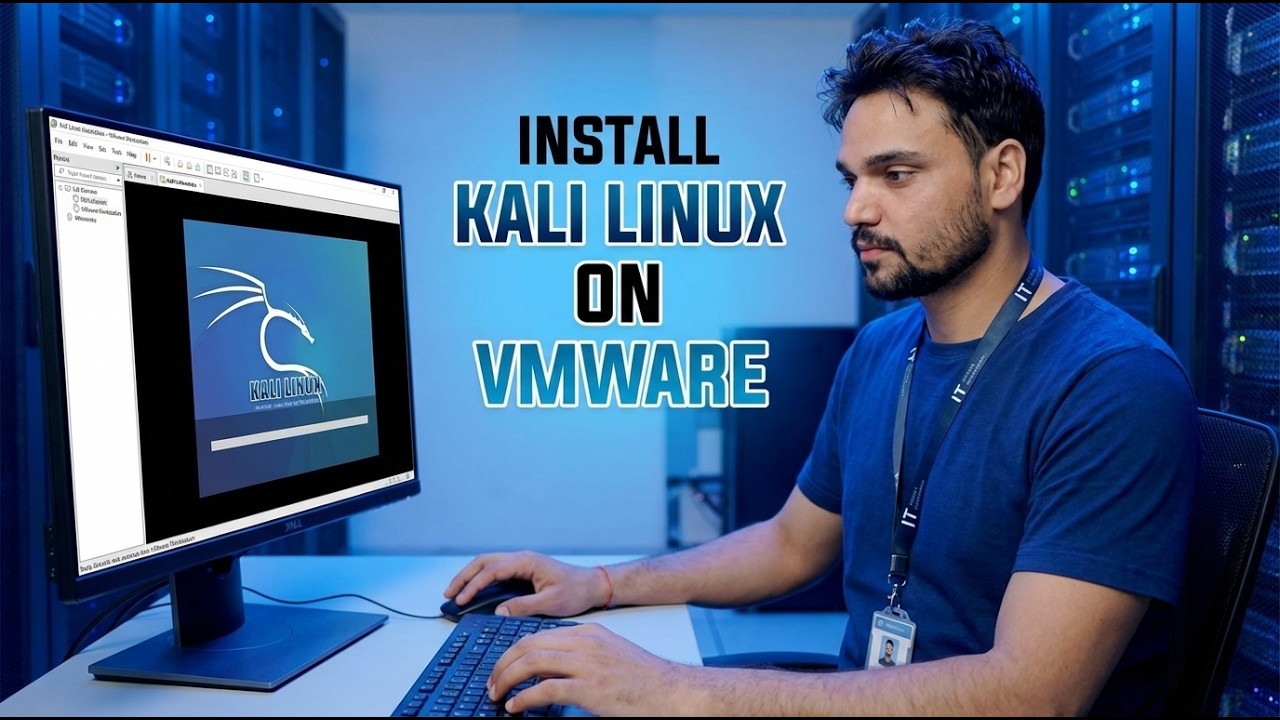
Install Kali Linux on VMware Workstation the error-free way: the right ISO from kali.org, correct VM settings, the installer choices that matter, GRUB done right, and the first update and snapshot.
📑Chapters
- Why most Kali-on-VMware errors come from small setup mistakes, not from Kali itself
- Downloading the official Kali installer ISO from kali.org
- Verifying the ISO with its SHA256 checksum using certutil
- Creating the virtual machine with the Custom (advanced) wizard
- Setting the processors, memory, NAT networking and the virtual disk
- The pre-boot settings fix — including the 3D graphics setting Kali's docs warn about
- Running the installer: user account, guided partitioning on /dev/sda
- Installing the GRUB boot loader on the right device
- First login, open-vm-tools, and the first full system update
- Taking the snapshot of the clean install
📋 Overview & Step-by-Step Guide
Download the Kali Installer ISO from kali.org
Almost every "error-free" install starts with the right file. Open kali.org and go to the Downloads page, then pick the Installer image for amd64 — the standard 64-bit PC build. This is the full offline installer that the video uses to set Kali up from scratch inside VMware.
Verify the ISO with Its SHA256 Checksum
Before creating anything, check that the file that arrived on your disk is exactly the file Kali published. Open Command Prompt in the folder where the ISO is saved and run:
certutil -hashfile kali-linux-installer.iso SHA256Use the exact file name of the ISO you downloaded if it differs, and compare the long hash it prints with the SHA256 value shown next to the download on kali.org. If the two do not match character for character, delete the file and download it again — a corrupt ISO is the single most common reason a Kali install fails halfway.
Create the Virtual Machine with the Custom Wizard
Make sure hardware virtualization (Intel VT-x / AMD-V) is enabled in your PC's BIOS/UEFI — Kali's own VMware guide lists this as a requirement. Then open VMware Workstation, choose Create a New Virtual Machine and pick Custom (advanced), which exposes the settings that matter instead of hiding them.
Point the wizard at the verified Kali ISO. On the Guest Operating System screen select Linux and the latest version of Debian (64-bit) — Kali is based on Debian, so these are the settings Kali's documentation uses. Name the VM something clear like "Kali Linux"; the name also becomes the VM's file names.
Give the VM the Right Processors, Memory, Network and Disk
On the Processors screen, Kali's own image builders use 2 processors with 2 cores each; match that if your host can spare it, and scale down only on a weak host. For memory, Kali's general VMs are built with 2 GB (2048 MB) of RAM — treat that as the floor and give more when your PC has spare RAM, because several Kali tools are resource-hungry.
Leave the network on NAT, the default: the VM reaches the internet and your LAN through the host without taking an extra IP address. Accept the default LSI Logic I/O controller and SCSI disk type, choose Create a new virtual disk, and size it generously — Kali's own images use an 80 GB disk, split into multiple files and not allocated all at once, so it only grows as you actually use it.
Fix the Settings That Trip People Up — Before the First Boot
Finish the wizard, then open Edit virtual machine settings before powering on. In the Display section, make sure Accelerate 3D graphics is disabled — Kali's documentation specifically flags this setting because people have reported it causing display problems in the VM. Removing the virtual Printer (which most people never use in a Kali VM) is optional tidiness from the same guide.
Run the Kali Installer and Make the Choices That Matter
Power on the VM and choose the graphical install from the Kali boot menu. Work through the early screens in order: language, location and keyboard layout; then a hostname for the machine; then create your regular user account with a strong password — this is the account you will log in with every day.
At partitioning, use the guided — use entire disk option. Inside the VM the virtual disk appears as /dev/sda, with the main partition at /dev/sda1 — you are only erasing the virtual disk you just created, never your real Windows drives. Keep the default layout (all files in one partition) and the default desktop environment and tool selection on the software screen, then let the installer copy the system over.
Install the GRUB Boot Loader on the Right Disk
Near the end, the installer asks about the GRUB boot loader — this is the step the video means by "GRUB done right". Say yes to installing GRUB, and choose /dev/sda — the virtual disk itself — as the device, not a partition like /dev/sda1. GRUB on the wrong target is what leaves people staring at a black screen or a boot menu that never finds Kali.
When the installer finishes, reboot. VMware should now boot from the virtual disk; if it boots back into the installer, disconnect or remove the ISO from the VM's CD/DVD drive and restart.
First Login, the First Full Update, and a Snapshot
Log in with the user you created. The Kali installer detects that it is running inside a VM and automatically installs the guest tools package (open-vm-tools) for the smooth VMware experience — proper screen resizing, shared clipboard and time sync with the host.
Now run the first update, exactly as in the video — open a terminal in Kali and run:
sudo apt updatesudo apt full-upgrade -yLet the upgrade finish completely before opening other tools. Then shut the VM down cleanly and take a snapshot in VMware and name it something like "Clean install + updates". The video ends on this snapshot for a reason: whatever you experiment with later, you can always roll back to this known-good Kali in seconds.
🏷️Topic Search Variables & Keywords
🎙️ Full Transcript — tap to expand
Step-by-Step Troubleshooting Guide & Solutions - INSTALL KALI LINUX ON VMWARE. On-screen demonstration by Technical Anshu....
Install Kali Linux on VMware Workstation the error free way: the right ISO from kali.org, correct VM settings, the installer choices that matter, GRUB done right, and the first update and snapshot.
(transcript ends here on the source page)
❓ Frequently Asked Questions
Is this tutorial 100% free to follow?
Yes! All guides and methods demonstrated by Technical Anshu use free, legal, and educational resources.
Can beginners follow this guide?
Absolutely! Every step is demonstrated on-screen with detailed instructions so anyone can follow along easily.
Where can I ask questions if I get stuck?
Leave a comment directly on the YouTube video, and our community and Technical Anshu will help you out.
🚀 Watch the Full Tutorial on YouTube
🚀 Watch the full step-by-step video tutorial on YouTube: https://www.youtube.com/watch?v=UH6xu3AZgMk
Subscribe to Technical Anshu for IT support, Windows troubleshooting, and server management.
▶️ Watch Full Video