GPU Installed? No Display from Motherboard 😳 Solution
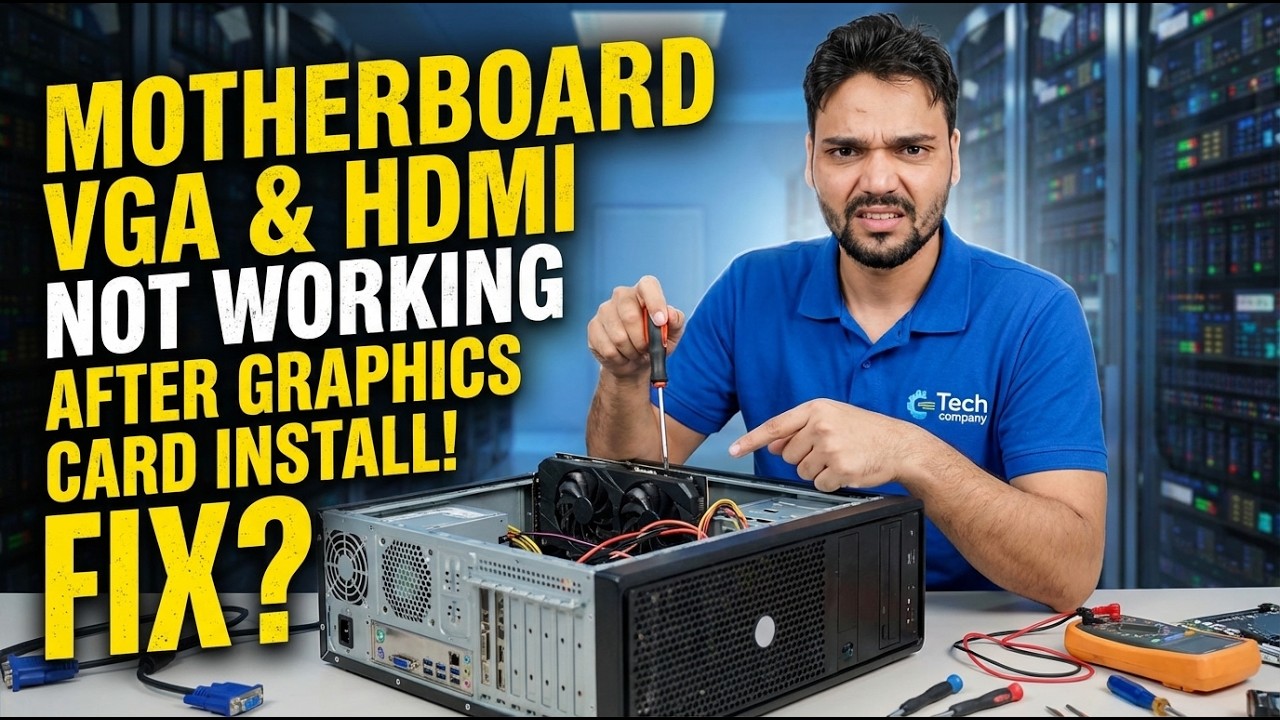
You installed a graphics card and the motherboard's VGA or HDMI port stopped giving display. Nothing is broken — the BIOS switched the integrated GPU off the moment it found the card. Here is the working cable setup, and the one BIOS setting that can keep the motherboard port alive.
📑Chapters
- The problem — motherboard VGA and HDMI show no display after installing a graphics card
- Why it happens — the BIOS disables the integrated GPU when a graphics card is present
- The working cable setup — the monitor belongs on the graphics card's ports
- The first check — does your CPU even have integrated graphics?
- Keeping the motherboard port alive — the BIOS iGPU multi-monitor setting
- Verifying both displays in Windows, and the honest limits
📋 Overview & Step-by-Step Guide
Understand Why the Motherboard Port Went Dark
Before the graphics card went in, your monitor ran from the motherboard's VGA or HDMI port, which is driven by the processor's built-in graphics (the iGPU). On most motherboards the BIOS is set to "Auto": the moment it detects a separate graphics card in the PCIe slot, it switches the integrated graphics off and hands all display work to the card. From that moment the motherboard ports simply have nothing driving them — so "no display" from them is the expected behaviour, not a dead port and not a dead board.
The Working Cable Setup — Plug Into the Graphics Card
For most people this single change is the whole solution: move the monitor cable from the motherboard port to one of the ports on the graphics card itself — HDMI, DisplayPort or DVI, whichever your card and monitor share. The display comes back immediately, and everything you see is now rendered by the graphics card, which is what you installed it for.
Check Your CPU Actually Has Integrated Graphics
The motherboard's display ports are wired to the processor, not to the board itself — so they can only work if your CPU contains integrated graphics. Many processors do, but some popular ones deliberately ship without any: Intel models ending in "F" (for example i5-12400F) and several Ryzen models have no iGPU at all. On such a system the motherboard ports can never output a picture, and no setting in Windows or BIOS can change that.
Keep the Motherboard Port Alive in BIOS
If your CPU does have integrated graphics and you genuinely want the motherboard port working alongside the card — typically for an extra monitor — restart the PC and enter BIOS setup (usually by pressing Del or F2 during startup). Look under the chipset, advanced or peripherals section for the integrated-graphics option and switch it from Auto to Enabled. Most boards also expose a dedicated toggle for running both at once: it is commonly named iGPU Multi-Monitor (ASUS and MSI), IGD Multi-Monitor, or simply Internal Graphics — the exact name and menu differ by brand and model. Save and exit (usually F10).
Connect the Second Monitor and Verify
Once Windows boots, connect the second monitor to the motherboard's VGA or HDMI port. It should light up alongside the main display. Open Settings → System → Display to confirm both screens are detected, arrange their positions, and choose whether to extend or duplicate. Both display adapters — the graphics card and the integrated GPU — will also appear in Device Manager when everything is working.
Know the Honest Limits
Three limits are worth knowing before you rely on this setup. First, a monitor on the motherboard port is powered by the small integrated GPU, so it is fine for browsing, documents and videos — but games should stay on the monitor connected to the graphics card. Second, the integrated GPU shares your system RAM, so enabling it can reserve a portion of memory. Third, some motherboards still refuse to run both outputs together no matter what, especially older boards; on those, the card's own ports (it usually has three or four) are the only way to run multiple monitors.
🏷️Topic Search Variables & Keywords
🎙️ Full Transcript — tap to expand
Step-by-Step Troubleshooting Guide & Solutions - MOTHERBOARD VGA & HDMI NOT WORKING AFTER GRAPHICS CARD INSTALL! FIX?. On-screen demonstration by Technical Anshu....
Installed a graphics card and now the motherboard HDMI port shows no display? Why the BIOS disables the iGPU, the working cable setup, and when the motherboard port can be kept alive.
(transcript ends here on the source page)
❓ Frequently Asked Questions
Is this tutorial 100% free to follow?
Yes! All guides and methods demonstrated by Technical Anshu use free, legal, and educational resources.
Can beginners follow this guide?
Absolutely! Every step is demonstrated on-screen with detailed instructions so anyone can follow along easily.
Where can I ask questions if I get stuck?
Leave a comment directly on the YouTube video, and our community and Technical Anshu will help you out.
🚀 Watch the Full Tutorial on YouTube
🚀 Watch the full step-by-step video tutorial on YouTube: https://www.youtube.com/watch?v=gc9r6gTqL7I
Subscribe to Technical Anshu for IT support, Windows troubleshooting, and server management.
▶️ Watch Full Video