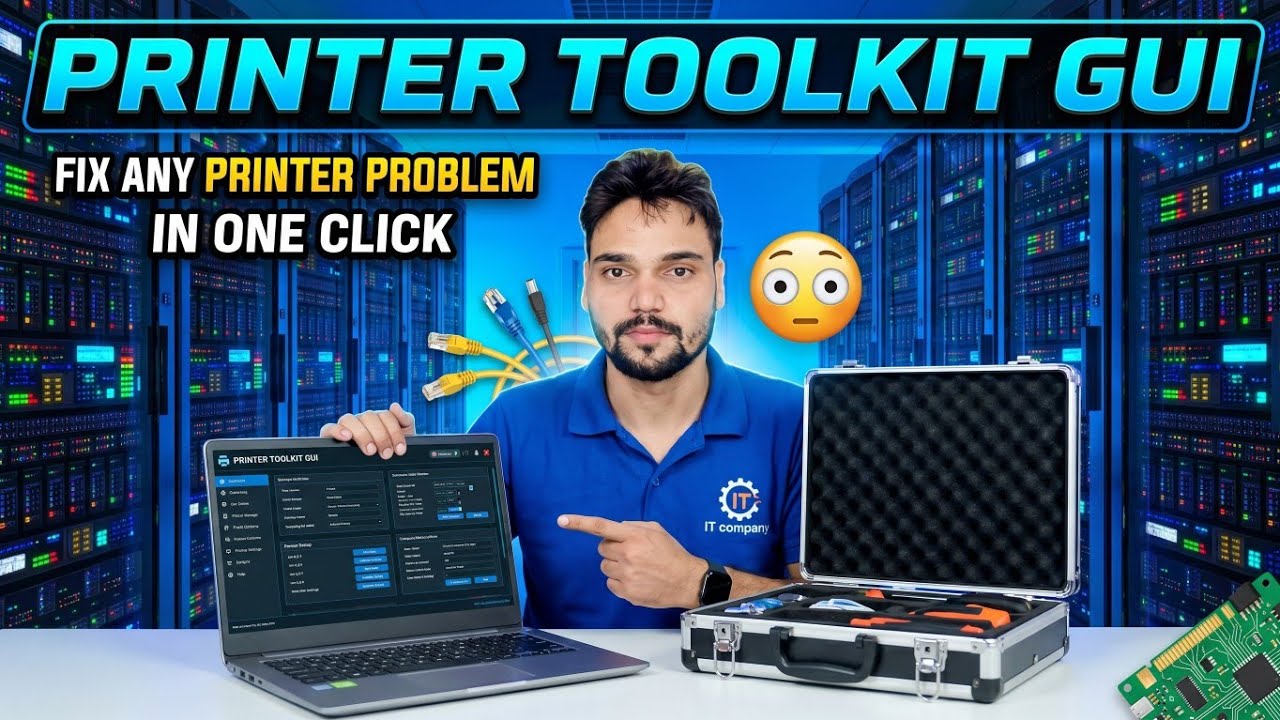
Printer Toolkit GUI 😳 Fix Any Printer Problem in One Click
One GUI toolkit, one click: the Printer Toolkit resets the Print Spooler, clears the stuck queue, cleans up problem drivers and prints a test page — in the right order, without opening a single Windows setting yourself.
📑Chapters
- What a printer toolkit GUI actually does inside Windows
- The right one-click order — why the spooler reset comes first
- Clearing the stuck print queue from the spool folder
- Driver cleanup — removing the bad driver behind repeat errors
- Printing a test page to confirm the printer is healthy again
- The honest limits no tool can cross
📋 Overview & Step-by-Step Guide
Open the Printer Toolkit and Start the One-Click Fix
Launch the Printer Toolkit GUI and start the one-click fix. Instead of jumping between Services, folders and printer settings, the toolkit runs the whole repair sequence for you in the correct order — spooler reset, queue clear, driver cleanup and a test page. That order matters: each step prepares Windows for the next one.
Reset the Print Spooler Service
Almost every "printer not printing" case starts here. The Print Spooler is the Windows service that accepts print jobs and feeds them to the printer; when it hangs, every job behind it stops. The toolkit stops the spooler, clears its stuck state, and starts it again — a clean restart that fixes the majority of sudden printing failures.
Clear the Stuck Print Queue
While the spooler is stopped, the toolkit empties the print queue folder, where Windows stores pending print jobs:
C:\Windows\System32\spool\PRINTERSA single corrupted job sitting in this folder can block every new print behind it. Clearing the folder removes the jam; the spooler then starts fresh with an empty queue.
Clean Up Bad Printer Drivers
If printing breaks again after a spooler reset, the driver is usually the real problem. The toolkit cleans up corrupt or leftover driver entries so Windows can use a clean driver for the printer — this is what stops the same error from coming back after every fix.
Print a Test Page to Confirm the Fix
Finally, the toolkit prints a test page. A clean test page proves the whole chain works again — spooler running, queue empty, driver healthy and the printer responding. If the test page prints, your normal documents will print too.
Know the Honest Limits
A toolkit can only repair the Windows side of printing. It cannot fix a printer that is switched off or out of ink or paper, a loose USB cable, a Wi-Fi printer that has dropped off the network, or a hardware fault inside the printer itself. If the one-click fix and the test page still fail, check those physical points first — that is the honest limit of any printer tool.
🏷️Topic Search Variables & Keywords
🎙️ Full Transcript — tap to expand
Step-by-Step Troubleshooting Guide & Solutions - PRINTER TOOLKIT GUI FIX ANY PRINTER PROBLEM IN ONE CLICK. On-screen demonstration by Technical Anshu....
(transcript ends here on the source page)
❓ Frequently Asked Questions
Is this tutorial 100% free to follow?
Yes! All guides and methods demonstrated by Technical Anshu use free, legal, and educational resources.
Can beginners follow this guide?
Absolutely! Every step is demonstrated on-screen with detailed instructions so anyone can follow along easily.
Where can I ask questions if I get stuck?
Leave a comment directly on the YouTube video, and our community and Technical Anshu will help you out.
🚀 Watch the Full Tutorial on YouTube
🚀 Watch the full step-by-step video tutorial on YouTube: https://www.youtube.com/watch?v=-o1kSfOT-KY
Subscribe to Technical Anshu for IT support, Windows troubleshooting, and server management.
▶️ Watch Full Video