The best alternative to Ubuntu: Complete setup of Linux Lite!
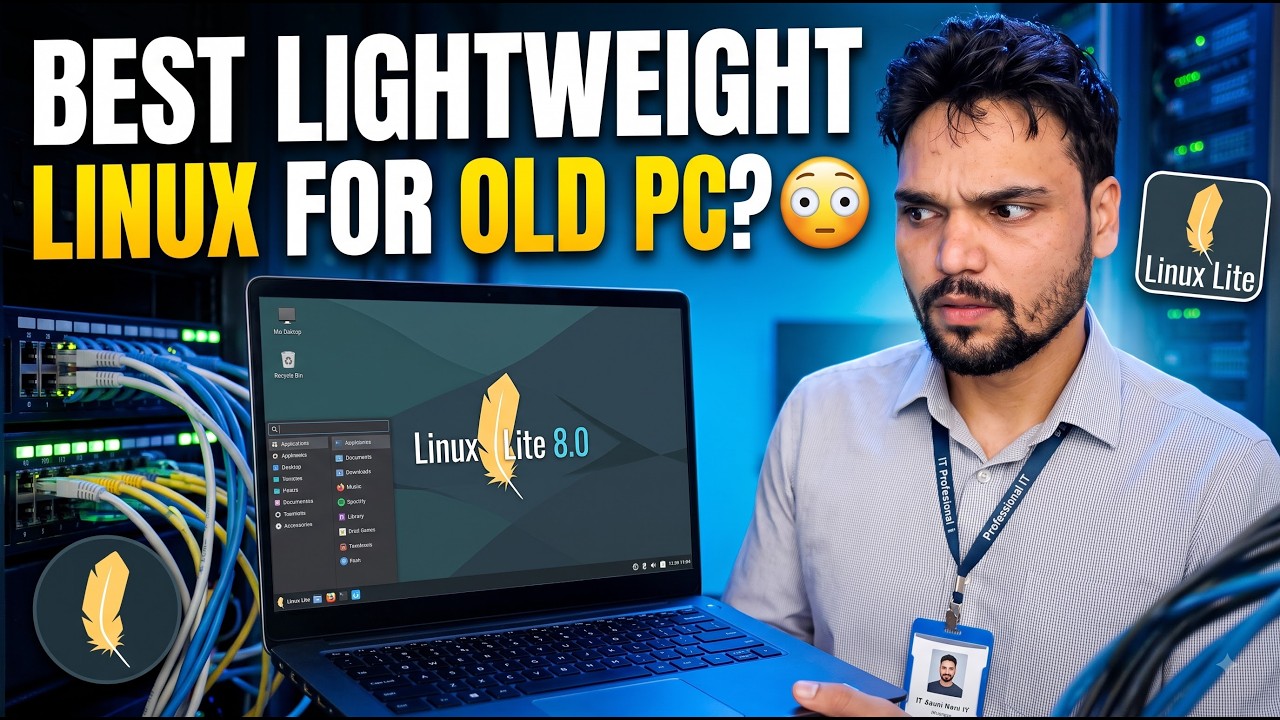
Linux Lite is a lightweight Linux built on Ubuntu with the Xfce desktop — made to run smoothly on the old PCs that modern Windows and Ubuntu leave behind. This is the complete setup: download the genuine ISO, verify it, make the bootable USB, install it beside or instead of Windows, then run updates and drivers and finish with Lite Software apps.
📑Chapters
- Why Linux Lite — a lightweight Ubuntu alternative made for old PCs
- Download the genuine Linux Lite ISO
- Verify the ISO with its SHA-256 checksum
- Create the bootable USB
- Boot from the USB and try the live desktop first
- Install Linux Lite — beside Windows or instead of it
- First boot — run the updates and install drivers
- Finish the setup with Lite Software apps
📋 Overview & Step-by-Step Guide
Why Linux Lite Is the Right Fit for an Old PC
Linux Lite is built on Ubuntu, so it gets the same stable base and software library — but it uses the light Xfce desktop instead of the heavier GNOME desktop that Ubuntu ships with. The layout is familiar to Windows users: a menu in the corner, a taskbar at the bottom and a normal file manager. The official minimums are modest — around 1 GB of RAM and 20 GB of disk space — so a PC that struggles badly on Windows 10 or Ubuntu can feel usable again.
Download the Genuine Linux Lite ISO
Download the ISO only from the official Linux Lite website, linuxliteos.com. Pick the current series ISO for 64-bit PCs and save it to a folder you can find easily. Downloading from the official page also gives you the published checksum for the file, which the next step uses.
Verify the ISO with Its Checksum
Before writing the ISO anywhere, verify that the download is complete and genuine. Open a terminal in the folder where the ISO is saved and run:
sha256sum linux-lite.isoUse the exact name of your downloaded file if it differs. Compare the long code it prints with the SHA-256 checksum published on the official download page — they must match character for character. If they do not match, delete the file and download it again.
Create the Bootable USB
Write the verified ISO to a USB pendrive (4 GB or larger) with a USB writing tool such as Rufus on Windows or balenaEtcher. Select the Linux Lite ISO, select the pendrive carefully, and start the write. When it finishes, the pendrive is your Linux Lite installer.
Boot from the USB and Try the Live Desktop First
Plug the pendrive into the target PC, restart it and open the boot menu (commonly F12, F9, Esc or F2, depending on the brand), then choose the USB drive. Linux Lite starts in a live session straight from the pendrive — nothing on the hard disk is changed. Use this session to test the machine first: check that the display, Wi-Fi, sound and keyboard all work before you commit to installing.
Install Linux Lite — Beside Windows or Instead of It
Start the installer from the Install Linux Lite icon on the live desktop. Choose your language and keyboard layout, then decide the installation type: Install alongside Windows keeps your existing system and gives you a choice at every start-up, while Erase disk and install Linux Lite gives the whole disk to Linux Lite for the simplest, cleanest result on a spare PC. Set your name, computer name and password, then let the installation complete and restart when asked — removing the pendrive when prompted.
First Boot — Run Updates and Install Drivers
On the first boot into the installed system, connect to the internet and bring everything up to date. Open a terminal and run:
sudo apt update
sudo apt upgrade
Enter your password when asked and confirm the upgrade. After the updates, open Install Drivers from the Settings area of the menu and install any proprietary driver it offers for your hardware — most commonly the graphics (NVIDIA) driver. Restart once more so the updated kernel and drivers load cleanly.
Finish the Setup with Lite Software
The final step is Linux Lite's own Lite Software tool (in the Settings area of the menu). It gives you a simple pick-and-install list of popular applications — web browsers, office and media tools, chat apps and more — so a fresh system becomes fully useful without hunting for packages or commands. Tick what you need, install, and the machine is ready to use.
🏷️Topic Search Variables & Keywords
🎙️ Full Transcript — tap to expand
Step-by-Step Troubleshooting Guide & Solutions - BEST LIGHTWEIGHT LINUX FOR OLD PC?. On-screen demonstration by Technical Anshu.
Linux Lite complete setup guide — download the genuine ISO, make the bootable USB, install beside or instead of Windows, run updates and drivers, and finish with Lite Software apps.
(transcript ends here on the source page)
❓ Frequently Asked Questions
Is this tutorial 100% free to follow?
Yes! All guides and methods demonstrated by Technical Anshu use free, legal, and educational resources.
Can beginners follow this guide?
Absolutely! Every step is demonstrated on-screen with detailed instructions so anyone can follow along easily.
Where can I ask questions if I get stuck?
Leave a comment directly on the YouTube video, and our community and Technical Anshu will help you out.
🚀 Watch the Full Tutorial on YouTube
🚀 Watch the full step-by-step video tutorial on YouTube: https://www.youtube.com/watch?v=cnQPNTxNzu4
Subscribe to Technical Anshu for IT support, Windows troubleshooting, and server management.
▶️ Watch Full Video