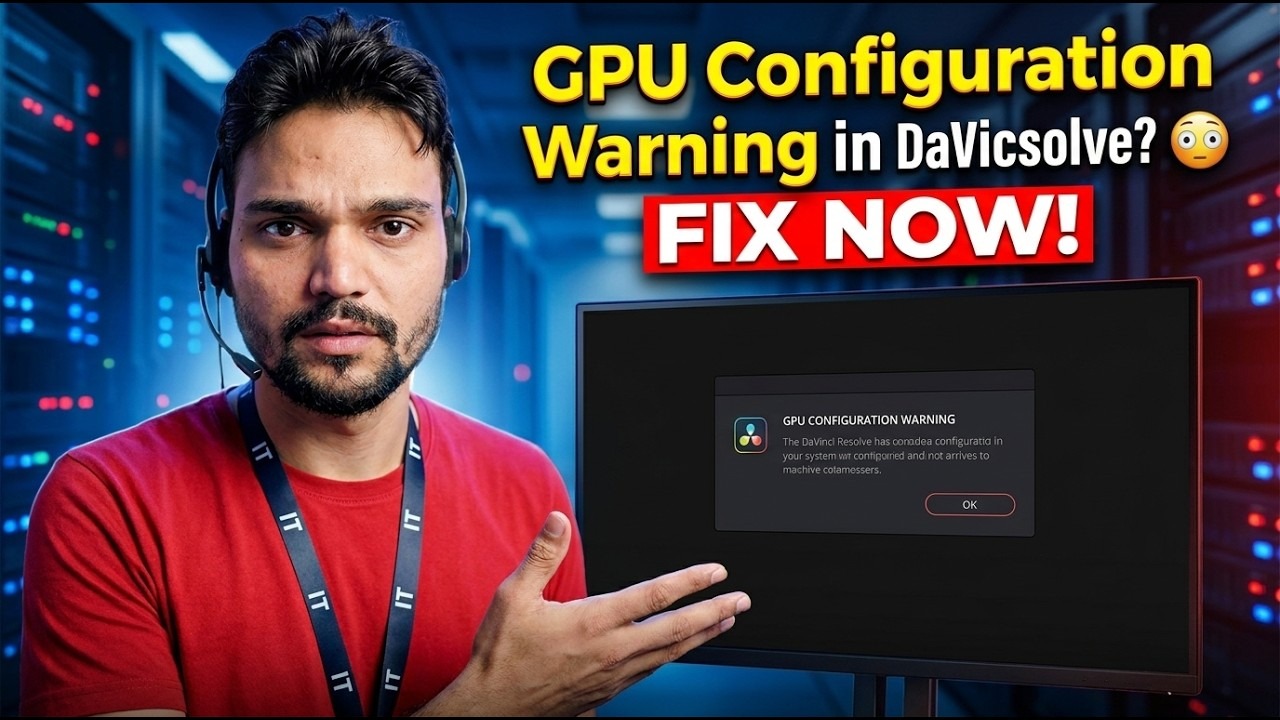
GPU Configuration Warning in DaVinci Resolve? 😳 FIX NOW!
Resolve opens, but before your project even loads, a GPU Configuration Warning stops you. In most cases the graphics card is fine — Resolve is simply pointed at the wrong GPU or the wrong processing mode. Here is the complete fix, in the right order.
📑Chapters
- The GPU Configuration Warning at startup — why Resolve shows it before your project loads
- Start from the warning itself — the Update Configuration button opens the GPU settings
- Set the right processing mode — CUDA for NVIDIA, OpenCL for AMD, Metal on Mac
- Select your real graphics card manually — not the weak integrated GPU
- Warning still there? Update the Studio Driver
- The honest wall — when the GPU itself is too old for Resolve
📋 Overview & Step-by-Step Guide
Start From the Warning Itself — Update Configuration
DaVinci Resolve does almost all of its image processing on the graphics card, not the CPU. So when it starts and cannot configure the GPU the way it expects, it warns you immediately instead of letting you edit on a crippled setup. The warning looks scary, but read it calmly: it is usually a settings problem, not dead hardware.
The dialog is not just an error, it is a shortcut. Click Update Configuration and Resolve opens Preferences directly on the GPU page. If you already closed the dialog, open it yourself: open the DaVinci Resolve menu and choose Preferences, select the System tab, then Memory and GPU. You will see two blocks — GPU Processing Mode and GPU Selection. Both are probably set to Auto right now.
Set the Processing Mode for Your Card — CUDA, OpenCL or Metal
Untick the Auto checkbox next to GPU Processing Mode and choose the mode that matches your graphics card:
• NVIDIA card — choose CUDA
• AMD card on Windows or Linux — choose OpenCL
• Mac — choose Metal
The classic warning appears when Resolve wanted CUDA or Metal but silently fell back to OpenCL because the preferred path failed. Forcing the correct mode tells Resolve exactly which door to use — and if that door is genuinely broken, you now get a clear, honest error instead of a vague one.
Select Your Real Graphics Card Manually
Now untick Auto under GPU Selection and look at the list of GPUs Resolve found. On laptops and many desktops there are two entries — a weak integrated GPU (Intel UHD, Intel Iris, or the AMD graphics built into the processor) and your real dedicated card (NVIDIA GeForce RTX, AMD Radeon RX and similar).
Tick only the dedicated graphics card, and untick the integrated GPU so Resolve cannot wander back to it. Click Save and restart DaVinci Resolve — GPU changes never apply without a restart.
Warning Still There? Update the Studio Driver
If the mode and the selection are correct but the warning returns, the next suspect is the driver. Resolve checks the driver before it trusts the card, and a driver that is too old for your Resolve version produces messages like "Unable to run in CUDA mode as the installed NVIDIA driver is incompatible".
For NVIDIA, install the latest Studio Driver from NVIDIA — it is the branch tested for creative apps like Resolve. For AMD, install the latest driver from AMD's support page for your exact card. On a Mac, GPU drivers arrive with macOS updates — there is no separate driver to install. Restart the computer, not just Resolve, after a driver install.
The Honest Wall — When the GPU Itself Is the Problem
Sometimes the warning is telling the truth about the hardware. Resolve needs a GPU that supports Metal (Mac), CUDA (NVIDIA) or OpenCL 1.2 or later, with enough video memory for your footage. Very old cards — early 2010s models especially — fall outside that list, and no setting can change it.
Before spending money, confirm it properly: check your exact card model against the minimum specifications Blackmagic publishes for your Resolve version on its support page. If the card is genuinely unsupported, the realistic options are a newer graphics card, or an older Resolve version that still accepted your card — with the understanding that you give up newer features. Do not keep reinstalling Resolve; the software is not the broken part.
🏷️Topic Search Variables & Keywords
🎙️ Full Transcript — tap to expand
Step-by-Step Troubleshooting Guide & Solutions - GPU Configuration Warning in DaVinci Resolve? FIX NOW!. On-screen demonstration by Technical Anshu....
Seeing the GPU Configuration Warning in DaVinci Resolve? Fix it step by step: set the right processing mode, select your real graphics card, update the Studio driver, and know when the GPU itself is the problem.
(transcript ends here on the source page)
❓ Frequently Asked Questions
Is this tutorial 100% free to follow?
Yes! All guides and methods demonstrated by Technical Anshu use free, legal, and educational resources.
Can beginners follow this guide?
Absolutely! Every step is demonstrated on-screen with detailed instructions so anyone can follow along easily.
Where can I ask questions if I get stuck?
Leave a comment directly on the YouTube video, and our community and Technical Anshu will help you out.
🚀 Watch the Full Tutorial on YouTube
🚀 Watch the full step-by-step video tutorial on YouTube: https://www.youtube.com/watch?v=wn9RYafdp18
Subscribe to Technical Anshu for IT support, Windows troubleshooting, and server management.
▶️ Watch Full Video