Beauti OS 2025 Installation Guide - Customize Windows 11
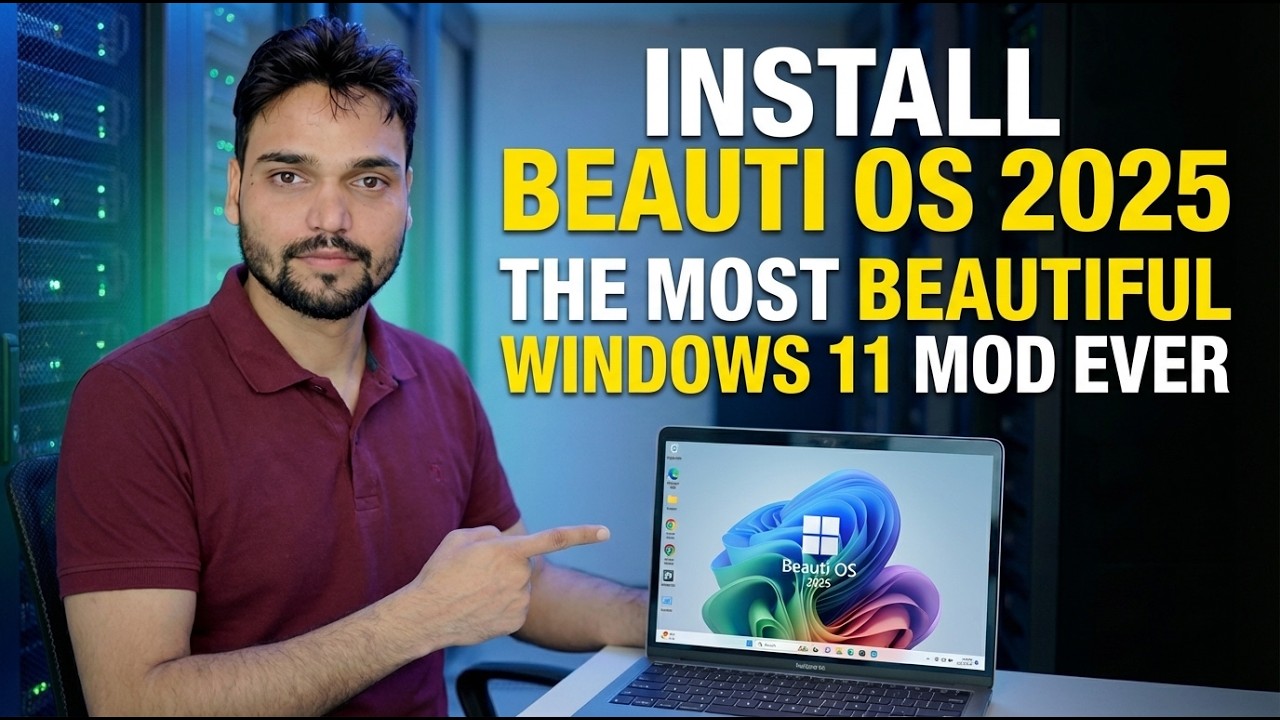
Beauti OS 2025 gives Windows 11 a complete custom makeover - restyled interface, tuned system. It is also an unofficial build made by a third party, not Microsoft. This is the full installation, with the honest facts first: no Microsoft support, no licence included, and updates can break it.
📑Chapters
- What Beauti OS 2025 actually is - an unofficial customised Windows 11 build
- Before you install - the non-negotiable rules (spare PC, full backup, genuine licence)
- Download the ISO and create the bootable USB
- Boot from the USB and run the Windows setup
- Install drivers from the PC or laptop maker's official site
- Restore your files, install your apps and test everything
- First hour checks - activation, security and Windows Update
- The honest verdict - a spare-PC experiment, not a main-PC system
📋 Overview & Step-by-Step Guide
Know What You Are Installing
Beauti OS 2025 is a customised edition of Windows 11 prepared by an independent third-party project - not by Microsoft. Builds like this are made by taking Microsoft's Windows 11 installation image, restyling the interface (themes, icons, layouts), adjusting settings and components, and repacking the result as a new ISO that installs like regular Windows.
The foundation is real Windows 11, so your normal apps and drivers work the way you expect. But the finished product was assembled by a third party, on their choices - Microsoft never tested, approved or released it, and Microsoft does not support modified builds.
Prepare Safely - Spare PC, Backup, Genuine Licence
A custom OS install wipes the machine it lands on. Treat it with the same respect as major surgery:
Use a spare or test PC. Never your only computer, and never the machine your job, studies or banking depend on.
Back up everything first - documents, photos, browser data - to an external drive or cloud storage that will not be touched during the install.
Keep a genuine Windows 11 USB ready. If you dislike the result, your way back is a clean install of stock Windows from Microsoft's official media.
Have your genuine Windows 11 licence key noted down. A custom build does not include a licence - you need your own genuine key to be properly activated (see Step 7).
Download the ISO and Create the Bootable USB
Download the Beauti OS ISO only from the source the video itself names (the link given with the video). Custom Windows ISOs are a favourite hiding place for malware - a copy re-uploaded by strangers is a gamble, and a checksum only proves a file matches what the uploader published, not that it is clean.
Create a bootable USB from the ISO - a tool like Rufus or Ventoy does this.
Boot from the USB and Run the Setup
Boot the target PC from the USB - open the boot menu at startup (usually F12, F8 or Esc, depending on the brand) and select the USB drive.
Choose the drive or partition to install on. This erases it completely - double-check you picked the right one. Then follow the familiar setup screens: region, keyboard, account and privacy choices, exactly as shown in the video.
Install Drivers from the Maker's Official Site
On the desktop, install your motherboard, graphics and network drivers from the PC or laptop maker's official site. Custom builds do not always carry the right drivers for your exact hardware, so take them from the manufacturer - not from driver-updater tools or random download sites.
Restore Your Files and Test Everything
Install your apps and restore your files from the backup. Then spend a day testing everything you rely on - sound, Wi-Fi, printing, Bluetooth - before trusting the machine. A custom build can look perfect on the desktop and still hide a broken driver or a missing component underneath.
First Hour Checks - Activation, Security, Updates
Before you settle in, run these three quick verifications:
1. Activation status - open Command Prompt and run:
slmgr.vbs /xprIt tells you plainly whether Windows considers itself activated. A custom build includes no licence - activation needs your own genuine Windows 11 key. A build that arrives "pre-activated" by strangers is using unauthorised activation methods, which is a red flag for the build's safety as well as its legality.
2. Security status - open Windows Security and confirm an antivirus is present and switched on. Some modified builds in the wild weaken or strip protection - if yours has none, treat that as a serious warning sign, not a feature.
3. Update status - run Windows Update once and note what happens. On custom builds, updates are the fragile part: they can fail, or restore components the build removed. Learn that on day one, not month six.
🏷️Topic Search Variables & Keywords
🎙️ Full Transcript — tap to expand
Step-by-Step Troubleshooting Guide & Solutions - INSTALL BEAUTI OS 2025 THE MOST BEAUTIFUL WINDOWS 11 MOD EVER. On-screen demonstration by Technical Anshu.
Beauti OS 2025 is a customised, unofficial Windows 11 build. Full installation guide plus the honest facts — no Microsoft support, no licence included, updates can break. Read before installing.
(transcript ends here on the source page)
❓ Frequently Asked Questions
Is this tutorial 100% free to follow?
Yes! All guides and methods demonstrated by Technical Anshu use free, legal, and educational resources.
Can beginners follow this guide?
Absolutely! Every step is demonstrated on-screen with detailed instructions so anyone can follow along easily.
Where can I ask questions if I get stuck?
Leave a comment directly on the YouTube video, and our community and Technical Anshu will help you out.
🚀 Watch the Full Tutorial on YouTube
🚀 Watch the full step-by-step video tutorial on YouTube: https://www.youtube.com/watch?v=2vj-pyRpLg8
Subscribe to Technical Anshu for IT support, Windows troubleshooting, and server management.
▶️ Watch Full Video