No PC? 😳 Make Bootable USB Using Phone (Emergency Fix!)
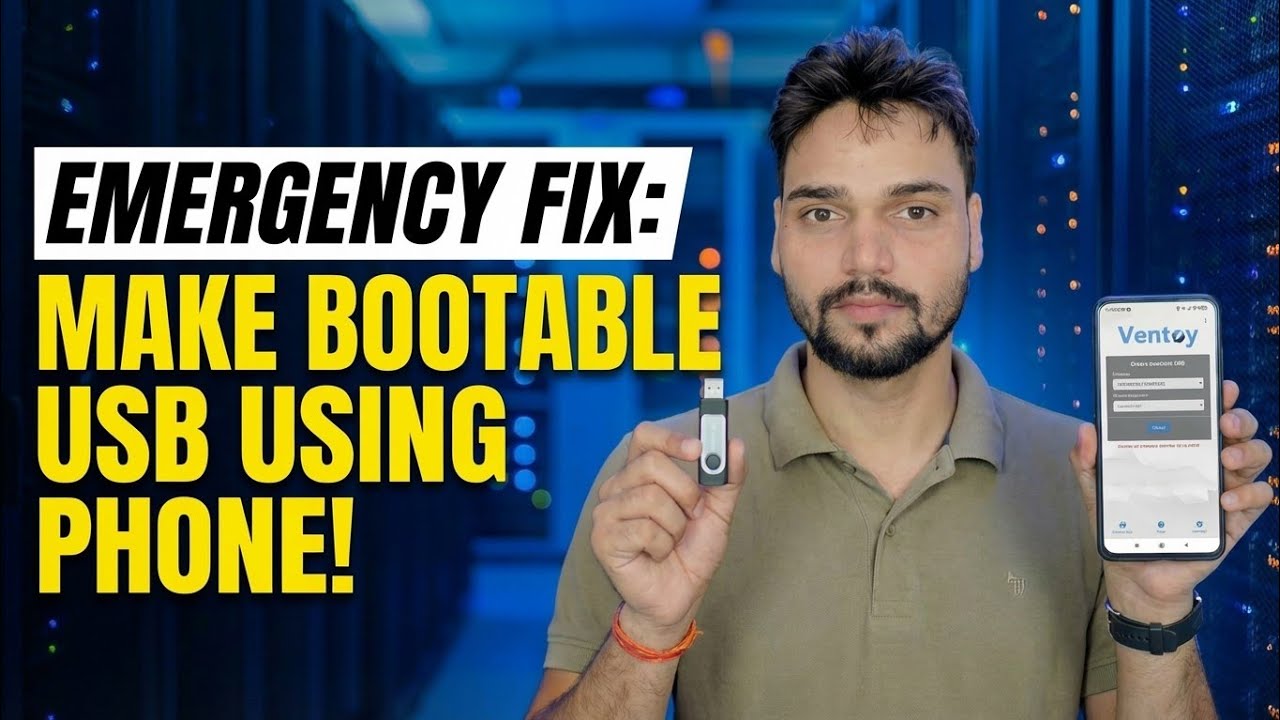
Your PC is dead and there is no second computer anywhere. With an Android phone, an OTG adapter and a USB pendrive you can still build a bootable USB — download the ISO on the phone, write it to the drive, and boot the dead PC from it.
📑Chapters
- When this emergency method helps — PC dead, no second computer anywhere
- What you need — Android phone, OTG adapter, pendrive and the ISO file
- Download the ISO on the phone, from the official source
- Install EtchDroid — the free ISO-to-USB writer app
- Connect the pendrive through OTG and write the image
- Boot the dead PC from the USB
- The honest limits — the Windows ISO catch and your alternatives
📋 Overview & Step-by-Step Guide
Gather What You Need
You need four things: an Android phone that supports USB OTG (most modern phones do), an OTG adapter that matches your phone's port (USB-C or micro-USB), a USB pendrive of 8 GB or larger, and enough free space on the phone for the ISO file — several GB. Keep the phone charged or plugged in, because downloading and writing take time and battery.
Download the ISO on the Phone
Download the ISO straight onto the phone, from the official source only. Microsoft's Windows download page offers the ISO file directly when it is opened in a phone browser, and Linux or rescue images come from the maker's own official site. Let the download finish completely — a half-downloaded ISO will not boot.
Install EtchDroid, the Free Writer App
EtchDroid is the free, open-source app made for exactly this job: it writes an ISO image to a USB drive from an Android phone, and it needs no root. Install it from the Google Play Store (its source is also on GitHub) — and nowhere else.
Connect the Pendrive Through the OTG Adapter
Plug the pendrive into the OTG adapter and the adapter into the phone. The phone should detect the USB drive. EtchDroid works with USB flash drives and USB SD-card adapters; USB hard drives, SSDs and hubs are not supported, so use a plain pendrive.
If the drive never appears, check that OTG is switched on (some phones have an OTG toggle in Settings) and try another adapter — a faulty adapter is the most common reason this step fails.
Write the Image to the Pendrive
Open EtchDroid and tap Write raw image or ISO. Select the ISO file you downloaded, then select the connected USB drive. Check the Ready to write screen, confirm the erase warning, and start the write — progress is shown in the notification area.
Do not unplug anything while it writes. When the write finishes, wait a few moments and then eject the drive safely before removing it, so the last data is fully flushed to the pendrive.
Boot the Dead PC from the USB
Insert the pendrive into the dead PC and switch it on. Open the boot menu — commonly F12, F8 or Esc depending on the brand — or enter the BIOS/UEFI setup and put USB first. Choose the USB drive (pick its UEFI entry when one is shown).
The installer or rescue environment loads from the pendrive, and from here the repair or installation proceeds exactly as it would with a USB made on a computer.
Know the Limits — the Windows ISO Catch
What this emergency method is genuinely good for: Linux installers and other bootable images made for raw USB writing — enough to get a dead PC into a working environment, recover your files, or start a repair. If you specifically need a Windows Setup USB and the phone write does not boot, the dependable routes are to borrow any working PC for a few minutes and use Microsoft's Media Creation Tool or Rufus, or to write a rescue image that supports this method instead.
🏷️Topic Search Variables & Keywords
🎙️ Full Transcript — tap to expand
Step-by-Step Troubleshooting Guide & Solutions - EMERGENCY FIX: MAKE BOOTABLE USB USING PHONE!. On-screen demonstration by Technical Anshu....
PC dead and no second computer anywhere? Make a bootable USB from your Android phone with an OTG adapter - get the ISO, write it safely, and boot the dead PC. The complete emergency method.
(transcript ends here on the source page)
❓ Frequently Asked Questions
Is this tutorial 100% free to follow?
Yes! All guides and methods demonstrated by Technical Anshu use free, legal, and educational resources.
Can beginners follow this guide?
Absolutely! Every step is demonstrated on-screen with detailed instructions so anyone can follow along easily.
Where can I ask questions if I get stuck?
Leave a comment directly on the YouTube video, and our community and Technical Anshu will help you out.
🚀 Watch the Full Tutorial on YouTube
🚀 Watch the full step-by-step video tutorial on YouTube: https://www.youtube.com/watch?v=71dzeq5728s
Subscribe to Technical Anshu for IT support, Windows troubleshooting, and server management.
▶️ Watch Full Video