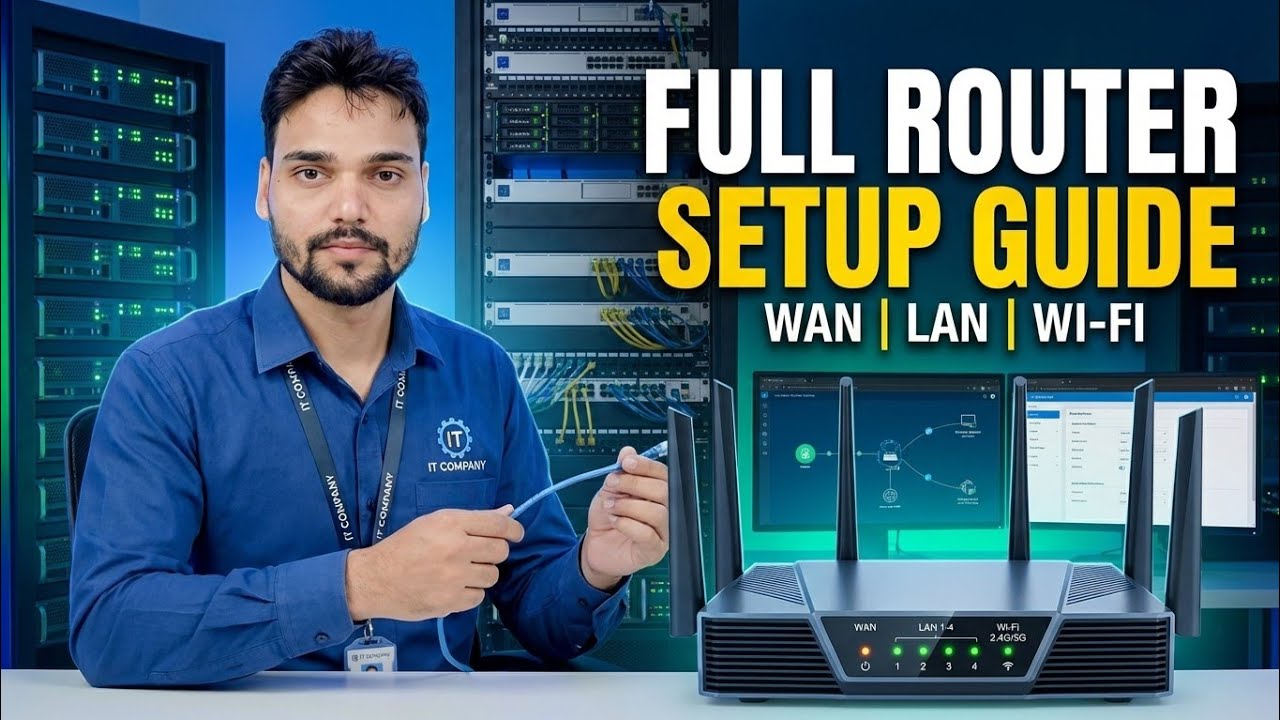
Essential Networking Skill! 🌐 Full Router Setup Guide ⚠️ WAN + LAN + WiFi
A complete router setup from scratch — connect the WAN, choose PPPoE or Dynamic IP, set the LAN and DHCP range, name your WiFi bands, and lock the security settings. A beginner-friendly walkthrough for home and small office routers.
📑Chapters
- Connecting the WAN cable and powering the router on
- Logging in to the admin panel at 192.168.0.1 or 192.168.1.1
- WAN setup — choosing PPPoE or Dynamic IP for the internet connection
- Setting the router's LAN address
- Setting the DHCP range — 192.168.0.100 to 192.168.0.199
- Naming the WiFi bands and setting the WiFi passwords
- Locking the security settings, saving, and rebooting
📋 Overview & Step-by-Step Guide
Connect the WAN Cable and Power On
Start with the cables. Plug the internet line coming from your ISP — or the cable coming from your modem or ONT — into the router's WAN port (it is usually a different colour from the LAN ports and labelled WAN or Internet). Connect the power adapter and switch the router on, then give it a minute or two to boot fully before you move on.
Log In to the Router Admin Panel
Connect your PC or laptop to the router — either with a LAN cable into one of the LAN ports, or to the router's default WiFi network. Open a browser and type the router's admin address in the address bar: 192.168.0.1 or 192.168.1.1. If one does not open, try the other. Log in with the default username and password.
Set the WAN Connection — PPPoE or Dynamic IP
Inside the admin panel, open the WAN / Internet settings and choose the connection type your ISP uses. If your ISP gave you a username and password for the connection, select PPPoE and enter those details exactly as given. If your ISP assigns everything automatically, select Dynamic IP (DHCP) — the router will pull its internet address on its own. Save, and the router should connect to the internet.
Set the LAN Address
Next, open the LAN settings. This is the router's own address on your local network — the same address you used to log in, 192.168.0.1 or 192.168.1.1. For a normal home or small office setup you keep this default; every device on your network will use this address as its gateway to reach the internet.
Set the DHCP Range
In the DHCP settings, make sure the DHCP server is enabled and set the address pool it hands out to your devices. In this setup the range is 192.168.0.100 to 192.168.0.199 — one hundred addresses, more than enough for a home or small office, while keeping the low addresses free for the router itself and any devices you want to fix manually.
Name Your WiFi Bands and Set Passwords
Open the Wireless / WiFi settings. Give your WiFi networks their names (SSID) — one for the 2.4 GHz band and one for the 5 GHz band, so you can tell them apart when connecting. Set a strong password for each band: long, and not something guessable like your phone number. Devices will join these networks and automatically receive an address from the DHCP range you set in the previous step.
Lock the Security Settings and Save
Finish by locking everything down. Set the WiFi security mode to WPA2 or WPA3 (never leave the network Open), and change the router's default admin password to a strong one of your own — the default printed on the sticker is known to anyone who has seen the same router model. Save the settings and let the router reboot if it asks. Reconnect your devices to the new WiFi names, open any website, and confirm the internet works end to end.
🏷️Topic Search Variables & Keywords
🎙️ Full Transcript — tap to expand
Step-by-Step Troubleshooting Guide & Solutions - FULL ROUTER SETUP GUIDE WAN | LAN | WI-FI. On-screen demonstration by Technical Anshu.
(transcript ends here on the source page)
❓ Frequently Asked Questions
Is this tutorial 100% free to follow?
Yes! All guides and methods demonstrated by Technical Anshu use free, legal, and educational resources.
Can beginners follow this guide?
Absolutely! Every step is demonstrated on-screen with detailed instructions so anyone can follow along easily.
Where can I ask questions if I get stuck?
Leave a comment directly on the YouTube video, and our community and Technical Anshu will help you out.
🚀 Watch the Full Tutorial on YouTube
🚀 Watch the full step-by-step video tutorial on YouTube: https://www.youtube.com/watch?v=IW2Dw2-Z_Xg
Subscribe to Technical Anshu for IT support, Windows troubleshooting, and server management.
▶️ Watch Full Video