15 Computer Problems You Can Identify Just by Seeing Symptoms 🔥 IT Guide
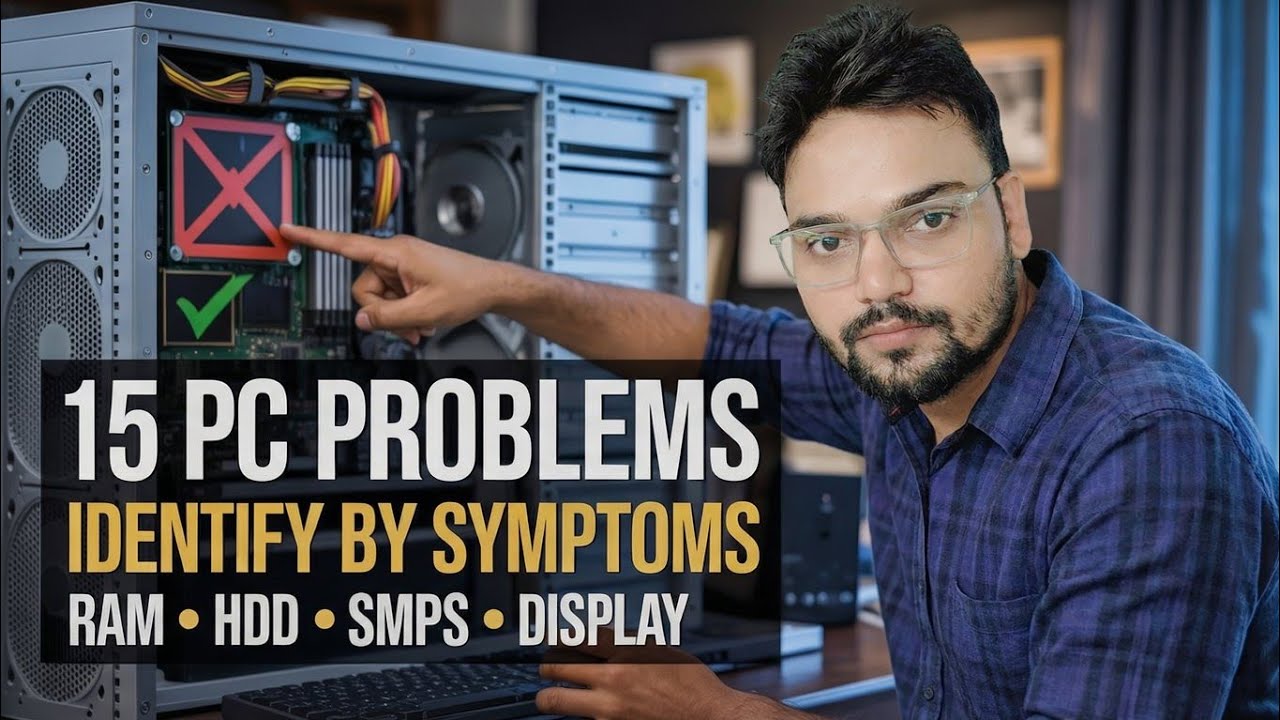
A good technician names the faulty part before opening a single tool — just by seeing and hearing the symptoms. This is the symptom-to-cause map: sounds, smells, screen faults, shutdowns, crashes and boot errors, and the one test that proves each cause.
📑Chapters
- The technician's habit — identify the problem from the symptoms first, then prove it with one test
- What you hear — a clicking drive, beep codes at power-on, and fans that never slow down
- What you smell — the burning smell that means stop right now
- Power symptoms — a PC that does nothing at the power button
- Screen faults — no signal, lines, blocks and flicker
- Sudden shutdowns while the PC is working hard
- Crashes — blue screens with stop codes and random freezes with no error at all
- Boot errors — restart loops and "No Bootable Device Found"
- Performance clues — everything slow with the disk pinned at 100%
- Small clues that still name the part — wrong date and time, and USB devices that keep disconnecting
📋 Overview & Step-by-Step Guide
Symptom: Repeated Clicking or Grinding Noise
Most likely cause: a mechanical hard disk is dying — the famous "click of death". The read/write head keeps resetting because it can no longer read the platter, and each reset is one click. An SSD has no moving parts, so this sound always points at an HDD (or, less often, a fan blade touching a cable — check that first because it is free to fix).
The test that proves it: open CrystalDiskInfo and read the drive's SMART health. "Caution" or "Bad" with reallocated or pending sectors confirms the drive is failing.
Symptom: Beep Codes at Power-On, No Display
Most likely cause: the motherboard's self-test (POST) is failing before the screen can even start, and the beeps are its error report. On most boards, repeated beeps or one long and two/three short beeps point at RAM — a stick that is loose, dirty in its slot, or dead. Beep patterns differ between BIOS makers, so match the pattern against that board maker's table.
The test that proves it: reseat the RAM, then test with one stick at a time in the first slot. The PC booting on one stick and not the other names the faulty stick; a full MemTest86 run confirms it.
Symptom: Burning or Chemical Smell from the Case
Most likely cause: something electrical is burning — usually the power supply, or a swollen/leaking capacitor on the motherboard that has finally given up. A sharp, chemical, "hot electronics" smell is never normal and never fixes itself.
The test that proves it: with the PC off and unplugged, open the case and look. Bulged or leaking cylinder capacitors on the motherboard, or a smell that is strongest at the PSU's fan grill, tells you which part it is. A known-good replacement PSU confirms the PSU side.
Symptom: Nothing Happens at the Power Button
Most likely cause: no power is reaching the board — a dead PSU, a tripped socket or bad power cable, the PSU's own switch left off, or the case's front-panel power connector loose on the motherboard pins. Total silence with no fan twitch and no light is a power-delivery problem, not a Windows problem.
The test that proves it: work from the wall inward — known-good socket and cable, PSU switch on, front-panel connector reseated — then swap in a known-good PSU. If the PC starts on the spare PSU, the original supply is dead.
Symptom: PC Runs, Monitor Says "No Signal"
Most likely cause: the PC is on but no picture is being produced or delivered — a loose or faulty display cable, the monitor on the wrong input, a graphics card that is not seated, or RAM failing POST silently on boards without a speaker.
The test that proves it: change one thing at a time — a different cable and input, then the motherboard's own display output (integrated graphics) if the CPU has one, then reseat the RAM. A picture on integrated graphics with the card removed names the graphics card; no picture anywhere points back at RAM or the board.
Symptom: Lines, Blocks or Flicker on the Screen
Most likely cause: the graphics card is failing — coloured lines, checkerboard blocks and random artifacts are the classic signature of dying GPU memory (VRAM). A damaged cable or a failing monitor can imitate it, so they have to be ruled out first.
The test that proves it: connect a different monitor with a different cable. Artifacts that follow the PC are the graphics card; artifacts that stay with the monitor are the monitor. If the lines are already visible on the BIOS/startup screen, before Windows and its drivers load, it is hardware for certain.
Symptom: PC Shuts Down During Heavy Work
Most likely cause: heat or power. Under a game or a render, the CPU and GPU draw the most power and make the most heat — so a PC that dies only under load is usually overheating (dust-clogged cooler, dried thermal paste) and protecting itself, or the PSU can no longer supply what the load demands.
The test that proves it: watch temperatures with a tool like HWMonitor while the load runs. Temperatures climbing to the limit just before the shutdown prove overheating; cool temperatures with an instant power cut point at the PSU.
Symptom: Blue Screens with Stop Codes
Most likely cause: Windows itself is usually fine — a blue screen (BSOD) is most often a bad driver, faulty RAM or a failing disk forcing the system to stop. The stop code on the blue screen and the crash history are the evidence; never guess from the blue screen's colour alone.
The test that proves it: open Reliability Monitor — it lays out every crash day by day with the stop codes and what changed just before the crashes started. Run it from the Run dialog (Win + R):
perfmon /relCrashes that begin right after a driver update name that driver; random codes on a clean system send you to MemTest86 for the RAM and SMART for the disk.
Symptom: Random Freezes with No Error Message
Most likely cause: the quiet failures — borderline RAM that only fails sometimes, a disk with growing bad sectors, or heat that is high but not yet high enough to trigger a shutdown. Because there is no error, this symptom needs the tests, not the eyes.
The test that proves it: run the three checks in order — MemTest86 for RAM (several full passes), CrystalDiskInfo SMART for the disk, and a temperature check under load. One of the three almost always confesses; Event Viewer's System log fills in when each freeze happened.
Symptom: Restarts in a Loop Before Windows Loads
Most likely cause: Windows starts, hits the same error, and restarts — most often a corrupted system file or a Windows update that went wrong, with failing RAM and a dying boot drive behind it on the list.
The test that proves it: interrupt the loop to reach the Windows Recovery Environment and try Safe Mode, then System Restore to a point before the problem began. A PC that is stable in Safe Mode points at software or a driver; a loop that happens even before Windows starts loading points at hardware.
Symptom: "No Bootable Device Found" at Start
Most likely cause: the PC cannot find a drive to boot from — the boot order has changed, the boot drive's cable is loose, the drive has died, or the Windows bootloader on it is damaged.
The test that proves it: enter the BIOS/UEFI setup and look at the drive list. If the drive is not listed at all, it is a connection or dead-drive problem. If it is listed but still will not boot, check the boot order first — and only then suspect the bootloader.
Symptom: Everything Suddenly Slow, Disk at 100%
Most likely cause: the storage is the bottleneck. In Task Manager the clue is disk usage pinned at 100% while the response time is huge — on a mechanical HDD that pattern means the drive is struggling or failing; even a healthy HDD shows this when Windows has outgrown it.
The test that proves it: check the drive's SMART health in CrystalDiskInfo. A "Caution/Bad" drive gets replaced (and its data copied first); a healthy but slow HDD gets replaced by an SSD, which is the single biggest speed upgrade an old PC can get.
Symptom: Date and Time Wrong After Every Shutdown
Most likely cause: the small coin battery on the motherboard (a CR2032) is dead. That battery keeps the clock and BIOS settings alive while the PC is unplugged; when it dies, the clock resets — typically to the board's manufacture date — every time mains power is removed.
The test that proves it: set the correct time, shut down, unplug the PC for a few minutes, then start it and enter the BIOS. If the clock has reset again, replace the battery — it is a two-minute, low-cost fix, and BIOS settings you changed will need setting once more afterwards.
Symptom: Fans Suddenly Loud All the Time
Most likely cause: the cooling system is losing. Fans run fast because temperatures are high: a heatsink clogged with dust, thermal paste that has dried out after years, or a fan whose bearing is failing (that one adds a rattling or grinding edge to the noise).
The test that proves it: check the temperatures. Hot under even light work means clean the heatsink and fans and replace the thermal paste; normal temperatures with a loud fan mean the fan itself is dying and gets replaced.
Symptom: USB Devices Keep Disconnecting
Most likely cause: one link in the chain is weak — a damaged port (front-panel ports and their thin internal cable fail first), a worn device cable, Windows power management putting the port to sleep, or on older machines a PSU whose 5V output is fading.
The test that proves it: move the same device to a rear motherboard port with a different cable. If it is stable there, the fault is the original port or cable, not the device; if every port misbehaves with every device, look at drivers, USB power settings, and finally the PSU.
🏷️Topic Search Variables & Keywords
🎙️ Full Transcript — tap to expand
Step-by-Step Troubleshooting Guide & Solutions - 15 PC PROBLEMS IDENTIFY BY SYMPTOMS. On-screen demonstration by Technical Anshu.
Learn to identify computer problems just by seeing and hearing the symptoms. A technician symptom-to-cause map covering sounds, smells, screen faults, shutdowns, crashes and boot errors — and the one test that proves each cause.
(transcript ends here on the source page)
❓ Frequently Asked Questions
Is this tutorial 100% free to follow?
Yes! All guides and methods demonstrated by Technical Anshu use free, legal, and educational resources.
Can beginners follow this guide?
Absolutely! Every step is demonstrated on-screen with detailed instructions so anyone can follow along easily.
Where can I ask questions if I get stuck?
Leave a comment directly on the YouTube video, and our community and Technical Anshu will help you out.
🚀 Watch the Full Tutorial on YouTube
🚀 Watch the full step-by-step video tutorial on YouTube: https://www.youtube.com/watch?v=K_LIuwJuhBc
Subscribe to Technical Anshu for IT support, Windows troubleshooting, and server management.
▶️ Watch Full Video