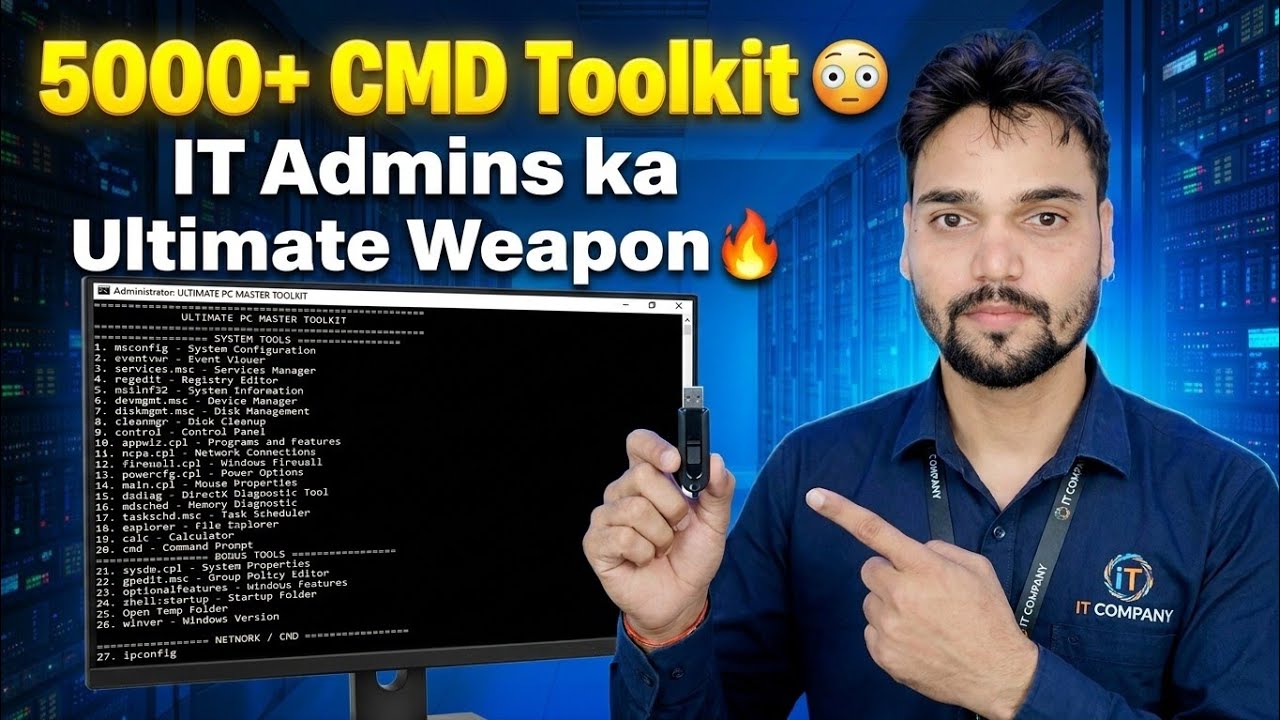
5000+ CMD Toolkit 😳 The Ultimate Weapon for IT Admins 🔥
One Command Prompt window, thousands of ready-to-use commands: Technical Anshu presents the CMD Toolkit he built for IT admins — repair Windows system files, rebuild a broken network, check disks, reset updates and pull system details, without installing a single fixer program.
📑Chapters
- The 5000+ CMD Toolkit — what it is, and which versions are free or paid
- Opening Command Prompt as Administrator — the toolkit runs elevated
- Repairing corrupted Windows system files with DISM and SFC
- Resetting a broken network with ipconfig and netsh
- Checking the hard disk for errors with CHKDSK
- Getting system information in one line — report, serial number, Wi-Fi profiles
- Managing users, services and the shutdown timer
📋 Overview & Step-by-Step Guide
Know the Toolkit and Its Versions
The CMD Toolkit is Technical Anshu's own collection of 5000+ ready-to-use Command Prompt commands, grouped by job — system repair, network fixes, disk checks, user management and system information — so an IT admin or support engineer can fix a Windows PC from one window instead of hunting through menus or installing third-party "PC fixer" software.
The versions work like this: V1, V2 and V3 are completely free — all three are in one download link. V4 was never released (the sequence goes V1, V2, V3, V5, V6). V5 and V6 cost ₹239 — you pay by Paytm on Anshu's WhatsApp number shown on his channel and videos, and he sends you the download link after payment.
Open Command Prompt as Administrator
Almost every repair command in the toolkit needs administrator rights. Right-click the Start button and choose Terminal (Admin) or Command Prompt (Admin), then approve the UAC prompt. The window title should say "Administrator".
Repair Windows System Files — DISM and SFC
When Windows behaves strangely — apps crashing, features missing, odd error messages — corrupted system files are a common cause. The toolkit repairs them with two built-in tools, in this order: first DISM repairs the Windows image itself (it downloads clean replacement components, so keep the PC online), then SFC scans and repairs the actual system files using that image.
DISM /Online /Cleanup-Image /RestoreHealth
sfc /scannow
Let both commands finish completely, then restart the PC.
Reset a Broken Network — ipconfig and netsh
"Wi-Fi connected but no internet" is the most common complaint in any office. Before touching the router, refresh the PC's network from CMD: release the current IP address, renew it, clear the DNS cache, then reset the Winsock catalog and the TCP/IP stack.
ipconfig /release
ipconfig /renew
ipconfig /flushdns
netsh winsock reset
netsh int ip reset
Restart the PC after the two netsh resets so the rebuilt network stack loads cleanly.
Check the Hard Disk — CHKDSK
A slow, freezing PC or files that refuse to open can point to file-system errors or bad sectors. CHKDSK is the built-in disk doctor: run the quick online scan first, then the fix pass if errors show up; the deep pass also looks for bad sectors and tries to recover readable data.
chkdsk C: /scan
chkdsk C: /f
chkdsk C: /r
The /f pass on the system drive cannot run while Windows is using it — it will ask to schedule the check at the next restart; press Y and reboot.
Get System Information in One Line
Technicians constantly need details that Windows hides deep inside Settings. The toolkit answers in one line each: systeminfo prints the full report (Windows version, install date, RAM, last boot time), the wmic line returns the laptop or PC serial number needed for warranty and driver downloads, netsh wlan show profiles lists every Wi-Fi network this PC has joined, and ipconfig /all shows the IP address, gateway, DNS and MAC address of every adapter.
systeminfo
wmic bios get serialnumber
netsh wlan show profiles
ipconfig /allManage Users, Services and the Shutdown Timer
The toolkit also covers daily admin work that normally takes many clicks: create a local user account and make it an administrator, restart the Windows Update service (part of fixing stuck updates), and shut the PC down on a timer — 3600 seconds is one hour, and the second shutdown command cancels a pending timer. Replace the example name and password with your own.
net user Ravi MyPass123 /add
net localgroup administrators Ravi /add
net stop wuauserv
net start wuauserv
shutdown /s /t 3600
shutdown /a
These are only the highlights — the full video walks through the complete toolkit command by command, with live demonstrations of what each one does on screen.
🏷️Topic Search Variables & Keywords
🎙️ Full Transcript — tap to expand
Step-by-Step Troubleshooting Guide & Solutions — 5000+ CMD Toolkit: IT Admins ka Ultimate Weapon. On-screen demonstration by Technical Anshu.
(transcript ends here on the source page)
❓ Frequently Asked Questions
Is this tutorial 100% free to follow?
Yes! All guides and methods demonstrated by Technical Anshu use free, legal, and educational resources.
Can beginners follow this guide?
Absolutely! Every step is demonstrated on-screen with detailed instructions so anyone can follow along easily.
Where can I ask questions if I get stuck?
Leave a comment directly on the YouTube video, and our community and Technical Anshu will help you out.
🚀 Watch the Full Tutorial on YouTube
🚀 Watch the full step-by-step video tutorial on YouTube: https://www.youtube.com/watch?v=UOFJw_n9-Ag
Subscribe to Technical Anshu for IT support, Windows troubleshooting, and server management.
▶️ Watch Full Video