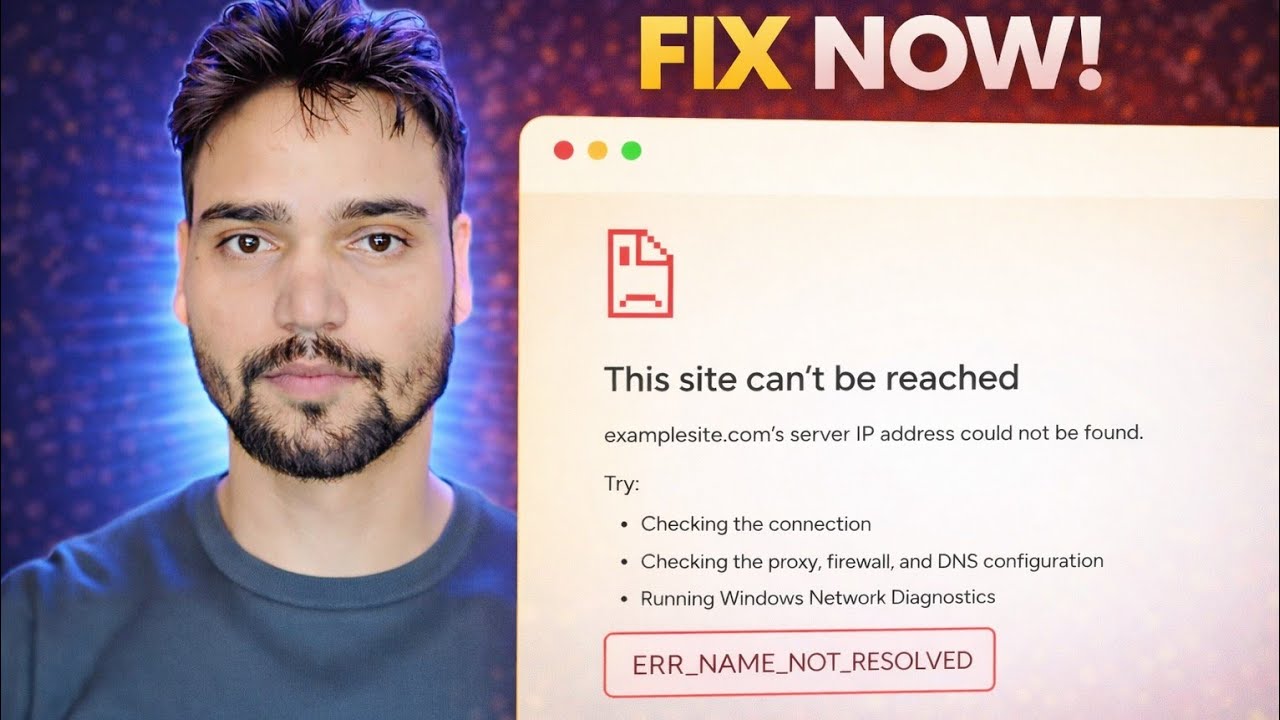
ERR_NAME_NOT_RESOLVED Error Fix 🔥 Internet Working But Website Not Opening
Chrome shows ERR_NAME_NOT_RESOLVED while your internet clearly works. What this DNS error really means, the one test that splits the problem in half, and the fix order that solves it without guessing.
📑Chapters
- What ERR_NAME_NOT_RESOLVED actually means — the name lookup failed, not your internet
- The ten-second proof — ping the number, then ping the name
- One site or every site — the split that decides the fix
- Restart Chrome and clear the browser's own DNS memory
- Flush the Windows DNS cache
- Ask a different DNS server directly with nslookup
- Check the hosts file when only one name fails
- When the error is honestly the website's fault
📋 Overview & Step-by-Step Guide
Prove It Is Really a Name Problem
Every website has two identities: a name you type, like example.com, and a numeric IP address your PC actually connects to. DNS is the phone book that converts the name into the number. ERR_NAME_NOT_RESOLVED means that lookup failed — the browser asked for the name and got no usable answer back. Your line, your WiFi and the website itself can all be perfectly healthy while this one step is broken.
Before changing anything, run the ten-second proof. Open Command Prompt and try both commands:
ping 8.8.8.8
ping example.com
If replies come back from ping 8.8.8.8, your internet line and network are alive. If ping example.com — replace it with your failing site — says the host could not be found while the number worked, the fault is name resolution only. That split matters: a dead line needs a different repair entirely, and no DNS fix will help it.
Decide: One Site or Every Site
Now open three or four other well-known websites. The answer divides this error into two completely different diseases. If every name fails, your DNS path itself is broken: the cache, the DNS server setting, the DNS Client service, security software filtering, or the router — continue down this page in order. If only one name fails, your general DNS is fine, and the cause is almost always specific to that name: a hosts file entry, a stale cached answer, that site's own DNS, or a name that genuinely no longer exists.
Restart the Browser and Check the Obvious
Chrome keeps its own small DNS memory on top of Windows. Fully close Chrome — every window — and reopen it, or restart the PC, which clears both caches at once. This is not a ritual step: a surprising share of these errors are one bad answer cached for a few minutes, and a clean restart is the honest cure.
While you are here, type the address again slowly — a single wrong letter creates a name that truly does not exist, and DNS correctly reports it as unresolvable. Also try the same site in a second browser like Edge. If Edge opens it, your network DNS is innocent and the fault lives inside Chrome itself.
Flush the Windows DNS Cache
Windows saves recent lookups in the DNS resolver cache, including failed ones. A site that hiccuped once can keep failing on your PC after it has recovered everywhere else. Open Command Prompt (administrator is safest), clear that memory, then reload the failing site:
ipconfig /flushdnsYou must see Successfully flushed the DNS Resolver Cache. A successful flush followed by the same error means the bad answer is being served fresh by your DNS server — which is the next step.
Ask a Different DNS Server Directly
This test separates "your server is broken" from "the name is broken everywhere". In Command Prompt, run both lookups — the first asks your normal, configured DNS server; the second asks Cloudflare's public server instead:
nslookup example.com
nslookup example.com 1.1.1.1
If the second command returns an address and the first fails, your configured DNS server is the culprit — usually your router's forwarder or your provider's server. Change the DNS server on your network adapter (or in the router, to fix every device) to a reliable public pair and this whole error class dies. If both fail with the same non-existent-domain answer, believe them: the name itself has a problem, and no setting on your PC can invent an address for it.
Check the Hosts File If Only One Name Fails
Windows consults one local file before it ever asks DNS — the hosts file. Any name listed there is answered from that file and DNS is never asked. An old entry, left by an ancient tweak, an ad-block tool or office software, can pin one site to a dead address or block it outright while every other site works.
C:\Windows\System32\drivers\etc\hostsOpen the file in Notepad as administrator and look for the failing name. A healthy home-PC hosts file has almost no active lines; anything naming your failing site is suspect. The fingerprint to remember: ping fails but nslookup succeeds — because nslookup talks to DNS directly and ignores the hosts file completely.
When the Answer Is Honestly Not Your PC
Some ERR_NAME_NOT_RESOLVED errors are the truth. The website's own DNS may be down, a brand-new site may still be propagating to servers around the world, or the name may have been retired. The honest test: open the site on your phone using mobile data, not WiFi. If it fails there too, and both nslookup tests above failed, your PC is exonerated — wait, or tell the site owner, but stop repairing a healthy machine.
🏷️Topic Search Variables & Keywords
🎙️ Full Transcript — tap to expand
Step-by-Step Troubleshooting Guide & Solutions - FIX NOW!. On-screen demonstration by Technical Anshu....
Chrome shows ERR_NAME_NOT_RESOLVED while your internet clearly works. What this DNS error really means, the one test that splits the problem in half, and the fix order that solves it without guessing.
(transcript ends here on the source page)
❓ Frequently Asked Questions
Is this tutorial 100% free to follow?
Yes! All guides and methods demonstrated by Technical Anshu use free, legal, and educational resources.
Can beginners follow this guide?
Absolutely! Every step is demonstrated on-screen with detailed instructions so anyone can follow along easily.
Where can I ask questions if I get stuck?
Leave a comment directly on the YouTube video, and our community and Technical Anshu will help you out.
🚀 Watch the Full Tutorial on YouTube
🚀 Watch the full step-by-step video tutorial on YouTube: https://www.youtube.com/watch?v=YrEjz2b-D48
Subscribe to Technical Anshu for IT support, Windows troubleshooting, and server management.
▶️ Watch Full Video