Install Windows 11 😳 Rufus + Ventoy Full Guide (Both Methods)
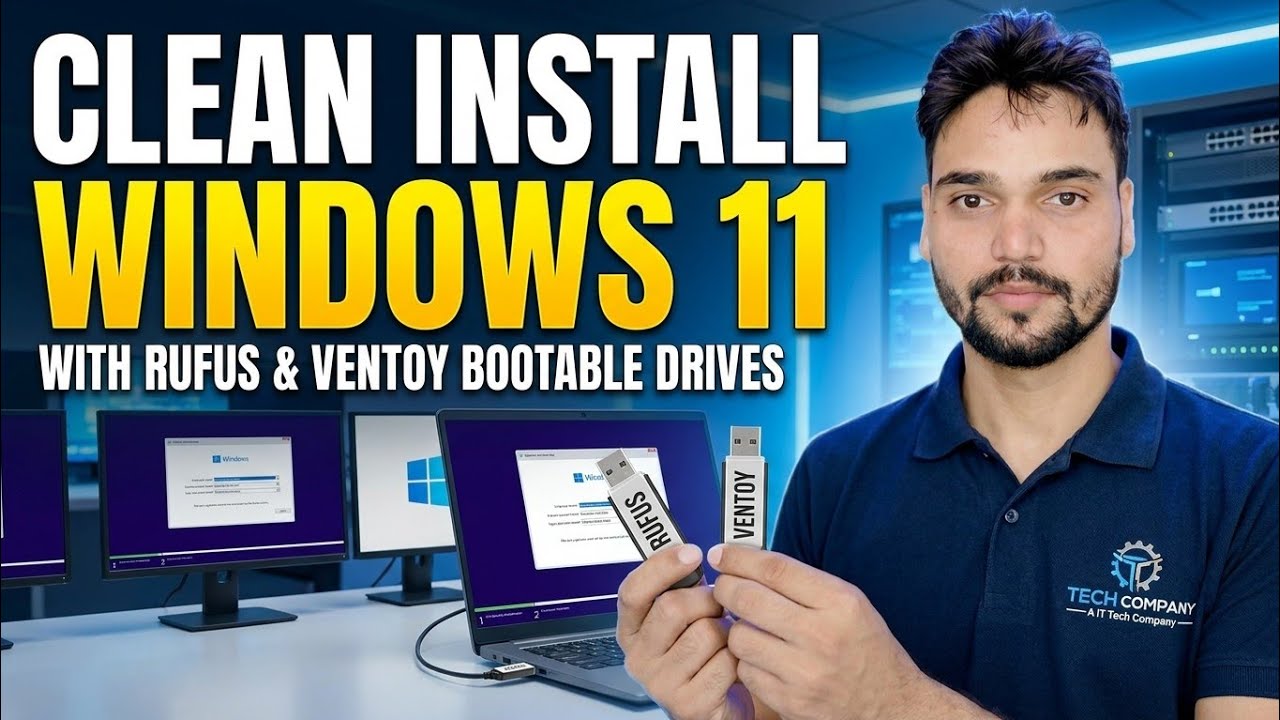
Install Windows 11 step by step with both methods — Rufus for a single dedicated installer USB and Ventoy for a multiboot pendrive that carries many ISOs at once. ISO download, correct settings, boot menu, setup screens and the first hour after install.
📑Chapters
- What you need, and downloading the official Windows 11 ISO
- Method 1 — Rufus: a single dedicated installer USB
- Method 2 — Ventoy: a multiboot pendrive with many ISOs
- Booting the PC from the USB drive
- Windows Setup — the install screens and partition choices
- First-run setup (OOBE) after the install
- The first hour after install — updates, drivers and activation
📋 Overview & Step-by-Step Guide
Download the Official Windows 11 ISO
Everything starts with a genuine ISO. Download the Windows 11 disk image (ISO) from Microsoft's official download page — microsoft.com/software-download/windows11 — and pick your language. You also need a USB drive of at least 8 GB; 16 GB or more is comfortable, and a bigger drive pays off with the Ventoy method below.
Method 1 — Rufus: One Dedicated Installer USB
Download Rufus from its official site, rufus.ie — the portable version needs no installation. Plug in the USB drive, open Rufus, and confirm the correct drive is selected under Device. Click SELECT and pick the Windows 11 ISO you downloaded. For any modern PC leave the Partition scheme on GPT (target system UEFI); MBR is only for genuinely old legacy-BIOS machines. Leave the file system at its default, then click START.
Before writing, Rufus shows its Windows User Experience dialog — the options the video walks through, such as creating a local user account and setting the regional options automatically. Choose what you need and confirm. Rufus then writes the installer; wait for the status to turn green and say READY before removing the drive.
Method 2 — Ventoy: One Multiboot Pendrive
Ventoy takes the opposite approach: you prepare the drive once, then simply copy ISO files onto it. Download Ventoy from its official site, ventoy.net, extract it and run Ventoy2Disk. Select your USB drive and click Install — this formats the drive and creates the Ventoy boot partition plus a normal data partition.
After that, just copy the Windows 11 ISO file onto the drive like any ordinary file — no extraction, no writing tool. You can keep several ISOs on the same pendrive (Windows, Linux, repair tools) as long as there is space. When you boot from it, Ventoy shows a menu listing every ISO on the drive; pick the Windows 11 ISO and Setup starts.
Boot the PC from the USB Drive
Plug the finished USB into the PC you want to install on and restart it. Open the one-time boot menu as the machine starts — the key depends on the maker; common ones are F12, F8, F9 or Esc, and the BIOS/UEFI setup itself is usually Del or F2. Select the USB drive from the menu (on UEFI systems pick the entry that starts with "UEFI:"). With Ventoy, choose the Windows 11 ISO from its list first. When "Press any key to boot from CD or DVD…" appears, press a key — Windows Setup loads.
Run Windows Setup — the Install Screens
Pick your language, time format and keyboard, then click Install now. If Setup asks for a product key, enter yours — or click "I don't have a product key" and choose the edition your licence covers; activation completes later once Windows is online, as long as the edition matches. Accept the licence terms and, on the install-type screen, choose Custom: Install Windows only (advanced) — that is the clean-install route.
On the partition screen, select the drive where Windows should go. For a truly clean install on that disk, delete its old partitions until it shows as unallocated space, select it and click Next — Setup creates the partitions it needs by itself. Setup then copies files and restarts; from here it continues on its own, so you can remove the USB drive at the first restart.
Finish the First-Run Setup (OOBE)
After the restarts, Windows walks you through the out-of-box setup: country or region, keyboard layout, connecting to your network, and signing in. Give the PC a name when asked, follow the account screens, and set up your sign-in (password or PIN). Read each privacy toggle as it appears and switch off anything you do not want — you can change all of them later in Settings. Windows then prepares the desktop for a few minutes and signs you in for the first time.
The First Hour After Install — Updates, Drivers, Activation
Do these before installing your own software. First, open Settings → Windows Update and run Check for updates repeatedly — install everything, restart when asked, and keep going until no updates remain; most drivers arrive through this same channel. Second, check Settings → System → Activation and confirm Windows shows as active; if it does not, troubleshoot activation there once you are online. Finally, open Device Manager and look for any device still showing a warning mark — for those, take the driver from the PC or motherboard maker's official support page, never from a random "driver updater" tool.
🏷️Topic Search Variables & Keywords
🎙️ Full Transcript — tap to expand
Step-by-Step Troubleshooting Guide & Solutions — CLEAN INSTALL WINDOWS 11 WITH RUFUS & VENTOY BOOTABLE DRIVES. On-screen demonstration by Technical Anshu.
Install Windows 11 step by step with both methods — Rufus for a single dedicated installer USB and Ventoy for a multiboot pendrive. ISO download, correct settings, boot menu, setup screens and the first hour after install.
(transcript ends here on the source page)
❓ Frequently Asked Questions
Is this tutorial 100% free to follow?
Yes! All guides and methods demonstrated by Technical Anshu use free, legal, and educational resources.
Can beginners follow this guide?
Absolutely! Every step is demonstrated on-screen with detailed instructions so anyone can follow along easily.
Where can I ask questions if I get stuck?
Leave a comment directly on the YouTube video, and our community and Technical Anshu will help you out.
🚀 Watch the Full Tutorial on YouTube
🚀 Watch the full step-by-step video tutorial on YouTube: https://www.youtube.com/watch?v=_FxY1awVxnQ
Subscribe to Technical Anshu for IT support, Windows troubleshooting, and server management.
▶️ Watch Full Video