Monitor CPU, RAM, Bandwidth & Firewall Status with PRTG
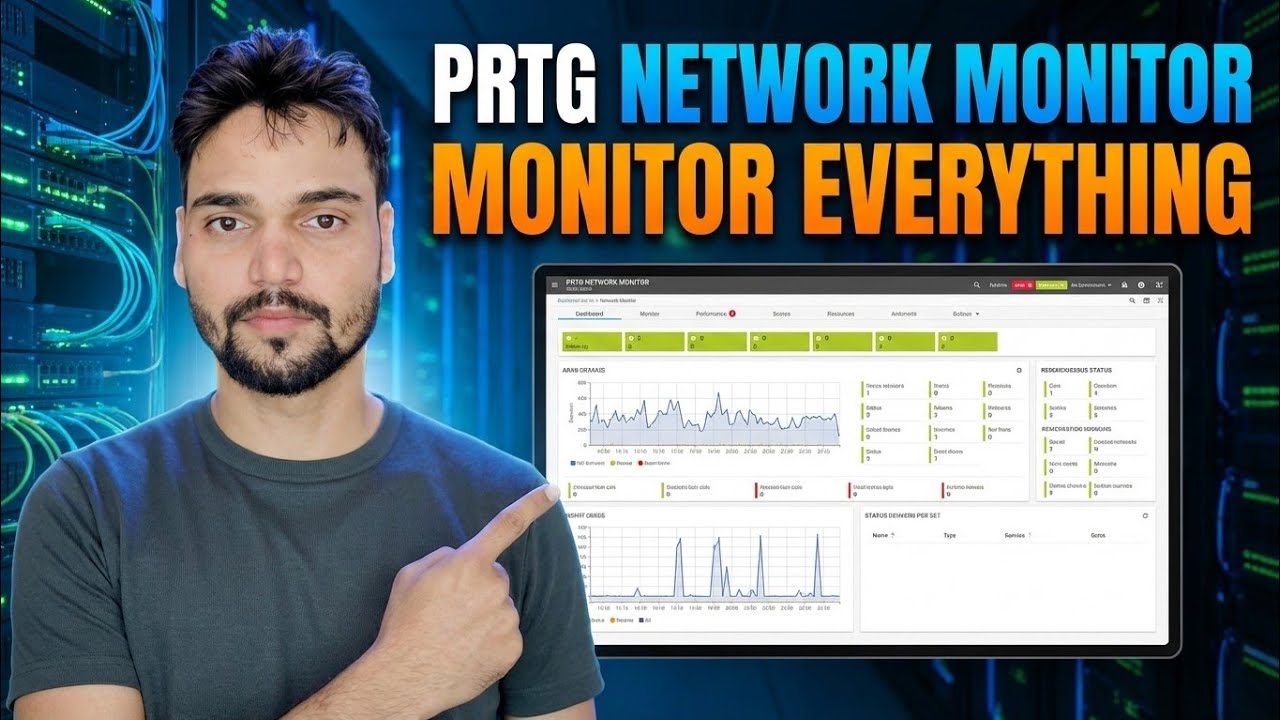
One dashboard for the whole network: Technical Anshu sets up Paessler PRTG to monitor CPU, RAM, bandwidth and firewall status — install, auto-discovery, WMI and SNMP sensors, and alerts, with the honest limits of the free 100-sensor edition.
📑Chapters
- Why one dashboard beats logging into every machine by hand
- How PRTG works — core server, probes and sensors
- Installing PRTG on a Windows machine
- Auto-discovery — finding every device on the network
- CPU and RAM sensors with WMI and SNMP
- Bandwidth sensors on routers, switches and the firewall
- Firewall status, thresholds and alerts
- The honest limits of the free 100-sensor edition
📋 Overview & Step-by-Step Guide
Understand the Sensor Model First
PRTG is built from three pieces: the core server (the central software you log into), probes that do the actual checking, and sensors — one sensor measures one single value on one device, for example the CPU load of one server or the traffic on one firewall port. Everything is watched from PRTG's web interface in your browser.
Install the PRTG Core Server
Download PRTG from Paessler's official website and run the installer on a Windows PC or server. The setup installs the core server and a local probe together. When it finishes, PRTG opens in your browser — set your administrator password and note the address of the web interface, because this is the dashboard you will open every day.
Run Auto-Discovery on Your Network
PRTG's auto-discovery scans your network ranges and builds the device tree for you — servers, PCs, switches, the firewall, printers and more, each with a first set of sensors PRTG recommends for that device type. Go through the discovered list afterwards: rename devices so you recognise them, and delete devices or sensors you genuinely do not need.
Add CPU and RAM Sensors (WMI & SNMP)
For Windows servers and PCs, PRTG reads CPU load and memory through WMI sensors — these need Windows credentials with permission on the target machine, which you store once on the device or group in PRTG. For switches, firewalls and other network devices, CPU and memory are read through SNMP, which must be enabled on the device itself first.
Add Bandwidth Sensors
Add an SNMP Traffic sensor on the router, switch or firewall interface that carries your internet or LAN traffic. PRTG then graphs the live traffic in and out of that port, so you can see exactly when the line is saturated, which hours are busiest, and whether a "slow internet" complaint is really a bandwidth problem or something else.
Watch the Firewall and Set Alerts
Keep the firewall under watch with a Ping sensor plus its SNMP sensors (traffic, CPU), so its status is visible on the same dashboard as everything else. Then set thresholds and notifications: for example CPU above 90% for several minutes, bandwidth near the line's limit, or a device that stops responding. PRTG can send these alerts by email, so you hear about a failure before your users start calling.
Stay Inside the Free Edition's Limits
The free edition of PRTG includes 100 sensors — genuinely free, but it runs out faster than most people expect because of the sensor counting from Step 1. Spend those sensors where they matter: the firewall, core switches, and your important servers first. Pause or delete sensors you never look at, and if your network outgrows 100 sensors, the paid licences simply raise the sensor count — plan which devices truly need watching instead of monitoring everything blindly.
🏷️Topic Search Variables & Keywords
🎙️ Full Transcript — tap to expand
Step-by-Step Troubleshooting Guide & Solutions — PRTG Network Monitor: monitor everything. On-screen demonstration by Technical Anshu.
Set up Paessler PRTG to monitor CPU, RAM, bandwidth and firewall status from one dashboard. Install, auto discovery, WMI and SNMP sensors, alerts — plus the honest limits of the free 100-sensor edition.
(transcript ends here on the source page)
❓ Frequently Asked Questions
Is this tutorial 100% free to follow?
Yes! All guides and methods demonstrated by Technical Anshu use free, legal, and educational resources.
Can beginners follow this guide?
Absolutely! Every step is demonstrated on-screen with detailed instructions so anyone can follow along easily.
Where can I ask questions if I get stuck?
Leave a comment directly on the YouTube video, and our community and Technical Anshu will help you out.
🚀 Watch the Full Tutorial on YouTube
🚀 Watch the full step-by-step video tutorial on YouTube: https://www.youtube.com/watch?v=aKdsNV_k0wc
Subscribe to Technical Anshu for IT support, Windows troubleshooting, and server management.
▶️ Watch Full Video