TP-Link AC1900 Setup 😳 Full Configuration Guide (WiFi + LAN)
Set up a TP-Link AC1900 class router the right way: wiring, first login, Quick Setup, internet type, WiFi names, DHCP, guest network and firmware — in the order that avoids rework.
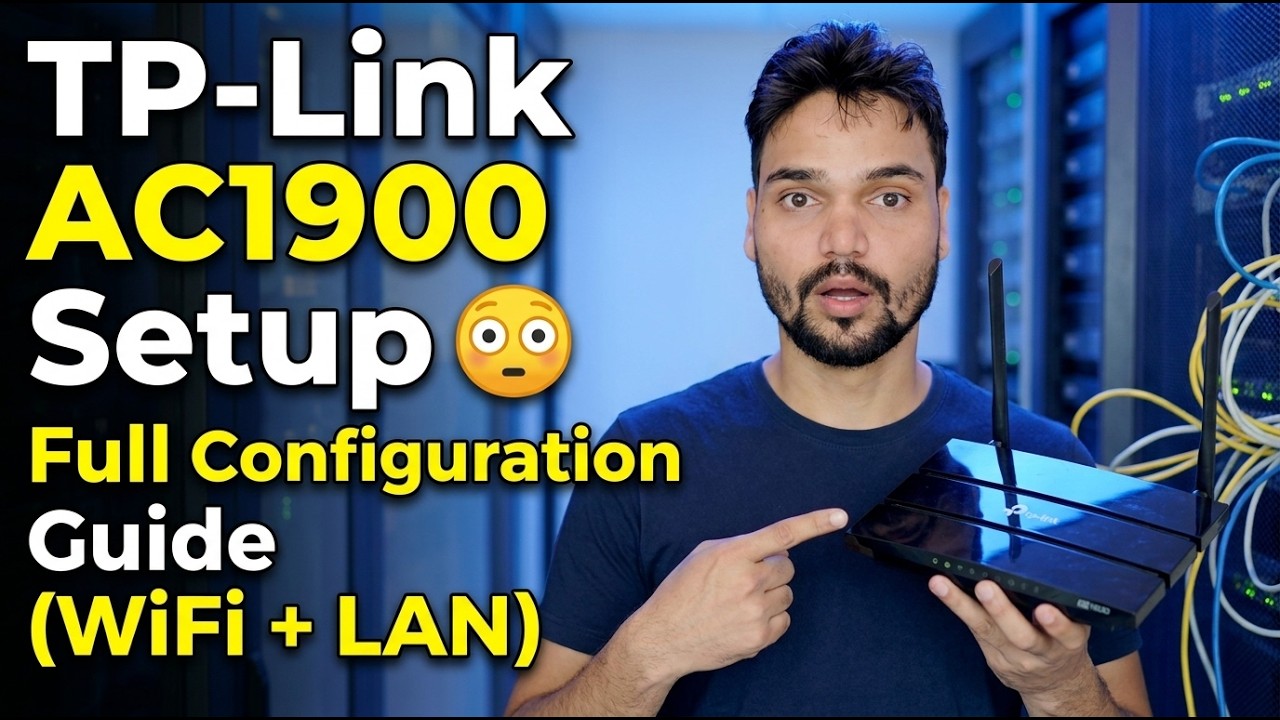
📑Chapters
- What is in the box and how the wiring goes — WAN, LAN and power
- First login at tplinkwifi.net (192.168.0.1) with the default admin login
- Quick Setup — choosing the internet connection type
- WiFi setup — network names for 2.4 GHz and 5 GHz and a strong password
- DHCP server and LAN settings check
- Guest network so visitors stay off your main LAN
- Firmware update and changing the default admin password
- Final restart and testing on wired and wireless devices
📋 Overview & Step-by-Step Guide
Unbox and Wire the Router Correctly
AC1900 is the router's combined WiFi speed class — 600 Mbps on the 2.4 GHz band plus 1,300 Mbps on the 5 GHz band. Start with the wiring, because most "router not working" cases are just a cable in the wrong port. Connect the power adapter and switch the router on. Take the internet cable coming from your modem or ISP line and plug it into the WAN / Internet port (the single separate port, usually blue). Then connect your PC to any of the LAN ports (usually yellow) with a network cable — or join the router's default WiFi, whose name and password are printed on the label under the router.
Log In to the Router Panel
Open a browser on the connected PC and go to the router's setup address:
http://tplinkwifi.netIf that does not open, use the router's IP address directly:
http://192.168.0.1On this model the default login is username admin and password admin (always confirm from the label on your unit — newer TP-Link models instead ask you to create a password on the very first login). Log in and you are on the router's dashboard.
Run Quick Setup and Pick the Internet Type
Open Quick Setup from the menu and follow the wizard. Confirm your region and time zone, then the important choice: the internet connection type. Pick Dynamic IP if your ISP hands out addresses automatically (most cable and fibre connections) — the router picks everything up by itself. Pick PPPoE if your ISP gave you a broadband username and password, and type those in exactly. Pick Static IP only if your ISP has given you fixed IP, gateway and DNS values in writing. If the wizard offers to clone your PC's MAC address and your connection was earlier locked to that PC, accept it; otherwise let it finish and save.
Set the WiFi Names and Password
In the wireless settings, set the network name (SSID) for the 2.4 GHz band and the 5 GHz band. In the video the network is named Office — you can keep one name for both bands or add a suffix like Office-5G so you always know which band a device is on. Set a strong WiFi password (a long mix you do not reuse anywhere else) and keep the security mode on WPA2-PSK / WPA3 as offered — never leave the network open or on WEP. Save, and reconnect your devices to the new names.
Check DHCP and LAN Settings
Open the DHCP settings and confirm the DHCP server is enabled — this is what automatically gives every phone, PC and printer its IP address. The router's own LAN address is 192.168.0.1 and the default address pool hands out addresses above it; for a home or small office the defaults are fine as they are. Leave the pool alone unless you have a specific plan for static addresses.
Turn On the Guest Network
Enable the Guest Network for visitors: a separate 2.4 GHz (and 5 GHz, if you want) WiFi name with its own password. Guests get internet access but cannot see your PCs, shared folders or printer on the main LAN. This is the network to hand out in an office or shop instead of your main WiFi password.
Update the Firmware and Secure the Admin Login
Go to the System Tools → Firmware Upgrade area and check whether a newer firmware is available for your exact model and hardware version — download firmware only from TP-Link's official support page for your model, never from a random site, and do not switch the router off while it updates. In the same visit, open the password settings and change the admin password from the default to a strong one, and note it down somewhere safe.
Restart, Reconnect and Test Everything
Restart the router from the panel (or power it off and on once) so every setting is applied cleanly. Reconnect your devices: wired PCs on the LAN ports should get an address automatically, and phones and laptops join the new WiFi names. Open a few websites on both a wired and a wireless device, and confirm the guest network gives internet without reaching your main network.
🏷️Topic Search Variables & Keywords
🎙️ Full Transcript — tap to expand
Step-by-Step Troubleshooting Guide & Solutions - TP-Link AC1900 Setup 😳 Full Configuration Guide (WiFi + LAN). On-screen demonstration by Technical Anshu.
Set up a TP-Link AC1900 class router the right way: wiring, first login, Quick Setup, internet type, WiFi names, DHCP, guest network and firmware, in the order that avoids rework.
(transcript ends here on the source page)
❓ Frequently Asked Questions
Is this tutorial 100% free to follow?
Yes! All guides and methods demonstrated by Technical Anshu use free, legal, and educational resources.
Can beginners follow this guide?
Absolutely! Every step is demonstrated on-screen with detailed instructions so anyone can follow along easily.
Where can I ask questions if I get stuck?
Leave a comment directly on the YouTube video, and our community and Technical Anshu will help you out.
🚀 Watch the Full Tutorial on YouTube
🚀 Watch the full step-by-step video tutorial on YouTube: https://www.youtube.com/watch?v=dROqrJISFlo
Subscribe to Technical Anshu for IT support, Windows troubleshooting, and server management.
▶️ Watch Full Video