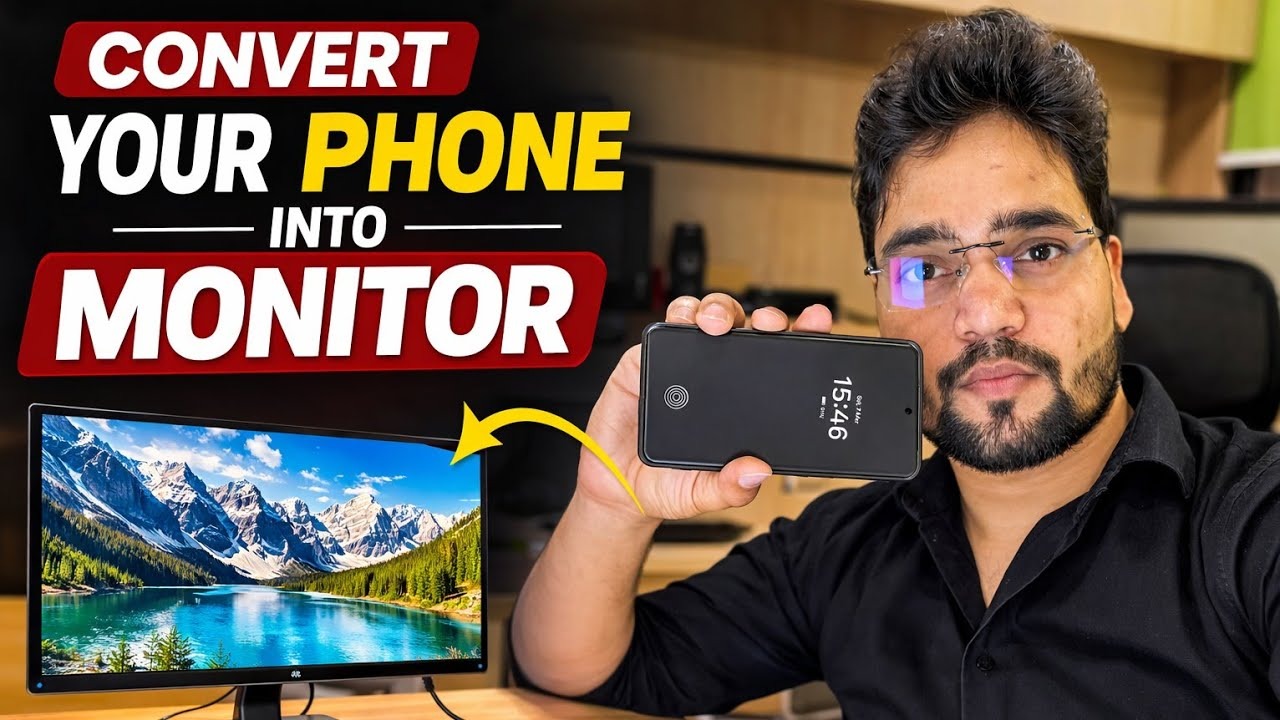
Convert Your Phone into Monitor 🔥 Using Capture Card
Use your phone as a monitor with a capture card — the complete setup: HDMI out of the PC, a UVC capture card, an OTG adapter and a viewer app on the phone, plus the honest limits.
📑Chapters
- What this setup does — your phone displays whatever comes out of the PC's HDMI port
- What you need — an HDMI source, a UVC capture card, an OTG connection and a viewer app
- Connecting the chain — PC HDMI out, capture card, OTG adapter, phone
- Opening the viewer app and seeing the PC screen on the phone
- Using it where no monitor exists — BIOS screens and headless PCs
- The honest limits — view-only display, a little lag, resolution caps and battery drain
📋 Overview & Step-by-Step Guide
Understand What the Setup Does
A phone cannot take an HDMI signal directly — its ports are outputs, not inputs. The trick in this video is a small USB capture card: it takes the HDMI picture from the PC and presents it to the phone as a standard USB camera (UVC) feed. The phone then simply shows that "camera" full-screen, and your PC screen appears on the phone. Nothing is installed on the PC, and the same chain works with any HDMI source — a laptop, a DVR/NVR, a camera or a console.
Collect What You Need
Four things: (1) an HDMI cable from the PC, (2) a UVC USB video capture card — the small dongle type with HDMI-in on one side and USB on the other, (3) a USB OTG adapter if your phone's port does not match the capture card's plug, and (4) a USB camera viewer app on the phone that can open a UVC device. Your phone must support USB OTG and USB cameras — most modern Android phones with USB-C do. Some phones also have an OTG switch in Settings that must be turned on, and on some models it switches itself off after a few idle minutes.
Connect Everything in Order
Plug the HDMI cable into the PC's HDMI output and the other end into the capture card's HDMI input. Then connect the capture card's USB plug to the phone — through the OTG adapter if needed. The chain is: PC → HDMI cable → capture card → OTG adapter → phone. The capture card takes its power from the phone over USB, so no separate power supply is needed for the card itself.
Open the Viewer App and See the Picture
Open the USB camera viewer app and allow the USB/camera permission when the phone asks. The app detects the capture card as a camera, and the PC's screen appears on the phone. Rotate the phone to landscape, switch the app to full-screen, and if the app offers resolution or frame-rate choices, start with the default — a lower resolution is smoother on budget capture cards.
Use It Where a Monitor Is Missing
Because the phone is showing a raw HDMI feed, it works before Windows even starts — BIOS/UEFI setup screens, boot menus and Windows installation screens all show up. That makes this setup genuinely useful for a technician: checking a headless PC or server with no monitor attached, working on a machine whose display has died, or viewing a DVR's output on the spot without carrying a monitor around.
Keep the Phone Charged on Long Sessions
Know the Honest Limits
Three honest limits before you rely on this daily. First, there is a small delay between the PC and the phone picture, so it is fine for setup, installation and checking screens — not for gaming. Second, most budget capture cards deliver 1080p or less to the phone even when they accept a higher-resolution input, so text is readable but not monitor-sharp. Third, as covered above, it is view-only and it drains the battery. Within those limits, it is one of the cheapest ways to always have a "monitor" in your pocket.
🏷️Topic Search Variables & Keywords
🎙️ Full Transcript — tap to expand
Step-by-Step Troubleshooting Guide & Solutions - CONVERT YOUR PHONE INTO MONITOR. On-screen demonstration by Technical Anshu. Use your phone as a monitor with a capture card - the complete setup. HDMI out of the PC, UVC capture card, OTG adapter and a viewer app on the phone, plus the honest limits.
(transcript ends here on the source page)
❓ Frequently Asked Questions
Is this tutorial 100% free to follow?
Yes! All guides and methods demonstrated by Technical Anshu use free, legal, and educational resources.
Can beginners follow this guide?
Absolutely! Every step is demonstrated on-screen with detailed instructions so anyone can follow along easily.
Where can I ask questions if I get stuck?
Leave a comment directly on the YouTube video, and our community and Technical Anshu will help you out.
🚀 Watch the Full Tutorial on YouTube
🚀 Watch the full step-by-step video tutorial on YouTube: https://www.youtube.com/watch?v=ibxMnRnshNQ
Subscribe to Technical Anshu for IT support, Windows troubleshooting, and server management.
▶️ Watch Full Video