Turn Windows 11 into macOS! (Works on Old Laptops)
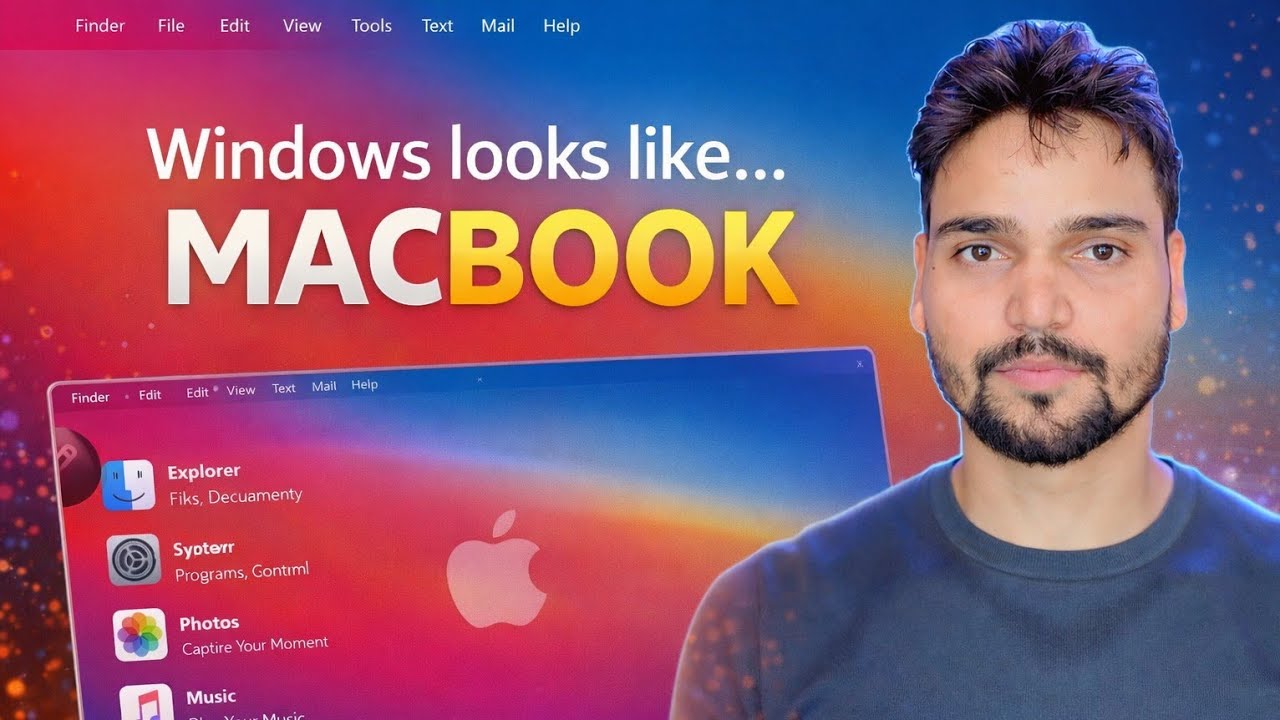
A dock at the bottom, a menu bar on top, rounded icons and a macOS wallpaper - Windows 11 can wear the full macOS costume, and it works even on old laptops. This is the complete safe method: what it really changes, the real costs, and how to undo every bit of it.
📑Chapters
- The honest truth first - a macOS look, not macOS itself
- Safety first - create a system restore point before anything
- The free built-in layer - macOS wallpaper, centred taskbar and transparency
- Add the dock at the bottom and the menu bar at the top
- macOS icons and cursors to complete the surface
- The optional deep theme layer - and why it is fragile
- The real costs on old laptops, testing, and how to undo it all
📋 Overview & Step-by-Step Guide
Know What This Makeover Really Is - a Look, Not macOS
Start with the honest truth the video opens with: this transformation changes only the appearance of Windows 11. Every app on your PC is still a Windows app wearing a new icon - File Explorer may look like Finder, but it is File Explorer. No Apple apps will run, and services like Final Cut, iMessage and AirDrop do not appear. If you want the Mac look and feel, this method delivers it. If you want to run Mac software, no theme can do that - it needs a real Mac.
Create a Restore Point Before Anything Else
The deep layer of theming replaces or patches Windows system files. Ninety-nine times it goes fine; the hundredth time, a bad mix leaves you with a half-themed desktop or a sign-in problem. A system restore point is your one-click way back. Open the Start menu, search Create a restore point, make sure protection is On for the C drive, and click Create.
Apply the Free Built-In Layer - No Tools Needed
Start with what Windows already gives you; this layer alone carries a surprising amount of the illusion. Set a macOS wallpaper. In Settings ➔ Personalization ➔ Taskbar, set the taskbar alignment to Centre if it is not already. Turn on transparency effects in Settings ➔ Personalization ➔ Colors. Then remove the taskbar items you do not use - Widgets, Search, Task view - for a cleaner bar. Nothing here can break your system, and everything is fully reversible from the same screens.
Add the Dock and the Top Menu Bar
The dock is the single piece that sells the look: it sits at the bottom centre of the screen, shows your pinned and running apps with big rounded icons, and magnifies them as the mouse passes over - the classic Mac behaviour. A menu bar tool adds the slim bar at the very top of the screen with the app name, clock and status icons. These are ordinary programs: they install like any app, run at startup, and can be closed or uninstalled at any time. They do not modify Windows itself, which is why this layer is low risk. The exact tools are the ones shown in the video.
Apply macOS Icons and Cursors
Icon packs replace the look of folders, drives and common apps so the desktop matches the dock. Cursor packs swap the Windows pointer for the Mac-style one. With the wallpaper, dock, menu bar, icons and cursors together, the surface transformation is complete - and you are still in the safe zone, because none of these pieces has touched a Windows system file.
Decide Carefully on the Deep Theme Layer
The deep layer is different. Full visual styles that restyle window borders, buttons and title bars need a theme patcher - a utility that patches Windows system files so unsigned third-party themes can load. It works beautifully until a Windows update replaces those patched files, and then the theme breaks or half-applies and has to be reapplied. This layer is optional: many users stop at Step 5 and get around 90 percent of the look with none of the fragility.
Test Everything - and Know Your Undo Route
After theming, spend five minutes testing like a technician: restart the PC, sign in, and open Settings, the Microsoft Store, File Explorer and your browser. Check that the sign-in screen and lock screen look right too. If anything is wrong, your undo route is simple: switch back to the default Windows theme, close or uninstall the dock and menu bar tools, and if the deep layer misbehaved, restore the system from the restore point you made in Step 2. A theme you cannot undo is a theme you should not install.
🏷️Topic Search Variables & Keywords
🎙️ Full Transcript — tap to expand
Step-by-Step Troubleshooting Guide & Solutions - Windows looks like... MACBOOK. On-screen demonstration by Technical Anshu.
Turn Windows 11 into macOS with a dock, menu bar, icons and wallpaper. The complete safe method, what it really changes, the real costs and how to undo it.
(transcript ends here on the source page)
❓ Frequently Asked Questions
Is this tutorial 100% free to follow?
Yes! All guides and methods demonstrated by Technical Anshu use free, legal, and educational resources.
Can beginners follow this guide?
Absolutely! Every step is demonstrated on-screen with detailed instructions so anyone can follow along easily.
Where can I ask questions if I get stuck?
Leave a comment directly on the YouTube video, and our community and Technical Anshu will help you out.
🚀 Watch the Full Tutorial on YouTube
🚀 Watch the full step-by-step video tutorial on YouTube: https://www.youtube.com/watch?v=jzc3kvZdGQs
Subscribe to Technical Anshu for IT support, Windows troubleshooting, and server management.
▶️ Watch Full Video