Rufus 4.14 New Features 😳 Windows USB Bootable Guide!
Rufus explained properly — download it safely, choose GPT or MBR, understand every option including the Windows User Experience dialog, and see what is new in Rufus 4.14: a Quality of Life option that disables Teams, Outlook and Copilot, and a Silent installation option.
📑Chapters
- What is new in Rufus 4.14 — the highlights at a glance
- Downloading Rufus safely from the official website — no installation needed
- Selecting the USB drive and the Windows ISO image
- GPT or MBR — choosing the right partition scheme for your PC
- The Windows User Experience dialog — every option explained, including the new Quality of Life and Silent installation options
- Starting the write and booting the PC from the finished USB
📋 Overview & Step-by-Step Guide
Download Rufus 4.14 Safely and Run It
Download Rufus only from its official website, rufus.ie — never from a random download portal, because modified copies of popular tools are a common source of malware. Rufus is a small portable program: there is nothing to install, you simply run the downloaded .exe file and it opens directly. On first run it may ask whether it can check online for updates — that is normal and safe to allow.
Select the USB Drive and the Windows ISO
Plug in a USB drive (8 GB or larger is recommended for a Windows installer) and it appears automatically under Device at the top of the Rufus window. Then click SELECT next to Boot selection and pick your Windows ISO file — download Windows ISOs only from Microsoft's official download pages. Double-check the device name and capacity before going further, so you never write to the wrong drive.
Choose GPT or MBR
Under Partition scheme, pick the scheme that matches the PC you will install Windows on. Choose GPT for modern PCs that boot in UEFI mode — this is the right choice for almost every current machine. Choose MBR only for very old PCs that boot in legacy BIOS mode. The Target system line updates automatically with your choice. The file system and the remaining options can stay on their defaults for a standard Windows installer.
The Windows User Experience Dialog — New in 4.14
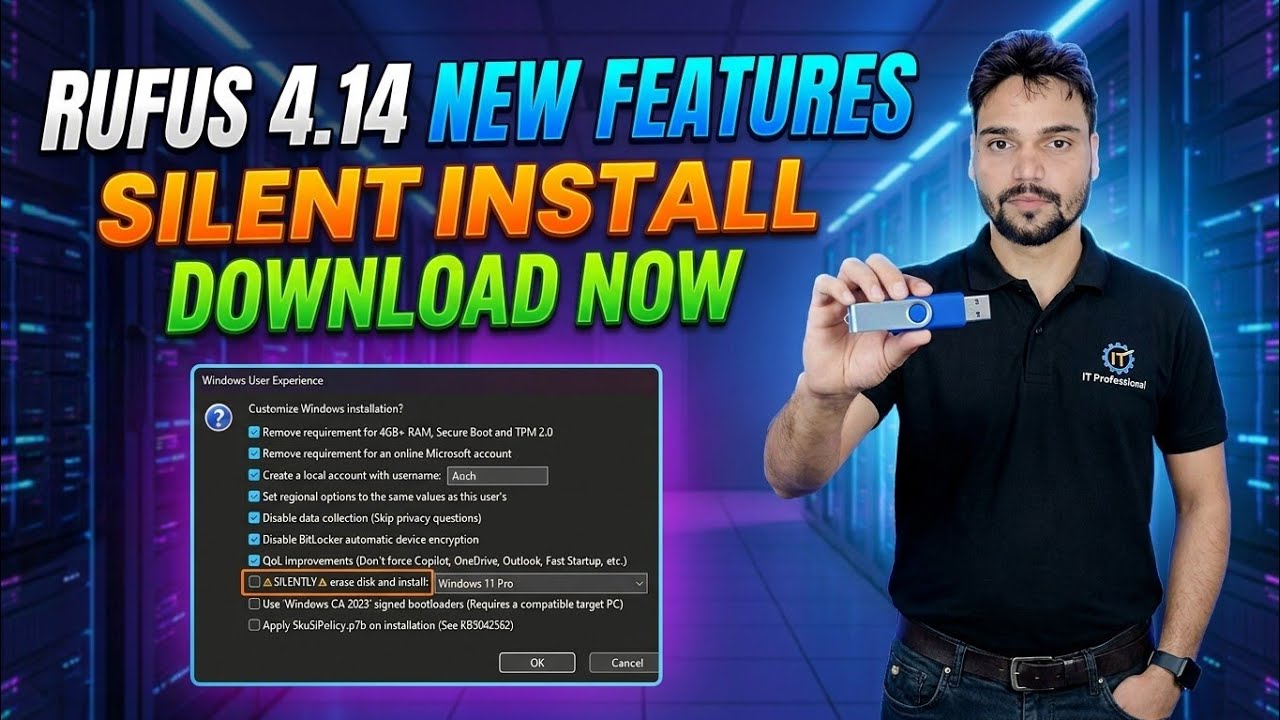
When you press START with a Windows ISO selected, Rufus opens the Windows User Experience dialog. This is where you customise the installation before it is written. In Rufus 4.14 this dialog gains two headline options. Quality of Life disables Teams, Outlook, Copilot and other Microsoft apps that are normally forced on a fresh Windows 11 install, so the system starts cleaner from the first boot. Silent installation makes the created media install Windows automatically, without any prompt, on the first disk it detects — useful for IT admins who set up many identical machines. Version 4.14 also adds an option to copy the SkuSiPolicy.p7b file to the ESP during installation (see Microsoft KB5042562) and adds tooltips explaining every option in the dialog. The dialog also keeps the familiar customisation options: creating a local account with your chosen name, setting the regional options to match your PC, and disabling the data-collection questions during setup.
Start the Write and Boot from the USB
Confirm your Windows User Experience choices, then accept the final warning that all data on the USB drive will be destroyed. Rufus formats the drive and copies the installation files — the progress bar fills and the status finally shows READY. Close Rufus, plug the USB into the PC you want to install Windows on, open its boot menu at power-on (commonly with F12, F8 or Esc, depending on the brand) and select the USB drive. Windows Setup starts from there — or, if you enabled Silent installation, it proceeds on its own, hands-free.
🏷️Topic Search Variables & Keywords
🎙️ Full Transcript — tap to expand
Step-by-Step Troubleshooting Guide & Solutions - RUFUS 4.14 NEW FEATURES SILENT INSTALL DOWNLOAD NOW. On-screen demonstration by Technical Anshu.... (transcript ends here on the source page)
❓ Frequently Asked Questions
Is this tutorial 100% free to follow?
Yes! All guides and methods demonstrated by Technical Anshu use free, legal, and educational resources.
Can beginners follow this guide?
Absolutely! Every step is demonstrated on-screen with detailed instructions so anyone can follow along easily.
Where can I ask questions if I get stuck?
Leave a comment directly on the YouTube video, and our community and Technical Anshu will help you out.
🚀 Watch the Full Tutorial on YouTube
🚀 Watch the full step-by-step video tutorial on YouTube: https://www.youtube.com/watch?v=s8z68jqVyI0
Subscribe to Technical Anshu for IT support, Windows troubleshooting, and server management.
▶️ Watch Full Video