Record Computer BIOS Screen Using Phone
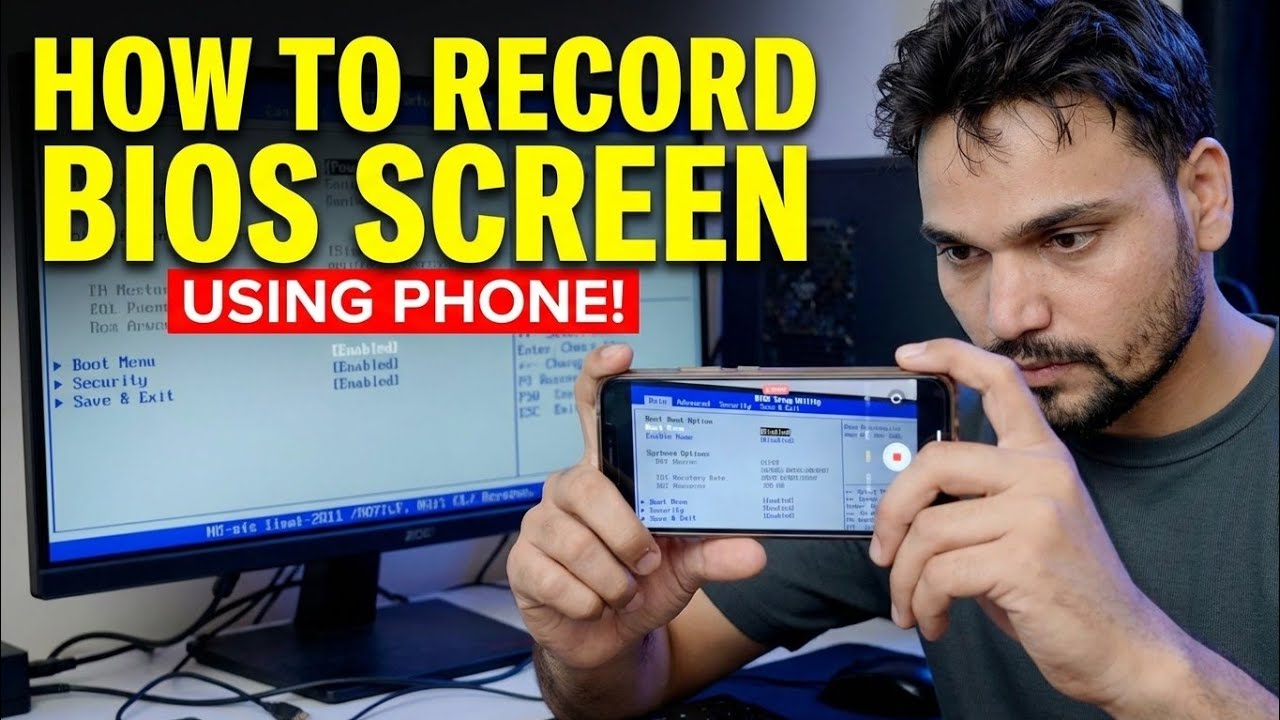
Screen-recording software cannot capture the BIOS — it runs before Windows even loads. Technical Anshu shows how to record the computer BIOS screen using a phone camera and get clear, readable video: framing, focus and exposure lock, lighting, flicker control and the full recording workflow.
📑Chapters
- Why screen-recording software cannot capture the BIOS screen
- What you need — a phone and a way to hold it perfectly still
- Mounting the phone and framing the monitor squarely
- Preparing the screen and the room lighting
- Locking focus and exposure so the picture stays stable
- Removing flicker and rolling bands from the recording
- Starting the recording first, then restarting into BIOS
- Reviewing the footage and fixing what is not readable
📋 Overview & Step-by-Step Guide
Understand Why a Phone Camera Is Needed
The BIOS (or UEFI setup) runs before Windows or any operating system starts. Screen-recording tools like OBS and the screenshot keys only work inside the operating system, so by the time they are running, the BIOS screen has already gone. That is why the practical method is to film the monitor from outside with a phone camera — the phone records independently of the PC, so it captures everything from the first power-on screen to the last BIOS menu.
Gather the Gear
You need very little: a phone with a decent camera, and something to hold it completely still — a small tripod is best, but a phone stand, a clamp mount or a steady stack of books also works. Put the phone on charge or make sure the battery and free storage are enough for a long recording, because a BIOS walkthrough can take several minutes and a phone that dies mid-recording loses the take.
Mount the Phone and Frame the Shot
Fix the phone on the tripod at the height of the monitor's centre, in landscape orientation, facing the screen straight on — not from the side or from above. An angled phone makes the rectangular screen look like a trapezoid and the text at the edges goes soft. Frame it so the monitor fills almost the whole picture with just a small margin around it: too far away and the small BIOS text becomes unreadable, too close and the camera may not focus. If you need to get closer, a slight digital zoom from a little further back usually stays sharper than moving the phone right up to the glass.
Prepare the Screen and the Lighting
Wipe the monitor screen first — dust and smudge marks glow and blur under a camera. Set the monitor brightness to a moderate level: full brightness often blows out the white BIOS backgrounds on camera, while too dim makes the picture noisy. In the room, reduce glare — close curtains or switch off any bright light that reflects in the panel, and do not sit a lamp or window behind the phone where the screen can mirror it. A slightly darkened room with no reflections gives the cleanest result.
Lock Focus and Exposure
This is the step that decides whether the video is usable. Open the camera app, tap on an area of BIOS text to focus, then lock the focus and exposure — on most phones a long-press on the screen gives you the AE/AF lock. If you leave both on automatic, the camera keeps hunting every time a bright menu opens or the screen changes, and the recording pulses in and out of focus and brightness the whole time. Also switch the flash off, and record at 1080p or 4K so the smallest menu text stays readable when viewers zoom in.
Fix Flicker and Rolling Bands
A monitor refreshes many times per second, and when the camera's shutter is out of step with it you see dark bands rolling through the picture. If that happens, open the camera's Pro or manual mode and set the shutter speed to match your mains frequency — 1/50 in 50 Hz regions such as India and Europe, or 1/60 in 60 Hz regions. Some phones also have an anti-flicker or banding-reduction setting in the camera options; turning that on helps. Test with a 10-second recording before the real take and play it back to confirm the bands are gone.
Start Recording, Then Enter BIOS
Press record on the phone first, and only then restart the PC and tap the BIOS key — commonly Del or F2, though some brands use F10, F12 or Esc; the first screen at power-on or the PC/laptop manual names the right key. Starting the recording first means you never miss the short window in which the key must be pressed, and the power-on screens are captured too. Then work through the BIOS at a calm pace, keep your hands out of the frame, and let each menu sit on screen for a few seconds so viewers can read it.
Review the Recording and Refine
Play the recording back and pinch-zoom into the smallest text — BIOS menus use tiny fonts, and "looked fine on the phone screen" is not the same as readable. If parts are soft, the usual causes are focus that was never locked, the phone sitting slightly too far away, or a reflection washing out one corner. Correct that one thing and re-record just the section you need. A clean, steady, readable BIOS recording is what makes BIOS tutorials, error reports and support videos actually useful to the viewer.
🏷️Topic Search Variables & Keywords
🎙️ Full Transcript — tap to expand
Step-by-Step Troubleshooting Guide & Solutions - HOW TO RECORD BIOS SCREEN USING PHONE!. On-screen demonstration by Technical Anshu.
How to record the computer BIOS screen using a phone camera and get clear, readable video. Framing, focus and exposure lock, lighting, flicker control and the full recording workflow.
(transcript ends here on the source page)
❓ Frequently Asked Questions
Is this tutorial 100% free to follow?
Yes! All guides and methods demonstrated by Technical Anshu use free, legal, and educational resources.
Can beginners follow this guide?
Absolutely! Every step is demonstrated on-screen with detailed instructions so anyone can follow along easily.
Where can I ask questions if I get stuck?
Leave a comment directly on the YouTube video, and our community and Technical Anshu will help you out.
🚀 Watch the Full Tutorial on YouTube
🚀 Watch the full step-by-step video tutorial on YouTube: https://www.youtube.com/watch?v=3WAh7eaaft4
Subscribe to Technical Anshu for IT support, Windows troubleshooting, and server management.
▶️ Watch Full Video