Fix Low Disk Space - Extend Partition
C drive full while free space sits unused on the same disk? Extend the C partition safely — the adjacency rule, the built-in route, and the honest options when a partition blocks the way.
📑Chapters
- The problem — the C drive is full while free space sits unused elsewhere on the same disk
- Read the map — the disk layout in Disk Management decides which route is even possible
- The adjacency rule — why Extend Volume is greyed out for so many people
- Back up first — the safety ritual before any partition is touched
- Route A — free space already touches C: extend with the built-in wizard
- Route B — a partition blocks the way: the honest options, with no one-click promises
- Verify the result — new size, a clean restart, and the backup kept for a few days
📋 Overview & Step-by-Step Guide
Open Disk Management and Read the Map First
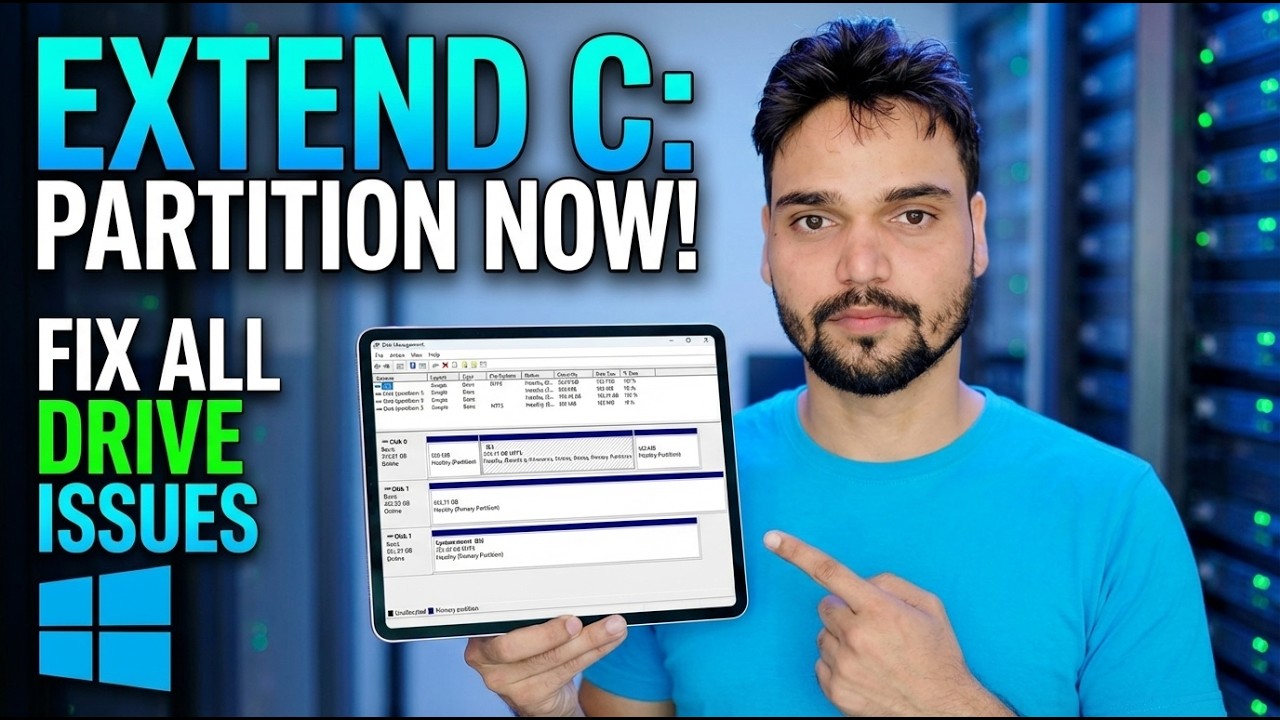
Before touching anything, open Disk Management and study the graphical strip for your system disk. The blocks are drawn left to right in their real physical order on the disk — and that order decides everything in this guide.
diskmgmt.mscFind four things: your C drive and how full it is, every partition sitting to its right, and any block labelled Unallocated. If the unallocated block touches the right edge of the C drive, your job takes a few minutes. If anything else sits between them, you are on the second route below — and knowing that now saves you from clicking options that were never going to work.
Understand the One Rule — the Adjacency Rule
Windows Disk Management offers Extend Volume only when unallocated space lies immediately to the right of the partition, on the same disk, and the partition is formatted NTFS (or still unformatted). Miss any part of that sentence and the option stays greyed out. It is not a bug, a permissions problem or an edition limit — Home, Pro and Server all behave the same way.
Two consequences surprise almost everyone: free space inside another partition does not count — a D drive showing 200 GB free in Explorer is still a fully claimed partition until it is shrunk or removed. And shrinking a partition releases the space at that partition's far end, which is usually still not beside C. Every route on this page is just a way of dealing with this single rule.
Back Up First — This Step Is Not Optional
The ritual before you start: a full disk image, or at minimum a verified copy of everything you cannot lose, stored on a different physical disk; the laptop plugged into mains power for the whole job; and your BitLocker recovery key confirmed saved if the drive is encrypted. No backup, no partition work today — that rule has no exceptions for "it worked last time".
Route A — Free Space Already Touches C: Extend in Minutes
If unallocated space sits immediately to the right of the C drive, Windows' own tools finish the job and no third-party software is involved:
In Disk Management, right-click the C drive and choose Extend Volume. Click through the wizard and take the full amount offered, or type a smaller figure in MB if you want to keep some space aside. Click Finish — the extension happens live, with no restart, and the C drive is bigger the moment the wizard closes. A normal extend does not touch your files at all; it only redraws the partition boundary into the free space next to it.
Route B — A Partition Blocks the Way: the Honest Options
If the recovery partition or the D drive sits between C and the free space, Extend Volume stays greyed out and no setting changes that — Windows has no built-in way to slide a partition out of the way. Shrinking D first does not rescue you either: the freed space appears at D's far end, still not beside C, and the shrink itself may offer far less than Explorer promised, because unmovable files (the page file, hibernation file, shadow copies and some NTFS system files) pin the boundary. Your three honest options:
Move the blocking partition with a third-party partition tool — the tool shifts the whole partition to the far side of the free space, its files ride along untouched, and the unallocated block ends up against C, where Extend finally works. This is the route most people actually want, and also the one with moving parts: the move physically relocates data, so the Step 3 backup is essential.
Remove and rebuild: with the blocking data partition's files safely copied elsewhere, delete that partition so its space merges with the free block beside C, extend C, then recreate the partition in the remaining space and copy everything back. Fully built-in, no third-party tool — paid for in copying time and care.
Live with the layout and free space inside C instead — move big folders, games and media libraries to D. Sometimes the honest answer, when the gain is small and the data is precious.
Verify the Result Before You Relax
Whichever route you took, finish like a technician: confirm the new C drive size in Disk Management and in Explorer, restart the PC once and let it boot cleanly, and open a handful of real files from every partition on the disk. Keep the pre-work backup for a few days of normal use before retiring it.
🏷️Topic Search Variables & Keywords
🎙️ Full Transcript — tap to expand
Step-by-Step Troubleshooting Guide & Solutions - EXTEND C: PARTITION NOW! FIX ALL DRIVE ISSUES. On-screen demonstration by Technical Anshu.
C drive full while free space sits unused on the same disk? Extend the C partition safely — the adjacency rule, the built-in route, and the honest options when a partition blocks the way.
(transcript ends here on the source page)
❓ Frequently Asked Questions
Is this tutorial 100% free to follow?
Yes! All guides and methods demonstrated by Technical Anshu use free, legal, and educational resources.
Can beginners follow this guide?
Absolutely! Every step is demonstrated on-screen with detailed instructions so anyone can follow along easily.
Where can I ask questions if I get stuck?
Leave a comment directly on the YouTube video, and our community and Technical Anshu will help you out.
🚀 Watch the Full Tutorial on YouTube
🚀 Watch the full step-by-step video tutorial on YouTube: https://www.youtube.com/watch?v=Dn8_SpJg4iE
Subscribe to Technical Anshu for IT support, Windows troubleshooting, and server management.
▶️ Watch Full Video