Ventoy Windows 11 Bypass Trick 😳 Rufus Ki Zarurat Nahi!
Windows 11 setup stops on PCs without TPM 2.0 or enough RAM — but with Ventoy you do not need a Rufus-modified ISO at all. Turn on Ventoy's built-in bypass check once, and the same plain ISO installs on the unsupported PC.
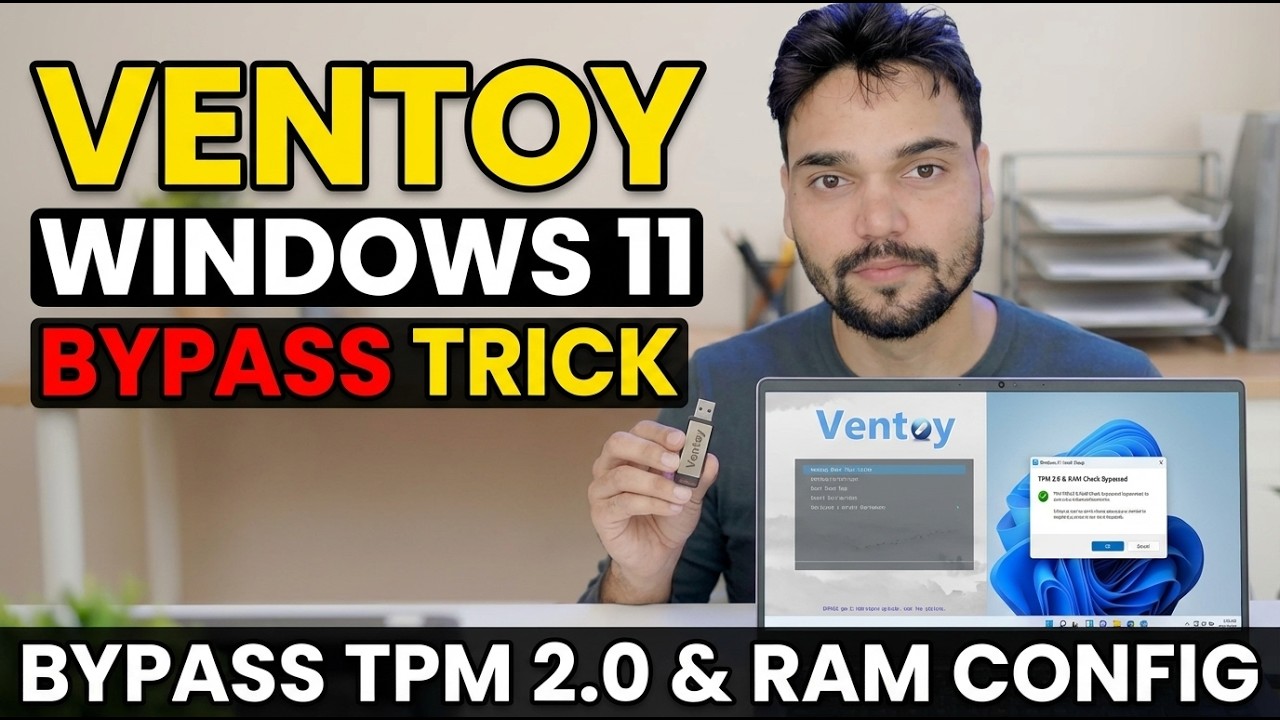
📑Chapters
- The problem — Windows 11 setup refuses PCs without TPM 2.0, Secure Boot or enough RAM
- What you need — a USB drive, Ventoy, and the official Windows 11 ISO
- Installing Ventoy on the USB drive
- Copying the Windows 11 ISO onto the Ventoy drive
- Turning on Ventoy's Windows 11 bypass check option
- Booting from the USB and installing Windows 11
- The manual route — the same LabConfig registry keys during setup
- Read this before installing on an unsupported PC
📋 Overview & Step-by-Step Guide
Download Ventoy and the Official Windows 11 ISO
Download Ventoy free from its official website, ventoy.net, and extract the zip file. Also download the Windows 11 ISO from Microsoft's official software download page — always use the official ISO, never a pre-modified one from a random site. You also need a USB drive of at least 8 GB.
Install Ventoy on the USB Drive
Plug in the USB drive, run Ventoy2Disk.exe from the extracted folder, select your USB drive in the device list and click Install. Ventoy formats the drive once and makes it bootable — after this you never format it again; you just copy ISO files onto it like a normal pendrive.
Copy the Windows 11 ISO to the Ventoy Drive
Copy the downloaded Windows 11 ISO file straight onto the Ventoy USB drive — no extraction, no burning, no changes to the ISO. This is the whole Ventoy idea: the ISO stays exactly as Microsoft released it, which is why no Rufus-style modified media is needed.
Turn On Ventoy's Windows 11 Bypass Check
Now the trick itself. On the Ventoy drive, open the ventoy folder and make sure its ventoy.json file contains the bypass option below. The easiest way is to run VentoyPlugson.exe, open the Global Control Plugin section and enable VTOY_WIN11_BYPASS_CHECK — Plugson writes the file for you. On current Ventoy versions this option is already switched on by default; the file below shows exactly what it sets.
{
    "control": [
        { "VTOY_WIN11_BYPASS_CHECK": "1" }
    ]
}
With this option on, Ventoy automatically creates the Windows setup registry keys that skip the TPM, Secure Boot, CPU, RAM and storage checks while the ISO boots — the installer never stops at the "This PC can't run Windows 11" screen.
Boot from the USB and Install Windows 11
Restart the target PC, open its boot menu and boot from the Ventoy USB drive. In the Ventoy menu, select the Windows 11 ISO and let setup start. Because the bypass is active, setup carries on past the hardware check on a PC without TPM 2.0 or with less RAM — from here the installation is the normal Windows 11 setup, exactly as shown in the video.
Manual Route: The Same LabConfig Registry Keys During Setup
Ventoy's option simply automates a registry change — you can do the same thing by hand on any bootable media. At the first Windows setup screen, press Shift + F10 to open a command window, type regedit and press Enter. In Registry Editor, go to the key below, create a LabConfig key under Setup if it is not there, and add these DWORD (32-bit) values, each set to 1. Then close Registry Editor and the command window and continue setup.
Key: HKLM\SYSTEM\Setup\LabConfig

BypassTPMCheck         REG_DWORD  1
BypassSecureBootCheck REG_DWORD  1
BypassRAMCheck        REG_DWORD  1
BypassCPUCheck        REG_DWORD  1
BypassStorageCheck    REG_DWORD  1
Upgrading an already-running Windows instead? Run setup.exe from the mounted ISO after adding the DWORD value AllowUpgradesWithUnsupportedTPMOrCPU set to 1 under HKLM\SYSTEM\Setup\MoSetup — that is the switch Microsoft itself documents for in-place upgrades on unsupported CPUs or TPMs.
🏷️Topic Search Variables & Keywords
🎙️ Full Transcript — tap to expand
Step-by-Step Troubleshooting Guide & Solutions - VENTOY WINDOWS 11 BYPASS TRICK BYPASS TPM 2.0 & RAM CONFIG. On-screen demonstration by Technical Anshu....
(transcript ends here on the source page)
❓ Frequently Asked Questions
Is this tutorial 100% free to follow?
Yes! All guides and methods demonstrated by Technical Anshu use free, legal, and educational resources.
Can beginners follow this guide?
Absolutely! Every step is demonstrated on-screen with detailed instructions so anyone can follow along easily.
Where can I ask questions if I get stuck?
Leave a comment directly on the YouTube video, and our community and Technical Anshu will help you out.
🚀 Watch the Full Tutorial on YouTube
🚀 Watch the full step-by-step video tutorial on YouTube: https://www.youtube.com/watch?v=F0KfayZkE5s
Subscribe to Technical Anshu for IT support, Windows troubleshooting, and server management.
▶️ Watch Full Video