Install Tiny11 OS on MacBook Pro - Fast Windows Setup
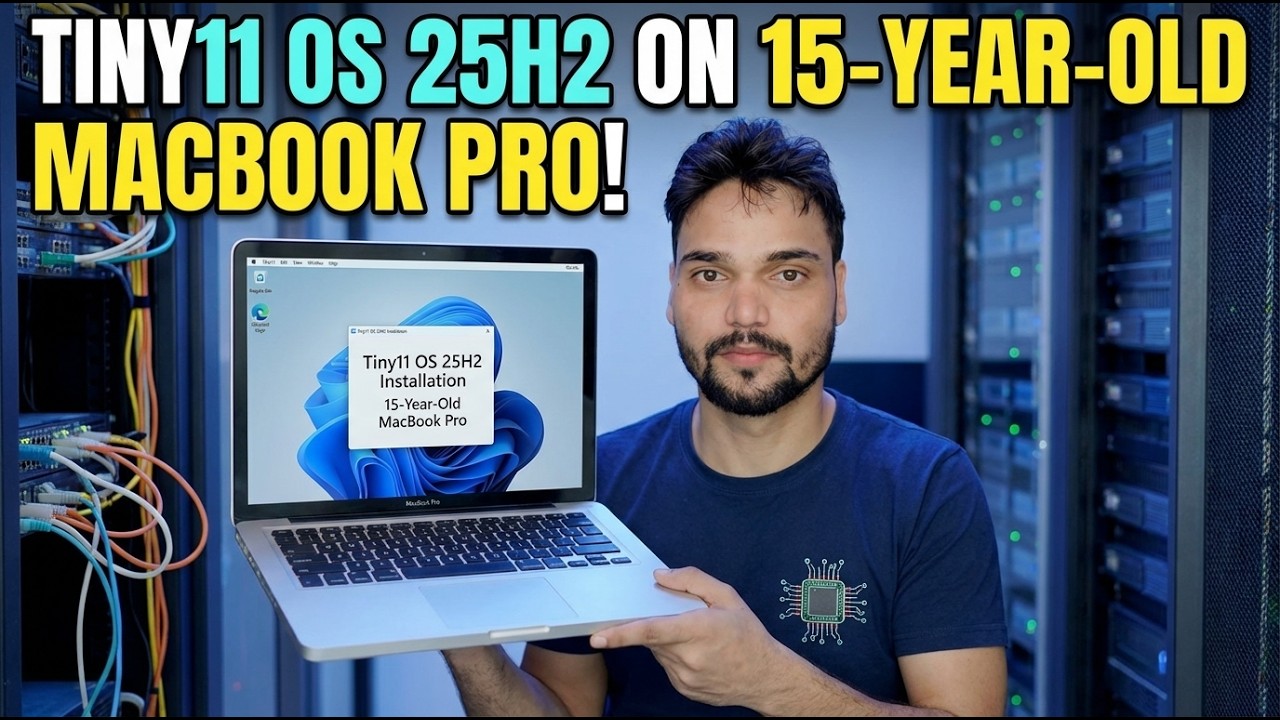
Tiny11 25H2 on a 15-year-old MacBook Pro - and the complete guide for any MacBook Pro: check Intel vs Apple Silicon first, then Boot Camp on Intel or Windows 11 on ARM in a virtual machine on Apple Silicon, with the honest licence and update limits stated plainly.
📑Chapters
- One video title, two completely different jobs - the Mac's chip decides the whole route
- Step 1: check your chip in About This Mac
- The honest note first: what Tiny11 is, and what it is not
- Intel MacBook Pro: prepare the Mac - backup, free space and power
- Intel MacBook Pro: install Tiny11 with Boot Camp Assistant
- Intel MacBook Pro: install the Boot Camp drivers and test every device
- Apple Silicon MacBook Pro: Windows 11 on ARM inside a virtual machine
- Activate with a genuine licence, and what to expect from updates
- Switching between macOS and Windows afterwards
📋 Overview & Step-by-Step Guide
Check Your Chip Before Anything Else
Click the Apple menu and open About This Mac, then read one line. If it says Chip: Apple M1 - or any later M-series chip - your Mac is Apple Silicon. If it says Processor: Intel, your Mac is Intel. This one line decides everything that follows, because Boot Camp Assistant, Apple's tool for installing Windows natively beside macOS, exists only on Intel Macs. Apple never made it for Apple Silicon, and no setting, patch or modified ISO brings it back.
The MacBook Pro in the video is a 15-year-old machine, and every Mac of that age is Intel - so the video's route is the native Boot Camp install below. Do not download any ISO until this check is done: Intel and Apple Silicon need different Windows images, and the wrong one simply refuses to install.
Know What Tiny11 Is Before You Install It
Tiny11 is not Microsoft Windows as Microsoft ships it. It is an unofficial, community-modified Windows 11 image with apps and components removed to make it small and light enough for old hardware. That trimming is exactly why it is interesting on a 15-year-old MacBook Pro - and exactly why it comes with honest limits.
Prepare the Intel Mac: Backup, Space and Power
On an Intel Mac, prepare properly before Boot Camp Assistant touches the disk:
Free at least 64 GB on the startup disk, which is Apple's minimum, and choose 128 GB or more for the Windows partition if you plan updates and real programs - a partition sized only for install day fills up within months. Plug in the charger, close other apps, and update macOS first, because Boot Camp Assistant improvements arrive with macOS updates. On Macs with the T2 security chip, keep Secure Boot at Full Security, as Apple directs for Boot Camp.
Run Boot Camp Assistant and Install Tiny11
Open Boot Camp Assistant from Applications, then Utilities, and follow its steps. Some older models ask for a USB drive of 16 GB or larger to hold the installer; newer ones do not. Point the assistant at your Tiny11 image and set the partition size carefully - this is the no-undo step.
The Mac restarts into the Windows installer. Choose your language settings and proceed to the disk choice screen. There, select the partition labelled BOOTCAMP, click Format if the installer asks, then Next.
Complete Windows setup and reach the desktop. Because Tiny11 removes the standard hardware checks, its installer can proceed on Intel Macs that a stock Windows 11 installer would refuse over TPM 2.0. That convenience is real - and so is the consequence: Apple officially documents Boot Camp for Windows 10, so a Windows 11 based image is outside Apple's tested path, and neither Apple nor Microsoft supports this combination. Keep the macOS side healthy and backed up as your recovery path.
Install the Boot Camp Drivers Immediately
Fresh Windows on a Mac without Apple drivers is half a laptop: the trackpad may scroll badly, function keys and keyboard backlight may misbehave, and Wi-Fi, sound or graphics may run on basic fallbacks. The driver install is mandatory, not optional:
On the first Windows start, look for the Welcome to the Boot Camp installer window and run it fully, then restart. If it did not appear, open the Boot Camp support software from the install media - or the OSXRESERVED or BOOTCAMP drive the assistant prepared - and run its setup. After the restart, open Apple Software Update inside Windows and install any Boot Camp updates it offers; later driver packs fix real device issues.
Then test each device once: trackpad right-click and scroll, Wi-Fi, sound, brightness keys, camera and Bluetooth. A single missing device usually means the driver pack did not finish, not that Tiny11 broke the hardware - re-run the Boot Camp driver setup as administrator, restart, and test again before you consider reinstalling Windows.
On Apple Silicon, Use a Virtual Machine Instead
If your About This Mac check showed an Apple chip, forget partitions entirely - there is no Boot Camp on Apple Silicon. Windows runs inside macOS in a virtual machine app, and there are three honest options: Parallels Desktop (paid, the smoothest setup, and the one Microsoft authorises for Windows 11 on Apple Silicon), VMware Fusion (free for personal use, solid, slightly more manual) and UTM (free and open source, best for technical users).
All three need the Windows 11 ARM64 image - not the regular x64 Tiny11 ISO, which cannot install on an ARM machine. The VM app can usually download the ARM image for you. Give the VM at least 4 GB of memory, ideally 8 GB or more if your Mac has 16 GB in total, install Windows, then install the app's guest tools for drivers, shared folders and clipboard. Windows on ARM runs most regular x64 programs through its built-in emulation, which is why this route works well for office and IT tools even though the image is ARM.
Activate Honestly and Set Update Expectations
Tiny11 does not include a licence and does not activate Windows by itself. Activate with a genuine Windows 11 product key in Settings, then System, then Activation. A Windows 11 Pro key is not tied to Intel or ARM, so the same kind of key activates the ARM virtual machine as well.
After activation, check Windows Update once, install what is offered, and restart. Then set your expectations plainly: because components were removed to make the image small, some cumulative updates or feature upgrades may fail, install partially, or bring back apps that were removed. Keep important files in macOS or backed up, and treat this Windows as a useful second system - not the only place your work lives.
Tiny11 trims Windows. It does not trim the rules: Intel gets Boot Camp, Apple Silicon gets a virtual machine with Windows on ARM, both need a genuine licence, and neither route is supported by Microsoft or Apple as a Tiny11 setup. If that trade-off is fine for a spare system or a test machine, proceed - and if this Mac is your only work machine, weigh stock Windows first.
🏷️Topic Search Variables & Keywords
🎙️ Full Transcript — tap to expand
Step-by-Step Troubleshooting Guide & Solutions - TINY11 OS 25H2 ON 15-YEAR-OLD MACBOOK PRO! On-screen demonstration by Technical Anshu.
Tiny11 on MacBook Pro complete guide. Check Intel vs Apple Silicon first, then Boot Camp on Intel or Windows ARM in a VM on Apple Silicon. Honest licence and update limits.
(transcript ends here on the source page)
❓ Frequently Asked Questions
Is this tutorial 100% free to follow?
Yes! All guides and methods demonstrated by Technical Anshu use free, legal, and educational resources.
Can beginners follow this guide?
Absolutely! Every step is demonstrated on-screen with detailed instructions so anyone can follow along easily.
Where can I ask questions if I get stuck?
Leave a comment directly on the YouTube video, and our community and Technical Anshu will help you out.
🚀 Watch the Full Tutorial on YouTube
🚀 Watch the full step-by-step video tutorial on YouTube: https://www.youtube.com/watch?v=J4GmvXmX7O8
Subscribe to Technical Anshu for IT support, Windows troubleshooting, and server management.
▶️ Watch Full Video