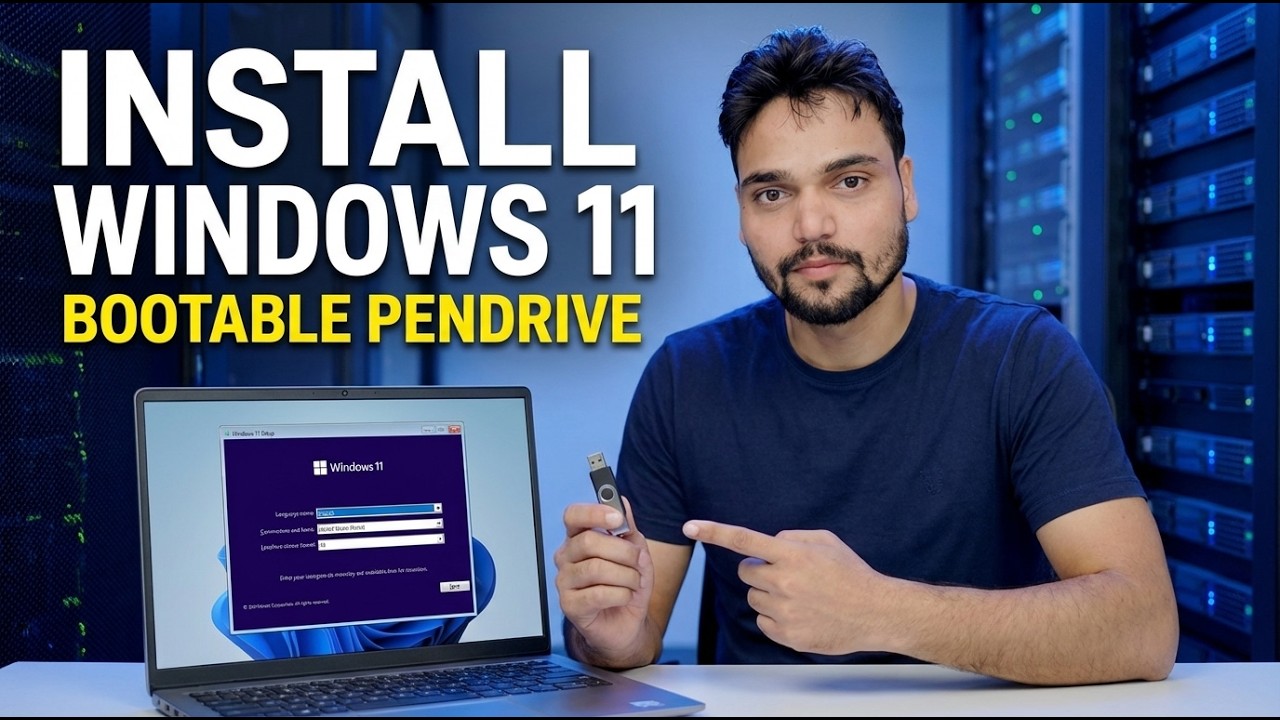
Install Windows 11 using Bootable Pendrive
Install Windows 11 from a bootable pen drive, step by step — make the USB with Microsoft's own Media Creation Tool, back up your files, boot from it, handle the partition screen and finish setup on any PC that meets the requirements.
📑Chapters
- What you need before you start — and whether the PC meets Windows 11's requirements
- Making the bootable pen drive with Microsoft's Media Creation Tool
- Backing up your files before anything is erased
- Booting the PC from the pen drive
- The first setup screens — Install now, the product key and choosing the edition
- The partition screen — where the old Windows partitions are removed
- Copying files, the automatic restarts, and not pressing a key again
- Finishing setup — account, privacy choices and a fresh desktop
📋 Overview & Step-by-Step Guide
Check the PC Meets the Windows 11 Requirements
This is a clean install: Windows 11 is written fresh onto the drive from a bootable pen drive. Before anything else, confirm the target PC meets Microsoft's Windows 11 requirements — a 64-bit dual-core processor, 4 GB of RAM, 64 GB of storage, TPM 2.0 and UEFI firmware with Secure Boot. Collect what you need: a pen drive of 8 GB or more, a working Windows PC with internet to prepare it (it can be the same PC, before you wipe it), and the target PC plugged into power — a laptop battery dying mid-install can corrupt the setup.
Make the Bootable Pen Drive with the Media Creation Tool
On the working PC, open Microsoft's official Download Windows 11 page — microsoft.com/software-download/windows11 — and under "Create Windows 11 Installation Media", download the Media Creation Tool. This is the only source this guide trusts: Windows images from aggregator or file-sharing sites can be modified, can carry malware and can fail Secure Boot, so never use a mirror.
Run the tool, accept the licence, and choose "Create installation media (USB flash drive, DVD or ISO file) for another PC". Confirm the language and edition (Windows 11), choose "USB flash drive", and select your pen drive from the list — double-check the drive letter, because the tool formats the pen drive completely while writing it. Then wait: the tool downloads Windows, verifies the download and writes the drive. On a slow connection, this download is the longest part of the whole job.
Back Up Everything That Matters
Copy these to an external drive: the Desktop, Documents, Downloads and Pictures folders (open each one — do not assume they are empty), browser bookmarks and saved passwords (export them, or turn on browser sync and confirm it has finished), software licence keys, email account details and locally stored data files such as Outlook PST files, and the two-factor authentication backup codes for important accounts. Then open the backup once and check that a few files actually open — a backup you have never tested is a hope, not a backup.
Boot the PC from the Pen Drive
Insert the pen drive, restart the PC, and tap the one-time boot-menu key repeatedly right after the power button, before Windows starts. Common keys by brand: HP — F9 (or Esc, then F9), Dell — F12, Lenovo — F12, Acer — F12, ASUS — Esc or F8, MSI — F11. In the menu, choose the entry that starts with UEFI: followed by your pen drive's name — the UEFI entry is the correct one on every modern PC. If you see "Press any key to boot from USB", press a key quickly; miss it and the PC boots the old Windows instead.
The First Setup Screens — Install Now, Key and Edition
The blue Windows Setup window opens. Choose your language, time and currency format, and keyboard layout, then click Install now. On the product key screen, click I don't have a product key if you do not have it in hand — if this PC ran an activated Windows 11 (or Windows 10) before, it reactivates itself automatically after the install through its digital licence. Pick the same edition the PC had before — Home or Pro — because the edition must match the old licence, or activation will fail later.
Accept the licence terms, then choose Custom: Install Windows only (advanced) — that is the clean install. The other option, Upgrade, is only for repairing Windows from inside a running Windows.
The Partition Screen — Choose Carefully, This Step Erases Data
Setup asks "Where do you want to install Windows?" and lists the drive's partitions — typically a small System (EFI) partition, an MSR (Reserved) partition, the large Primary partition that is your old C: drive, and a Recovery partition; the sizes are examples and yours will differ. For a true clean install, select each old Windows partition on that drive and click Delete, until the drive shows as one block of Unallocated Space. Select that unallocated space and click Next — Setup creates the partitions it needs by itself.
Windows Copies Its Files and Restarts
Setup now copies files, installs features and updates, and restarts the PC on its own. This is the quiet part of the job — roughly half an hour on an SSD PC, and noticeably longer on an old hard disk, which is normal and not a fault. When the PC restarts and you again see "Press any key to boot from USB", do not press a key this time (you can also remove the pen drive at the first restart) — pressing it would start Setup from the beginning instead of continuing the install.
Finish Setup and Land on a Fresh Desktop
The finishing screens walk you through the last choices: country or region, keyboard layout, and a name for the PC. Windows 11 setup asks the PC to connect to the internet and sign in with a Microsoft account — signing in with the same Microsoft account the PC used before is also what lets the digital licence reactivate cleanly. Work through the privacy toggles and choose what you are comfortable sharing; every one of them can be changed later in Settings.
When you land on the fresh desktop, finish with three checks: run Windows Update (Settings → Windows Update) until no more updates are offered, confirm activation under Settings → System → Activation, and then reinstall your apps and copy your files back from the backup. Your bootable pen drive stays ready for the next repair or reinstall.
🏷️Topic Search Variables & Keywords
🎤️ Full Transcript — tap to expand
Step-by-Step Troubleshooting Guide & Solutions - INSTALL BOOTABLE PENDRIVE. On-screen demonstration by Technical Anshu.
Install Windows 11 from a bootable pen drive step by step - make the USB, back up your files, boot from it, handle the partition screen and finish setup on any PC that meets the requirements.
(The transcript available on the source page ends at this point — watch the video above for the full walkthrough.)
❓ Frequently Asked Questions
Is this tutorial 100% free to follow?
Yes! All guides and methods demonstrated by Technical Anshu use free, legal, and educational resources.
Can beginners follow this guide?
Absolutely! Every step is demonstrated on-screen with detailed instructions so anyone can follow along easily.
Where can I ask questions if I get stuck?
Leave a comment directly on the YouTube video, and our community and Technical Anshu will help you out.
🚀 Watch the Full Tutorial on YouTube
🚀 Watch the full step-by-step video tutorial on YouTube: https://www.youtube.com/watch?v=UB_4pzMuek8
Subscribe to Technical Anshu for IT support, Windows troubleshooting, and server management.
▶️ Watch Full Video