Use USB Printer with Phone 🔥 Easy Method
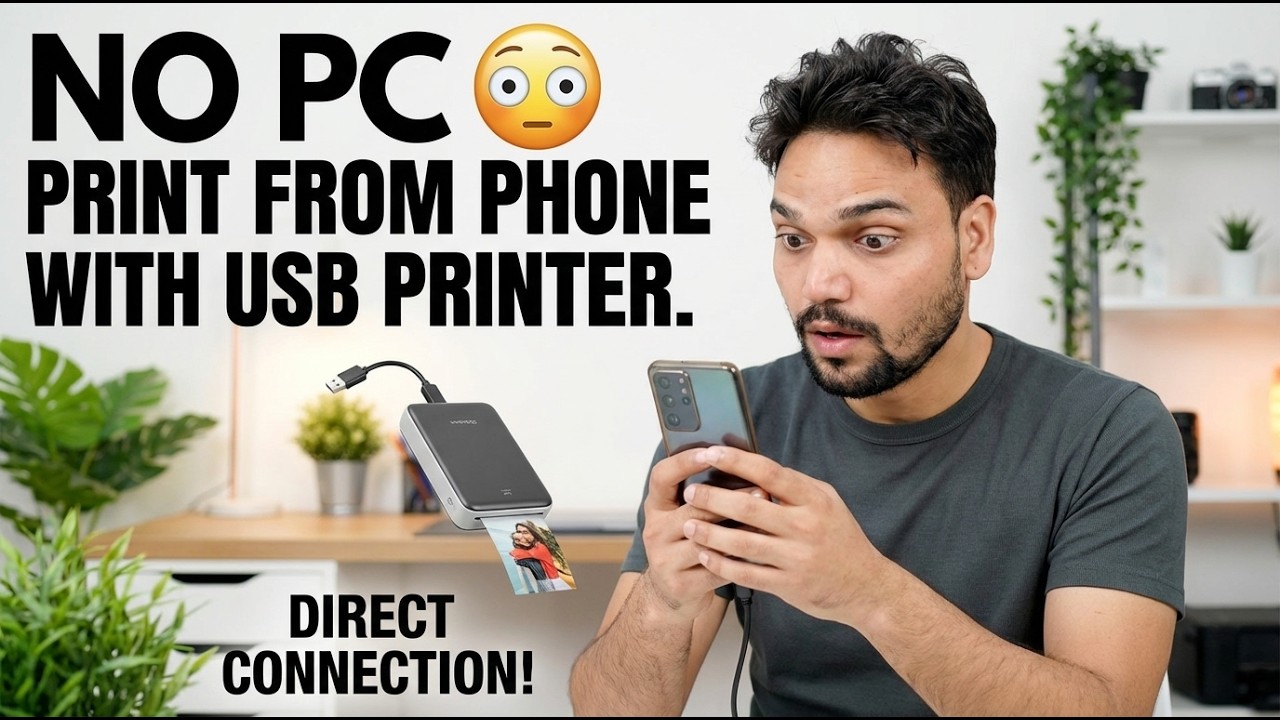
Your printer has only a USB port — no Wi-Fi, and no PC handy. This method connects it straight to your Android phone with an OTG cable and one printing app, picks the right driver profile, and proves the setup with a test page — with the honest limits stated up front.
📑Chapters
- The problem — a USB-only printer, no Wi-Fi and no PC
- What you need — an OTG cable, an Android phone and a printing app
- Connecting the printer to the phone with the OTG cable
- Detecting the printer inside the app
- Picking the right driver profile for your printer
- The test page, your first real print — and the honest limits
📋 Overview & Step-by-Step Guide
What You Need Before You Start
The situation this solves: the printer has only a USB port — no Wi-Fi — and there is no computer around to print from. In this setup the phone does the computer's job: it connects to the printer directly over a cable and sends the print job itself.
Keep these ready: the printer with its USB cable, powered on and loaded with paper; an Android phone that supports USB OTG; an OTG adapter that matches your phone's port (USB-C on newer phones, micro-USB on older ones); and a printing app, which the next steps cover.
Connect the Printer to the Phone with the OTG Cable
Switch the printer on first and let it come to its ready state. Plug the printer's USB cable into the OTG adapter, then plug the adapter into the phone. Connect in this order — printer ready first, phone last — so the phone sees a live printer the moment the connection is made.
The phone detects the attached USB accessory; if a permission popup asks whether the app may access the USB device, allow it. If nothing is detected, the most common cause is a loose or faulty OTG adapter — reseat both ends and try again before changing anything else.
Install the Printing App and Let It Detect the Printer
Android's built-in printing is aimed mainly at network printers, so install a printing app made for USB/OTG printing from the Play Store — these apps carry the printer drivers Android itself does not ship. Many printer makers also publish their own free app or print-service plugin for their models, which is worth trying first if yours does.
Open the app with the printer connected by the OTG cable and let it search: the detected USB printer appears in the app. If the printer never shows up, check the cable connection once more — and on a few phone brands there is an OTG on/off switch in Settings that must be turned on before any OTG accessory works.
Choose the Right Driver Profile
When the app detects the printer, it asks for the driver profile — the driver that translates your document into your printer's language. Select your exact printer model if it is listed. If the exact model is missing, choose the profile for the closest model in the same series from the same maker; drivers within a series are usually compatible.
Print a Test Page First
Before printing anything real, print the app's test page. One sheet confirms all three things at once: the OTG connection is solid, the driver profile matches your printer, and the output quality is what you expect.
Print Your File — and Know the Limits
Open your document or photo inside the printing app (or use the Share option from the file and send it to the app), set the copies, paper size and orientation, and print. Keep the printer switched on and the cable connected until the job finishes completely — unplugging mid-job cancels the print.
🏷️Topic Search Variables & Keywords
🎙️ Full Transcript — tap to expand
Step-by-Step Troubleshooting Guide & Solutions - NO PC PRINT FROM PHONE WITH USB PRINTER. DIRECT CONNECTION! On-screen demonstration by Technical Anshu.
Your printer has only a USB port and no Wi-Fi? Print from your Android phone anyway — OTG cable, one printing app, the right driver profile, and a test page. The complete method with honest limits.
(transcript ends here on the source page)
❓ Frequently Asked Questions
Is this tutorial 100% free to follow?
Yes! All guides and methods demonstrated by Technical Anshu use free, legal, and educational resources.
Can beginners follow this guide?
Absolutely! Every step is demonstrated on-screen with detailed instructions so anyone can follow along easily.
Where can I ask questions if I get stuck?
Leave a comment directly on the YouTube video, and our community and Technical Anshu will help you out.
🚀 Watch the Full Tutorial on YouTube
🚀 Watch the full step-by-step video tutorial on YouTube: https://www.youtube.com/watch?v=hW9szCyB0_s
Subscribe to Technical Anshu for IT support, Windows troubleshooting, and server management.
▶️ Watch Full Video