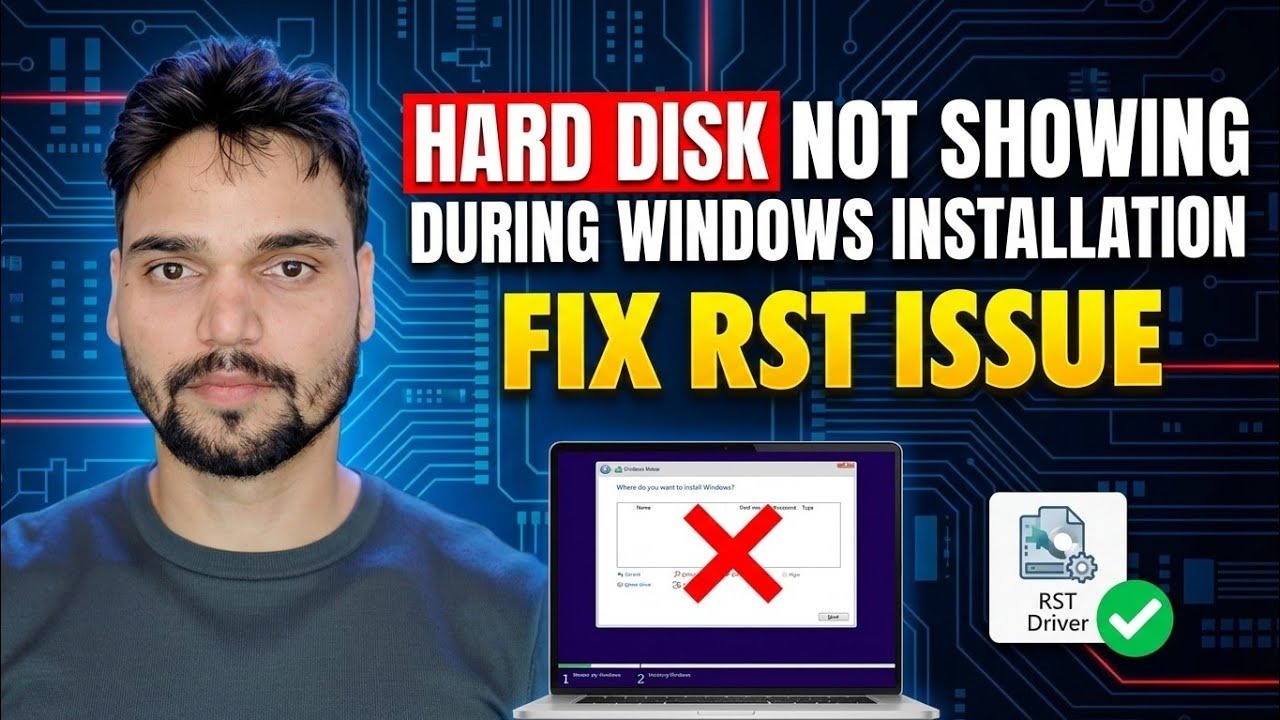
Fix HDD Not Showing During Windows Install 🔥 Disable RST / VMD / RAID
Windows Setup reaches the drive-selection screen and shows nothing — no HDD, no SSD. Technical Anshu fixes the hard disk not showing during Windows installation problem: check the drive in BIOS first, load the Intel RST VMD driver at Setup, or switch the storage mode from RST/VMD/RAID to AHCI, with a DiskPart check for disks that refuse Windows.
📑Chapters
- The problem: Windows Setup shows no drives at all
- First check: is the drive visible in BIOS?
- Load the Intel RST VMD driver during Setup (iaStorVD.inf)
- Disable RST / VMD — switch the storage mode to AHCI
- DiskPart check for disks that refuse Windows
- Finish the Windows installation
📋 Overview & Step-by-Step Guide
Understand Why Setup Shows No Drives
You boot from the Windows USB, reach the "Where do you want to install Windows?" screen — and the list is completely empty. On most modern Intel laptops and PCs the disk is not dead. The storage controller is running in Intel RST (Rapid Storage Technology) / VMD mode, and the Windows installer does not include that controller's driver, so Setup simply cannot see the drive. There are two clean fixes: give Setup the driver (Step 3), or change the controller mode (Step 4).
Check the Drive in BIOS First
Restart the PC and enter the BIOS/UEFI setup (the exact key varies by brand — F2, Del or F12 are common). Open the storage or NVMe information page and confirm the drive is listed there by name or capacity. If BIOS can see the drive, the hardware is fine and the problem is only the driver or the storage mode — continue with Step 3 or Step 4. If the drive is missing even in BIOS, it is a hardware or connection issue: reseat the drive or get it checked, because no Windows setting can fix that.
Load the Intel RST VMD Driver at Setup
On a second computer, download the Intel Rapid Storage Technology driver (the "F6" driver package) for your exact laptop or motherboard model and extract it so the driver files — iaStorVD.inf, iaStorVD.sys and the .cat file — sit together in a folder. Copy that folder onto the same USB you are installing Windows from. Back at the empty drive screen, click Load driver, then Browse, open that folder and select the Intel RST VMD controller entry. Click Next — the driver loads and your HDD/SSD appears in the list.
Disable RST / VMD — Switch the Storage Mode to AHCI
The second fix changes the controller itself. Enter BIOS/UEFI setup and find the storage setting: on many Intel systems this is the VMD Controller option (set it to Disabled) or the SATA/NVMe mode (change it from RAID / RST to AHCI). Save and exit, then boot into Windows Setup again. The drive now appears using Windows' own built-in AHCI driver — no driver loading needed.
Check the Disk with DiskPart
Still not sure whether Windows can see the disk at all? While you are in Windows Setup, press Shift + F10 to open a Command Prompt and run:
diskpart
list disk
If your disk is listed here, the hardware and connection are fine — Setup just needs the RST driver from Step 3 or the AHCI mode from Step 4. Close the Command Prompt and continue. If the disk does not appear even in DiskPart, go back to the BIOS and hardware check in Step 2.
Finish the Windows Installation
Once the drive appears in the list, select it and continue the installation as normal. If you used the AHCI route, leave the BIOS storage mode exactly as you set it afterwards — the Windows you just installed now boots with that mode.
🏷️Topic Search Variables & Keywords
🎙️ Full Transcript — tap to expand
Step-by-Step Troubleshooting Guide & Solutions - HARD DISK NOT SHOWING DURING WINDOWS INSTALLATION FIX RST ISSUE. On-screen demonstration by Technical Anshu.
Windows Setup shows no drives during installation — the complete fix guide. Check BIOS first, load the Intel RST VMD driver at setup, or switch storage mode to AHCI safely, plus DiskPart fixes for disks that refuse Windows.
(transcript ends here on the source page)
❓ Frequently Asked Questions
Is this tutorial 100% free to follow?
Yes! All guides and methods demonstrated by Technical Anshu use free, legal, and educational resources.
Can beginners follow this guide?
Absolutely! Every step is demonstrated on-screen with detailed instructions so anyone can follow along easily.
Where can I ask questions if I get stuck?
Leave a comment directly on the YouTube video, and our community and Technical Anshu will help you out.
🚀 Watch the Full Tutorial on YouTube
🚀 Watch the full step-by-step video tutorial on YouTube: https://www.youtube.com/watch?v=oBFe1hsUpqM
Subscribe to Technical Anshu for IT support, Windows troubleshooting, and server management.
▶️ Watch Full Video