Easily Separate Personal and Corporate Data in Outlook with This Simple Trick
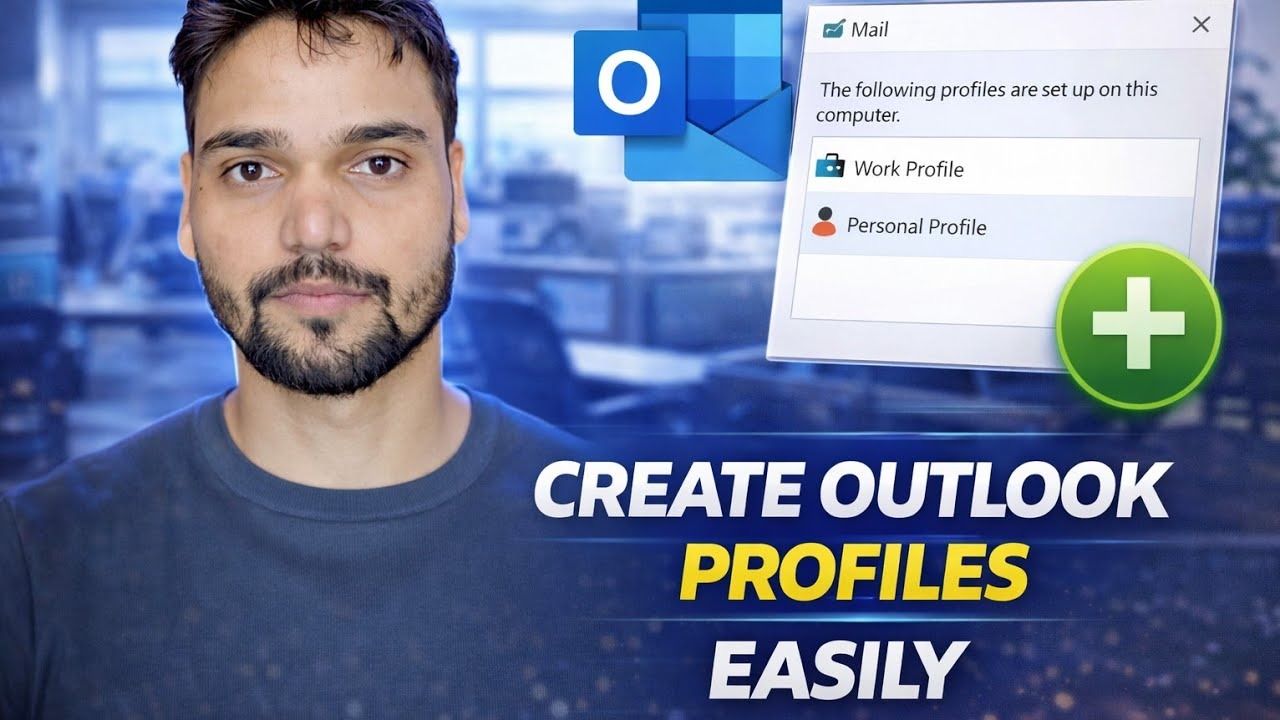
Office mail and personal mail mixed in one Outlook is how a private reply ends up sent from the company address. This video builds the clean fix: two Outlook profiles, each with its own accounts and its own data file — Office.pst and Personal.pst — plus one desktop shortcut per world, so the two never share a screen, a search box or a Send button.
📑Chapters
- Why mixed mail goes wrong — replies sent from the wrong address and personal mail filed into the office store
- Decide how strong the wall must be — two profiles, or one profile with separate accounts and data files
- Create the two profiles in the Windows Mail applet
- Give each world its own data file — Office.pst and Personal.pst
- The simple trick — one desktop shortcut per profile
- Fix the send side — default account and the visible From field
- File incoming mail automatically with rules
- Finish the job — search scope, separate backups and the same wall on your phone
📋 Overview & Step-by-Step Guide
Decide How Strong the Wall Must Be
There are exactly two clean ways to separate personal and corporate mail in Outlook, and the video builds the setup around choosing one of them first. Two Outlook profiles is the hard wall: personal mail lives in one profile, office mail in another, and Outlook loads only one profile at a time — the two worlds never share a screen, a search box or a Send button. One profile with two accounts and two data files is the convenient wall: both mailboxes are visible together, but every account keeps its own store, its own folders and its own rules.
Neither is wrong. Profiles suit anyone whose office forbids mixing, or who worries about sending mistakes. One profile suits people who genuinely live in both inboxes all day. The steps below follow the profile route the video demonstrates, with the data-file discipline that both routes depend on.
Create Two Separate Profiles
Profiles are managed outside Outlook, in the Windows Mail applet — Outlook itself must be closed first. Open Control Panel → Mail (Microsoft Outlook) → Show Profiles. Your existing profile holds everything today; leave it untouched for now, because it becomes one side of the split.
Click Add, name the new profile something obvious like Office or Personal, and add only that side's email account to it. Repeat for the other world if you are building both from scratch. Back in the profile list, select Prompt for a profile to be used, so Outlook asks which world you want every time it starts — that one prompt is what stops the two inboxes from ever opening together by accident.
Give Each World Its Own Data File
Separation lives or dies on the data files. IMAP, Exchange and Microsoft 365 accounts automatically get their own folder tree and their own OST file, so that part is already separate. POP accounts are the danger: they deliver into a PST file, and several POP accounts can silently share one file — which quietly mixes the two worlds back together.
Open File → Account Settings → Data Files and use Add to create one PST per world — Office.pst and Personal.pst, exactly as the video names them. PST files normally live in C:\Users\YourName\Documents\Outlook Files. Then select each POP account, click Change Folder, and point it at its own data file so new mail lands in the right store from the first day. Name files and top folders clearly: six months from now, Office and Personal will still make sense; Outlook1.pst will not.
Two Shortcuts — the Simple Trick
This is the trick in the video's title. Instead of answering the profile prompt every time, give each world its own desktop shortcut that starts Outlook directly in that profile. Right-click the desktop, choose New → Shortcut, and use this target for the office world:
outlook.exe /profile "Office"Make a second shortcut the same way for the personal world:
outlook.exe /profile "Personal"Name the shortcuts "Outlook – Office" and "Outlook – Personal" and the separation becomes one click. Remember the honest limit: switching profiles always means closing and restarting Outlook — classic Outlook has no in-app profile switch, and that small inconvenience is exactly what makes the profile wall the stronger one.
Fix the Send Side
Receiving separately is only half the job; the embarrassing accidents happen while sending. Go to File → Options → Mail, find the Send messages section and tick Always use the default account when composing new messages, then set your most-used account as the default in Account Settings.
Understand the built-in behaviour you cannot fully switch off: a reply is sent from the account that received the message. That is normally what you want — just check the From field on anything sensitive, and make that field visible in every compose window via Options → From in the compose window, so a wrong account is obvious before you click Send.
File Incoming Mail Automatically with Rules
Separation should not depend on your memory at 200 messages a day. Open File → Manage Rules & Alerts → New Rule, start from Apply rule on messages I receive, and use the condition through the specified account — every message arriving via the office account can be moved, flagged or categorised the moment it lands. Add sender-based rules for the strays: the bank writing to your office address, the boss writing to your personal one. Keep the rule list short and ordered; ten clear rules beat fifty overlapping ones.
Finish the Job — Search, Backup and the Phone
Three finishing touches make the separation real instead of cosmetic. Search: set the default search scope to Current Mailbox under File → Options → Search, so a quick search never drags personal results into an office question — or the reverse — during a screen share. Backup: back up each data file to its own destination; a single combined backup quietly re-mixes what you just separated, and personal backups should not exist only on company storage. Phone: keep the same wall on mobile — the Outlook app for office mail and a separate app (or an Android work profile) for personal, so notifications and accounts never blend.
🏷️Topic Search Variables & Keywords
🎙️ Full Transcript — tap to expand
Step-by-Step Troubleshooting Guide & Solutions - CREATE OUTLOOK PROFILES EASILY. On-screen demonstration by Technical Anshu.
Keep personal and office mail truly separate in Outlook - two profiles or one profile with separate accounts, data files, rules and search, step by step.
(transcript ends here on the source page)
❓ Frequently Asked Questions
Is this tutorial 100% free to follow?
Yes! All guides and methods demonstrated by Technical Anshu use free, legal, and educational resources.
Can beginners follow this guide?
Absolutely! Every step is demonstrated on-screen with detailed instructions so anyone can follow along easily.
Where can I ask questions if I get stuck?
Leave a comment directly on the YouTube video, and our community and Technical Anshu will help you out.
🚀 Watch the Full Tutorial on YouTube
🚀 Watch the full step-by-step video tutorial on YouTube: https://www.youtube.com/watch?v=oOj1ddV5H1s
Subscribe to Technical Anshu for IT support, Windows troubleshooting, and server management.
▶️ Watch Full Video