Latest Windows Update Broke RDP? 😳 New Warning FIX!
A Windows update went in, and now Remote Desktop either shows a new warning popup or refuses to connect at all. Work through this fix order: read the new warning correctly, check the host switches updates flip, fix NLA and user group access, refresh the saved credentials — and only then uninstall the update.
📑Chapters
- The new RDP warning popup after the update — what it is actually telling you
- Check the host switches an update can flip — is Remote Desktop still switched on?
- Check the Remote Desktop services are running on the host
- Fix NLA and Remote Desktop Users group access
- Refresh the saved credentials, including the MicrosoftAccount username format
- Last resort only — uninstall the update
📋 Overview & Step-by-Step Guide
Read the New RDP Warning Correctly
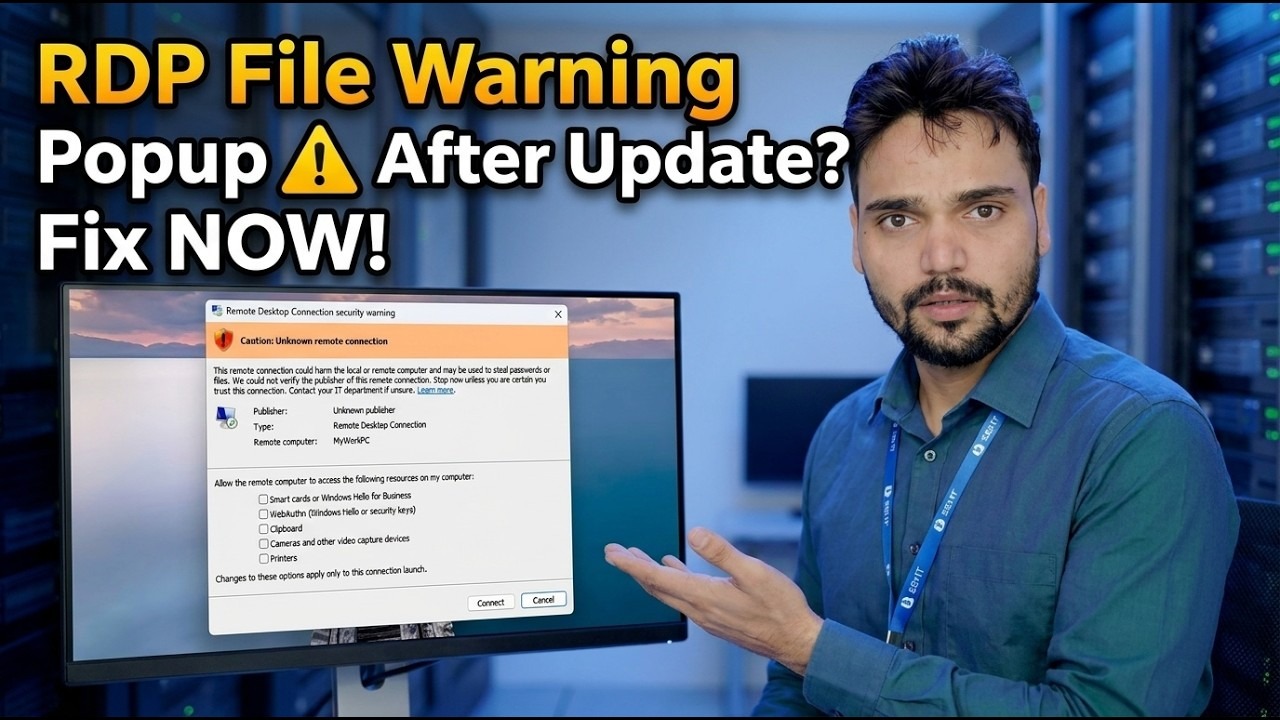
After the update, connecting with Remote Desktop can bring up a warning popup saying the identity of the remote computer cannot be verified, asking whether you want to connect anyway. This is an identity warning: Windows is telling you it cannot fully confirm the machine on the other side is the one you expect. It does not automatically mean RDP is broken.
Before you click through, match the computer name or IP address in the warning against the PC you actually intend to connect to. If it is exactly your machine, tick Don't ask me again for connections to this computer and click Connect — the warning will not keep returning for that host.
Check the Host Switches the Update Flipped
Updates can quietly flip host-side Remote Desktop settings back. On the PC you are trying to connect to (the host), press Win + R, run the command below, and open the Remote tab in System Properties.
sysdm.cplUnder Remote Desktop, make sure Allow remote connections to this computer is selected. If the update turned it off, every connection attempt fails no matter what you fix on the client side — switch it back on, click Apply, and test again before moving deeper.
Check the Remote Desktop Services
Still on the host PC, open the Services console with the command below and find Remote Desktop Services.
services.mscIts status should be Running. If it is stopped, start it and test the connection again. A service stopped by an update or a failed update restart looks exactly like "RDP is broken" from the other PC.
Fix NLA and User Group Access
Back in sysdm.cpl on the Remote tab, look at the option Allow connections only from computers running Remote Desktop with Network Level Authentication (recommended). With NLA on, the user must authenticate before a session opens — so the account used for RDP must genuinely be allowed on the host.
Administrators get access by default, but a standard user must be added to the Remote Desktop Users group (the same list you manage with the Select Users button on the Remote tab). You can add the user from an administrator Command Prompt — replace rdpuser with the actual user name:
net localgroup "Remote Desktop Users" rdpuser /addRefresh the Saved Credentials
An update can leave the client connecting with stale saved credentials. In the Remote Desktop Connection window, pick the saved connection and delete its saved credentials, then connect fresh and type the password again.
If the host signs in with a Microsoft account, the username must go in the MicrosoftAccount format — your Microsoft email prefixed exactly like this:
MicrosoftAccount\[email protected]
Typing just the email address without the MicrosoftAccount\ prefix is a very common reason a correct password gets rejected after an update.
Last Resort — Uninstall the Update
Only if every step above checks out and RDP still fails, remove the update itself: Settings → Windows Update → Update history → Uninstall updates, uninstall the most recent update, restart the PC, and test Remote Desktop again.
🏷️Topic Search Variables & Keywords
🎙️ Full Transcript — tap to expand
Step-by-Step Troubleshooting Guide & Solutions - RDP File Warning Popup After Update? Fix NOW! On-screen demonstration by Technical Anshu.
Remote Desktop stopped working or a new security warning appeared after a Windows update? Work through this fix order: read the new RDP warning correctly, check the host switches updates flip, fix NLA and user group access, refresh saved credentials, and only then uninstall the update.
(transcript ends here on the source page)
❓ Frequently Asked Questions
Is this tutorial 100% free to follow?
Yes! All guides and methods demonstrated by Technical Anshu use free, legal, and educational resources.
Can beginners follow this guide?
Absolutely! Every step is demonstrated on-screen with detailed instructions so anyone can follow along easily.
Where can I ask questions if I get stuck?
Leave a comment directly on the YouTube video, and our community and Technical Anshu will help you out.
🚀 Watch the Full Tutorial on YouTube
🚀 Watch the full step-by-step video tutorial on YouTube: https://www.youtube.com/watch?v=qzF9U99DiQw
Subscribe to Technical Anshu for IT support, Windows troubleshooting, and server management.
▶️ Watch Full Video