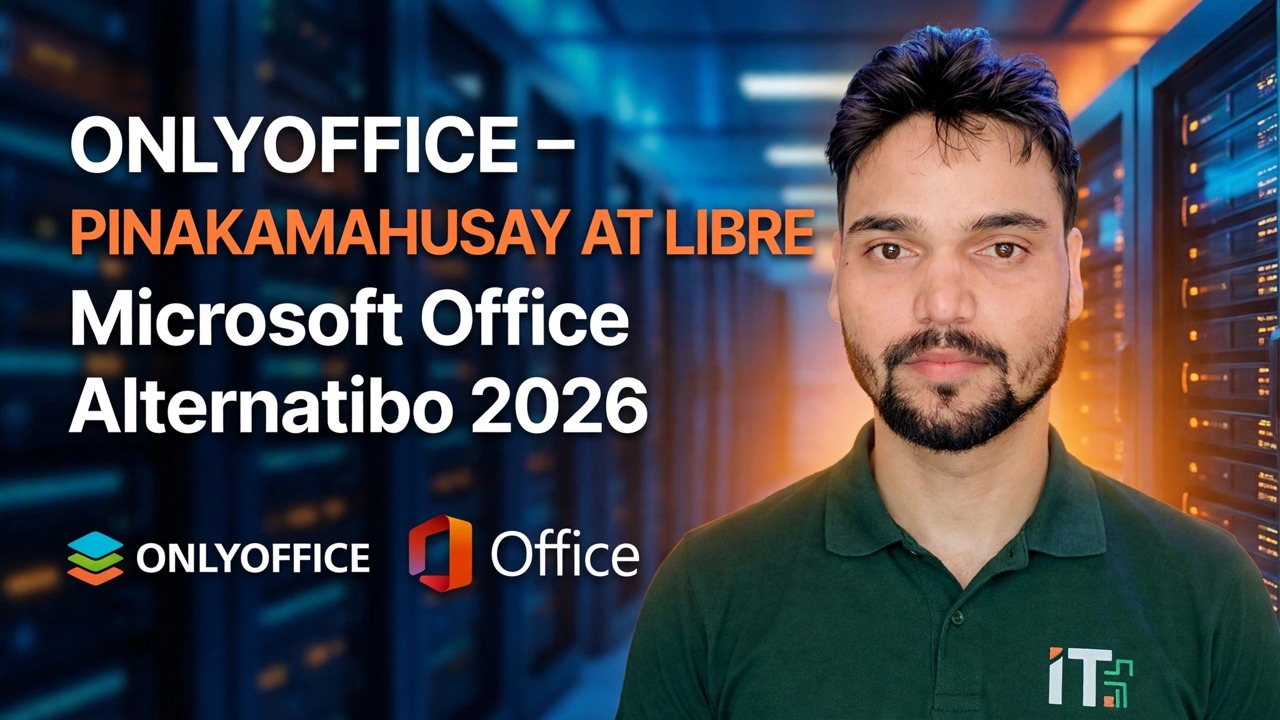
ONLYOFFICE: Pinakamahusay na Libreng Alternatibo sa Microsoft Office 2025 | Review
00:00 Libreng alternatibo ng ONLYOFFICE sa Microsoft Office
00:02 Ano ang ONLYOFFICE at bakit ito gamitin
00:07 Pangkalahatang-ideya ng interface na katulad ng Microsoft Office
00:09 Compatibility ng Word, Excel, PowerPoint at PDF
00:24 I-download ang ONLYOFFICE para sa Windows
00:50 Simulan ang pag-install ng ONLYOFFICE🎙️ Filipino Key Notes & Transcript
Hey guys, this is Ansar. If you want an alternative to Microsoft Office, you can use ONLYOFFICE. It also gives you a Microsoft‑like interface and you can easily use your Excel sheets, PowerPoint and Word files with PDF. So how to download it and install it? So next. It gives you a Microsoft‑like interface and you can easily use your Excel sheets, PowerPoint and Word files with PDF. So how to download it and install it? So next. In the following videos we’ll explain how to do it. So to install ONLYOFFICE you need to go to Chrome and type ONLYOFFICE for Windows. Then press Enter. Sa itaas ng pahina, makikita mo ang unang link na kailangang buksan; dito mo makukuha ang halos lahat ng kailangan. I-click mo lang ang bersyon para sa Windows at i-install mula rito. Para sa Windows, makikita mo ang dalawang opsyon: EXE o MSI. Maaari mong piliin kung alin ang gusto mo at i-click. Sa pagkakataong ito, i-click natin ang isa na ito at i-download agad. Pagkatapos mong ma-download, doble‑click mo ang installer para magsimula. Pindutin mo lang ang Yes, pagkatapos ang OK, at pagkatapos ang Next. Mula dito, magpapatuloy ang proseso. Click ang Accept, pagkatapos i-click ang Next, at muli i-click ang...
📋 Overview & Step-by-Step Guide
00:02 Ano ang ONLYOFFICE at bakit ito gamitin
00:07 Pangkalahatang-ideya ng interface na katulad ng Microsoft Office
00:09 Compatibility ng Word, Excel, PowerPoint at PDF
00:24 I-download ang ONLYOFFICE para sa Windows
00:50 Simulan ang pag-install ng ONLYOFFICE
01:11 Tanggapin ang mga termino at tapusin ang setup
01:18 I-launch ang ONLYOFFICE pagkatapos ng pag-install
01:37 Lumikha ng mga dokumento gamit ang ONLYOFFICE
Naghahanap ka ba ng pinakamahusay na libreng alternatibo sa Microsoft Office sa 2025? 💻
Sa video na ito, tatalakayin namin ang ONLYOFFICE, isang makapangyarihang at ganap na libreng office suite na katumbas ng MS Office at Google Workspace!
✅ Lumikha at i-edit ang mga file ng Word, Excel, at PowerPoint
✅ 100% na compatible sa mga format ng Microsoft Office
✅ May offline + cloud access
✅ Perpekto para sa mga gumagamit ng Windows, macOS, at Linux
Manood hanggang dulo para malaman kung paano i-download, i-install, at gamitin ang ONLYOFFICE nang sunud-sunod!
🔥 Magtipid at tamasahin ang mga professional-grade na tools — libre!
#OnlyOffice #FreeOfficeSuite #MicrosoftOfficeAlternative #BestFreeSoftware #Office2025 #MSOfficeAlternative #OpenSourceSoftware #Windows11Tools #ProductivityApps #TechGuide2025
❓ Frequently Asked Questions (Filipino)
Is this tutorial 100% free to follow?
Yes! All guides and methods demonstrated by Technical Anshu use free, legal, and educational resources.
Can beginners follow this guide?
Absolutely! Every step is demonstrated on-screen with detailed instructions so anyone can follow along easily.
Where can I ask questions if I get stuck?
Leave a comment directly on the YouTube video, and our community and Technical Anshu will help you out.